**Hint**: Contact support team for any syntax matters
**Remark**: Presets can be started automatically or manually. For manual transcoding select media content then properties-> select from drop-down menu Transcode and desired transcoding preset. [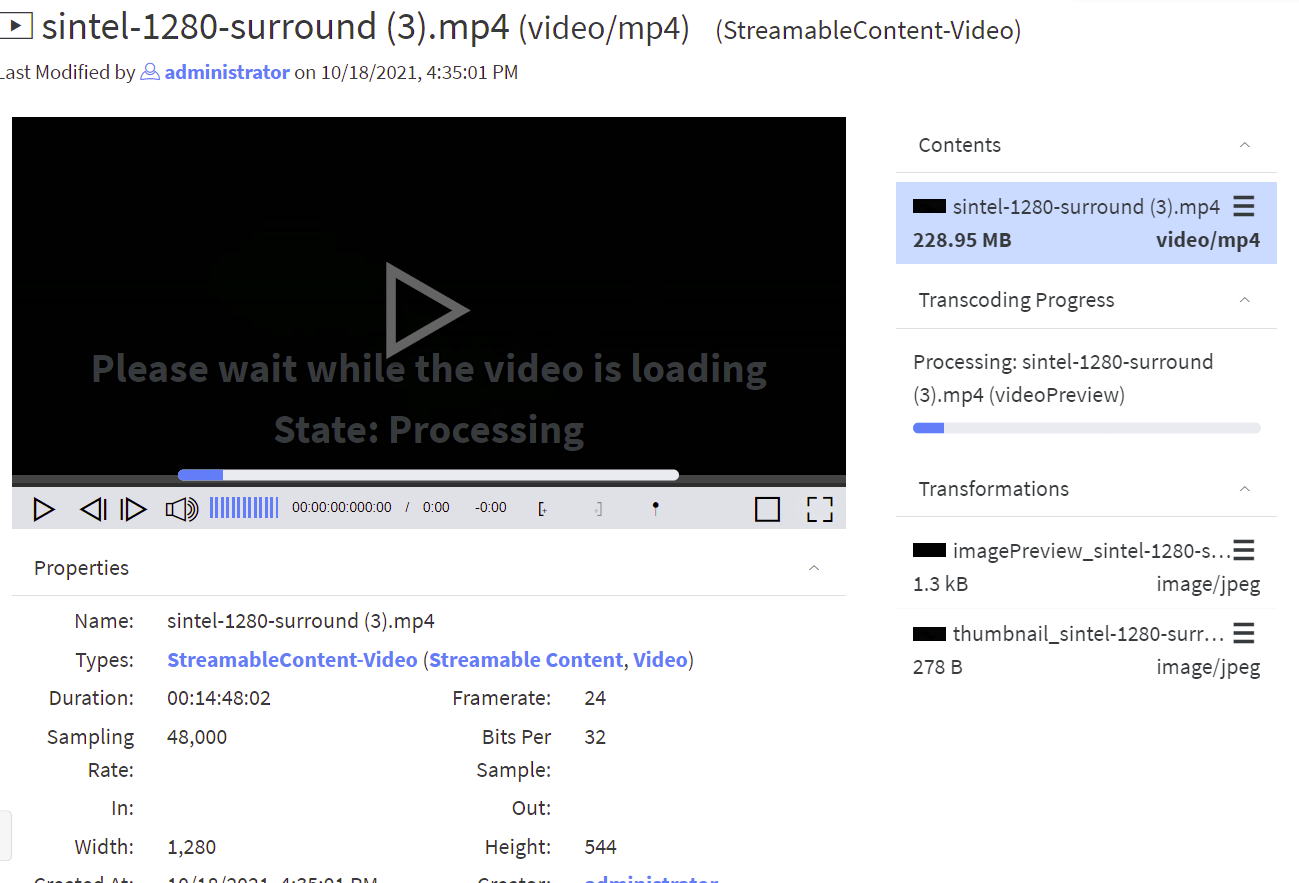](https://docs.profuzdigital.com/uploads/images/gallery/2024-11/3qEimage.png) When transcoding process is started, a progress bar will appear and will show to the user the status of the transcoding progress. Once it finished, the copy will be available for usage. **Remark**: You can monitor all queued and ongoing transformations in the MAM -> Current Transcoddings, and view all finished transcoddings in MAM -> Finished Transcodings. ## Example for editing Video Transcode Template Go to MAM → Video Transcode Templates as shown below: [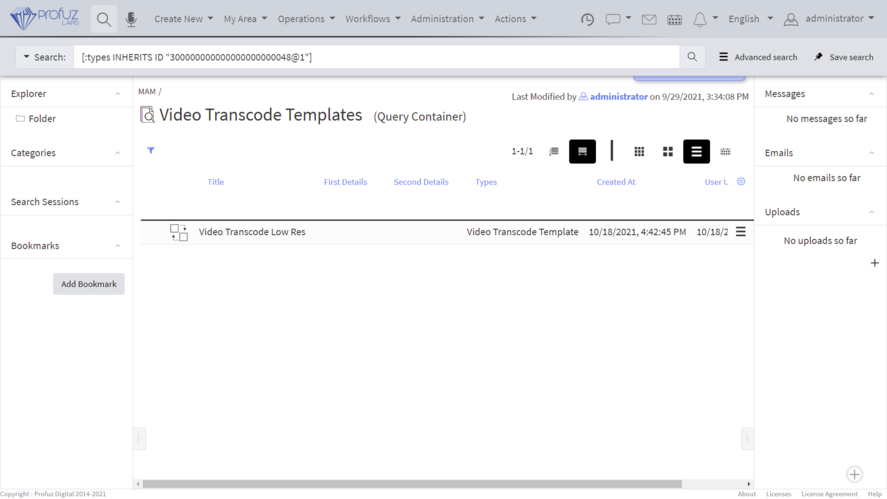](https://docs.profuzdigital.com/uploads/images/gallery/2024-11/RsXimage.png) Select the template you want to edit and go to Actions →Edit: [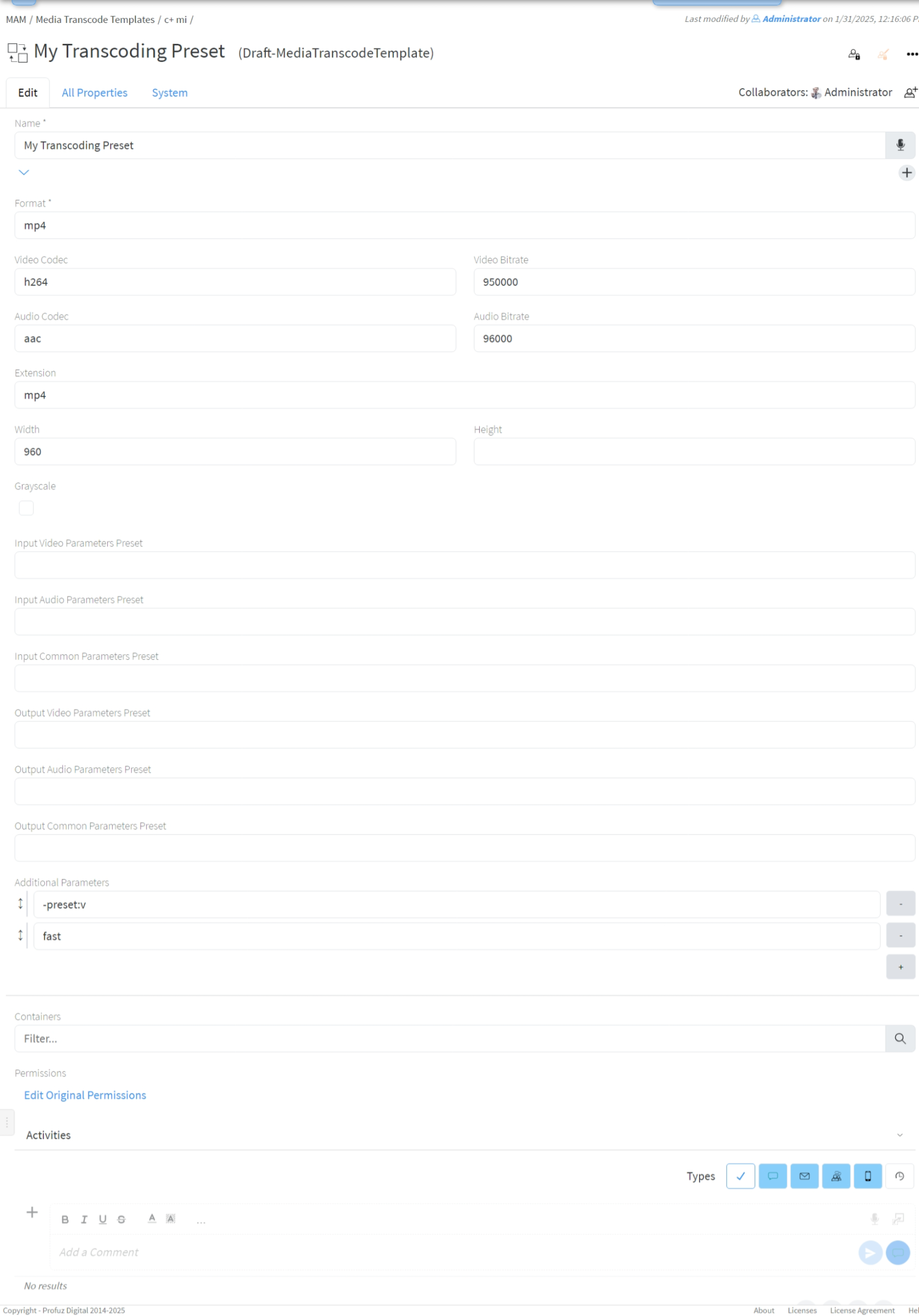](https://docs.profuzdigital.com/uploads/images/gallery/2025-01/eXKimage.png) #### Template properties - **Format** - file format. One of the specifiers for muxers as returned by `ffmpeg -formats`. For example **mp4**, **avi**, **flv**, **gif**. You may find more info in [ffmpeg formats documentation](https://ffmpeg.org/ffmpeg-formats.html); - **Video Codec** - one of the video encoder specifiers as returned by `ffmpeg -codecs`. For example **h264** (for automatic selection of software or hardware encoding), **libx264** (for software encoding of h264), **h264\_nvenc** (for NVidia GPU encoder), **mpeg2video**. You may find more info in [ffmpeg video encoders documentation](https://ffmpeg.org/ffmpeg-codecs.html#Video-Encoders); - **Video Bitrate** - bitrate in bits per second. For example **3000000** for 3 Mib/s; - **Audio Codec** - one of the audio encoder specifiers as returned by `ffmpeg -codecs`. For example **aac**, **mp3**, **pcm\_f16le.** You may find more info in [ffmpeg audio encoders documentations](https://ffmpeg.org/ffmpeg-codecs.html#Audio-Encoders). - **Audio Bitrate** - bitrate in bits per second. For example **96000** for 96 Kib/s; - **Extension** - file extension for the transcoded file; - **Width** - for video formats specify the width of the video frame. Leave blank to use original width; - **Height** - for video formats specify the height of the video frame. Set to -1 to calculate it based on aspect ratio; - **Grayscale** - if checked a grayscale video will be produced; - **Input/Output Video/Audio/Common Parameter Preset** - specify corresponding ffmpeg preset file. You may find more info in [ffmpeg presets documentation](https://ffmpeg.org/ffmpeg.html#Preset-files); - **Additional Parameters** - you may put any ffmpeg encoding or output option in this field. Each argument is put in separate line. You don't need to surround a parameter in quotes (they are needed only in command line). For all ffmpeg options execute `ffmpeg -h full`. You may find more info for available parameters in [ffmpeg documentation](https://ffmpeg.org/ffmpeg.html).