# Sales process
General Sales process goes in the following way:
The Process starts by creating a **Deal**. This is the first entry in the system of the deal details. It can be used for internal approval if necessary or that can be done on some of the following steps as well.
Then **Quote** – **Order** – **Project** - **Invoice**
Before starting sales process, products and services have to be defined. Please refer to Products and Services Section
### Starting a Deal
There are several ways to start a Deal:
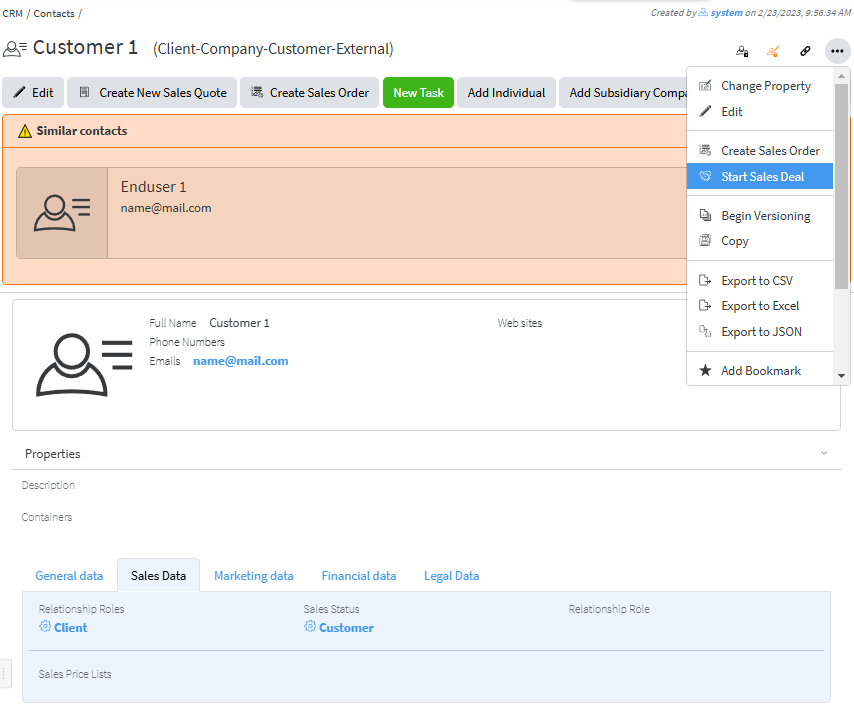
- From a contact, which type is **External**, and relationship role is **Client** (which might be a company or individual) **Actions/Start sales Deal**.
[](https://docs.profuzdigital.com/uploads/images/gallery/2024-11/wn4image.png)
- From **Create new** menu choose **Other**, then search for **Sales Deal** and select it. Press SAVE
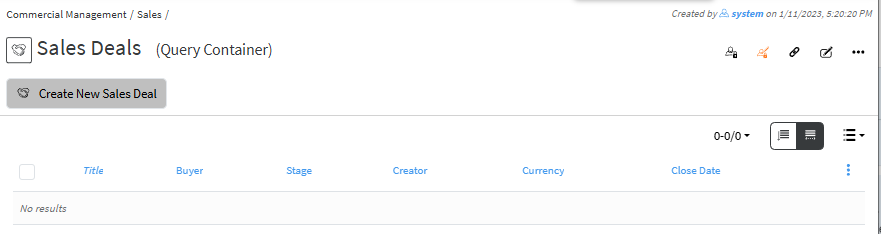
- From **Commercial module** – **Sales Deals** – with the button Create New Sales deal
[](https://docs.profuzdigital.com/uploads/images/gallery/2024-11/ES5image.png)
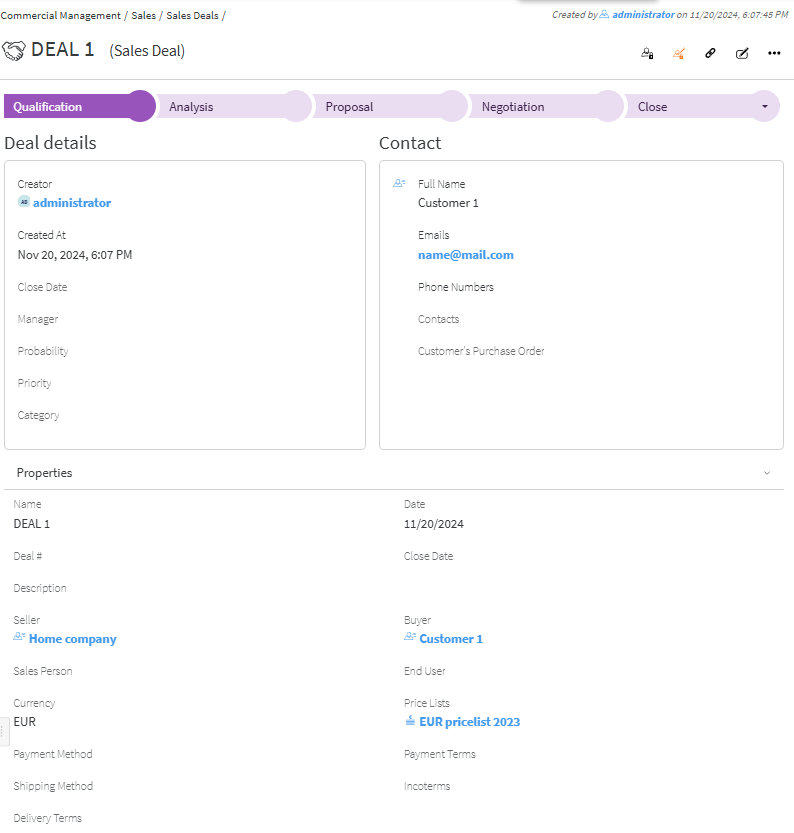
The details then need to be added.
**Name** – a name of the deal
**Description** – some description or additional details can be added
**Close date** – if there is a deadline it can be added here
**Currency** – it is selected from a dropdown menu. If not selected USD is used by default.
**Price list** – it is selected from a drop-down menu, as options shown depend on the currency chosen. For Price list see [Creating Price List](https://docs.profuzdigital.com/books/profuz-lapis-user-guide/page/products-and-services#bkmrk-creating-price-list)
**Payment method, Payment terms, Shipping method** and **Contacts** are added if needed.
**Deal #** by default is a text, depending on the company policy for numbering Sales deal, however automatic numbering can be additionally configured. Enumerators can be added in advance to use automatic numbering. [Creating Enumerator](https://docs.profuzdigital.com/books/profuz-lapis-user-guide/page/enumerators#bkmrk-creating-enumerator)
By Pressing **Create**, the Deal is created.
[](https://docs.profuzdigital.com/uploads/images/gallery/2024-11/Jdmimage.png)
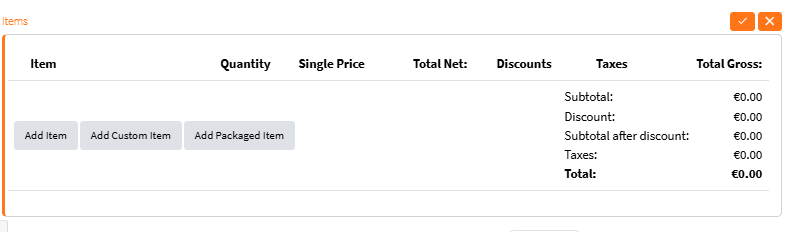
Items (Sellables) can be added after that in Edit Mode (**Actions/Edit**) or by quick edit button [](https://docs.profuzdigital.com/uploads/images/gallery/2024-11/8Zqimage.png)
When pressing Add item at the bottom left of the deal screen, a field with item details is shown.
[](https://docs.profuzdigital.com/uploads/images/gallery/2024-11/oxoimage.png)
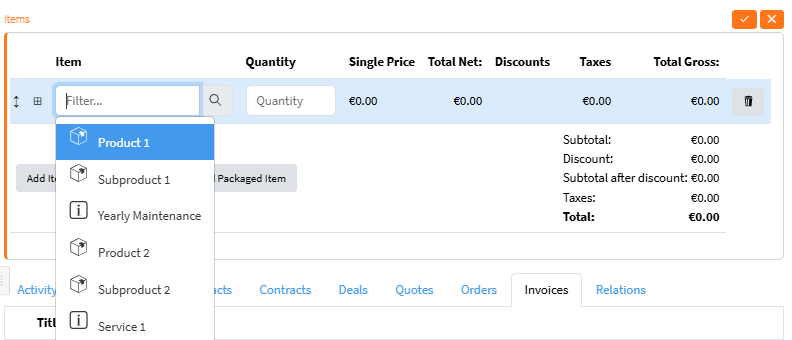
By clicking in an empty field a list with suggested Products is shown,
[](https://docs.profuzdigital.com/uploads/images/gallery/2024-11/jfVimage.png)
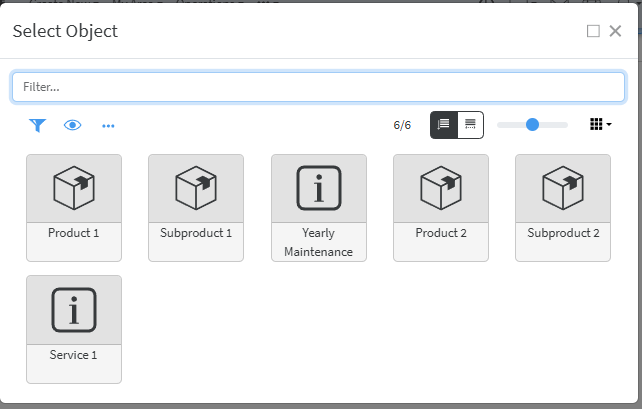
If another one needs to be found or new created you have to click on the **magnifier** and in the pop up screen you can find an existing item.
[](https://docs.profuzdigital.com/uploads/images/gallery/2024-11/1rzimage.png)
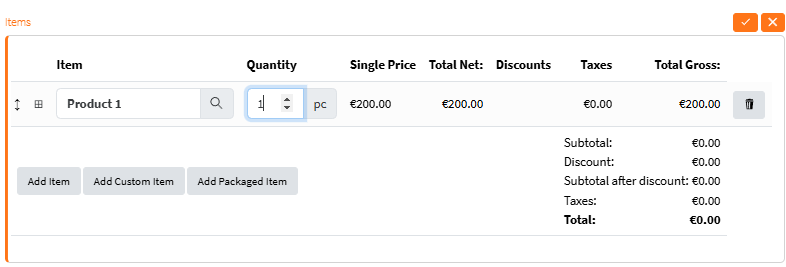
Once the Item is added and quantity is set to 1 or more, the price from Price List appears. It can be edited if necessary.
[](https://docs.profuzdigital.com/uploads/images/gallery/2024-11/1Muimage.png)
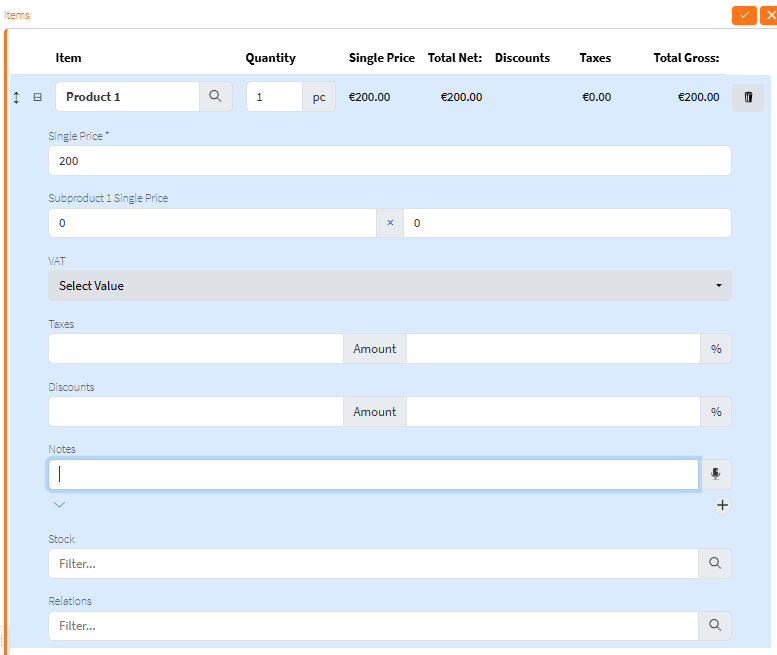
Some additional information needs to be filled in and it appears by pressing here [](https://docs.profuzdigital.com/uploads/images/gallery/2024-11/4Vwimage.png)
[](https://docs.profuzdigital.com/uploads/images/gallery/2024-11/vUeimage.png)
Quantity and single price can be edited.
The VAT, additional taxes and discounts (in % or with a value) can be added.
Stock will be defined later.
[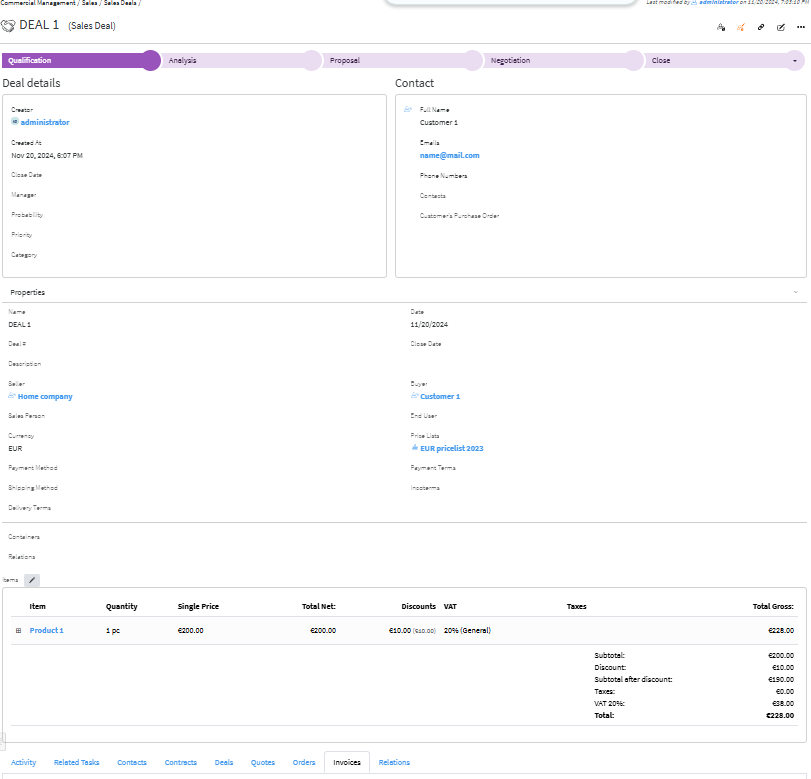](https://docs.profuzdigital.com/uploads/images/gallery/2024-11/deIimage.png)
Deal statuses by default configuration are
Qualification – Analysis – Proposal – Negotiation – Close Approved/Close Declined
Depending on customer’s needs these statuses can be more or less and named in a different way.
[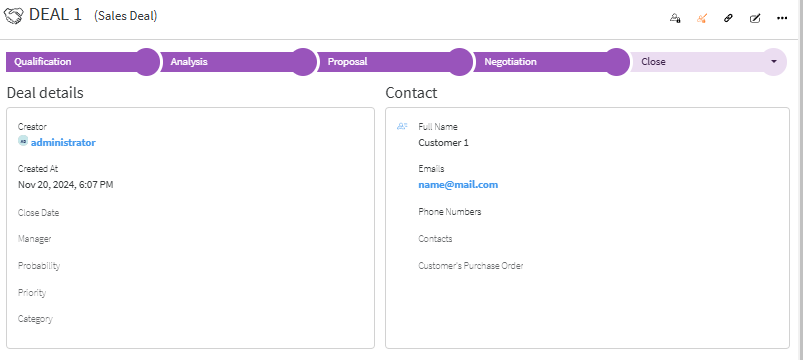](https://docs.profuzdigital.com/uploads/images/gallery/2024-11/w6Wimage.png)
In the Deal Object at the bottom of the page there are several tabs with useful links and information.
**Activities**
At the bottom of the page, in Activity tab, the Several types of Activities can be monitored
They can be swithed on by pressing the corresponding button.
[](https://docs.profuzdigital.com/uploads/images/gallery/2024-12/PTJimage.png)
The two main types are:
Comments  and Activity logs [](https://docs.profuzdigital.com/uploads/images/gallery/2024-12/oPyimage.png)
Comments are used for real time comments and notes.
Adding a comment - In the corresponding field *Add a Comment* is visible in grey.
[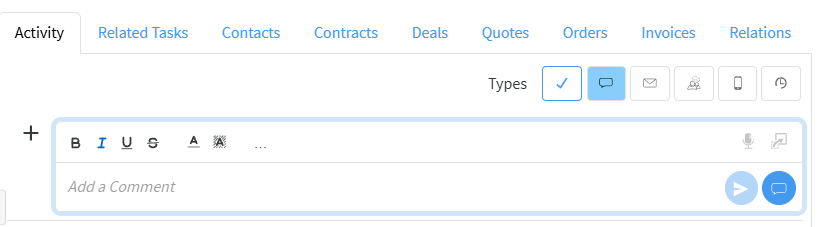](https://docs.profuzdigital.com/uploads/images/gallery/2024-12/ScWimage.png)
The comment is written there and it is added by pressing Submit Button.[](https://docs.profuzdigital.com/uploads/images/gallery/2024-11/H8ximage.png)
They can be formatted with colors, fonts, styles, etc and edited if needed.
[](https://docs.profuzdigital.com/uploads/images/gallery/2024-11/dHwimage.png)
Activity [](https://docs.profuzdigital.com/uploads/images/gallery/2024-12/uzJimage.png)– shows log of the Activities
[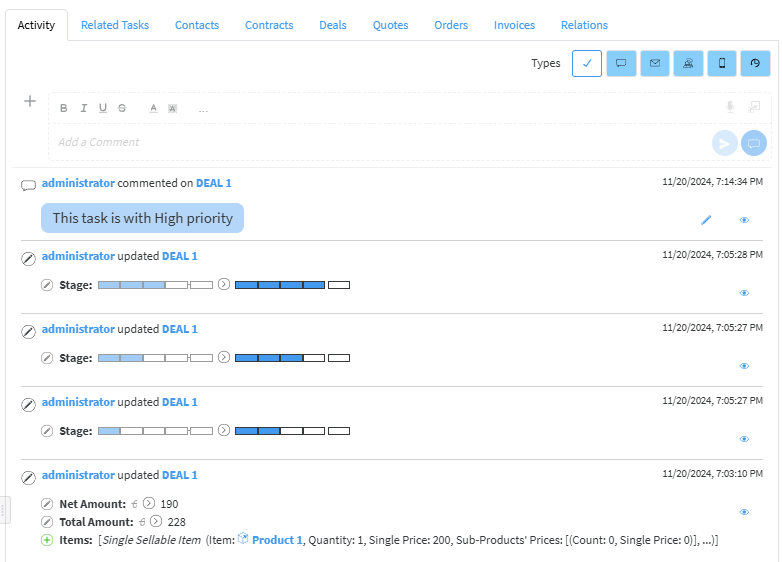](https://docs.profuzdigital.com/uploads/images/gallery/2024-11/c3oimage.png)
In **Relations** tab any related file or object can be seen **Relating a file or an object.**
### Creating a Quote
From Deal the Quote can be created by Actions/Generate Quote with the details that are in the Deal
[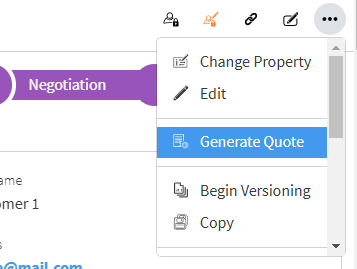](https://docs.profuzdigital.com/uploads/images/gallery/2024-12/LSximage.png)
Quote # by default is a text, depending on the company policy for numbering Sales quote, however automatic numbering can be additionally configured. Enumerators can be added in advance to use automatic numbering. [Creating Enumerator](https://docs.profuzdigital.com/books/profuz-lapis-user-guide/page/enumerators#bkmrk-creating-enumerator)
[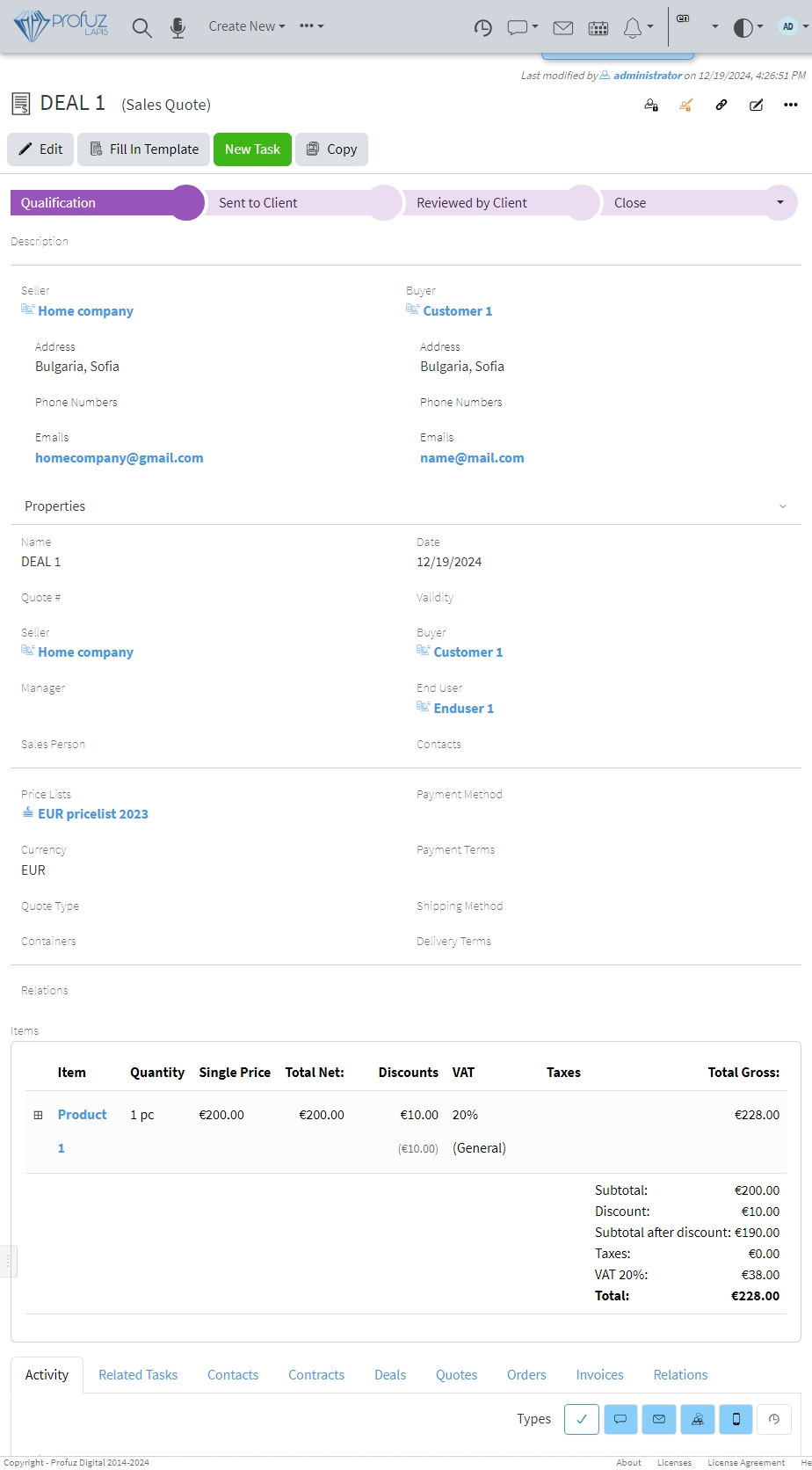](https://docs.profuzdigital.com/uploads/images/gallery/2024-12/4gjimage.png)
Quote Statuses by default are Qualifications – Sent to Client – Reviewed by Client – Close(Approved/Declined)
[](https://docs.profuzdigital.com/uploads/images/gallery/2024-12/Yhsimage.png)
To create A file from Template with the details from the object, go to Actions – Fill in Template from the Object Operations menu, at the upper right  See [Creating a template](https://docs.profuzdigital.com/books/profuz-lapis-user-guide/page/document-templates#bkmrk-creating-template)
[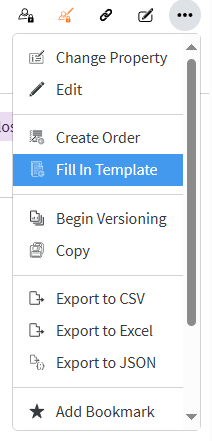](https://docs.profuzdigital.com/uploads/images/gallery/2024-12/lgaimage.png)
and choose the Template you need.
Or using the Button if available
[](https://docs.profuzdigital.com/uploads/images/gallery/2024-12/IoQimage.png)
[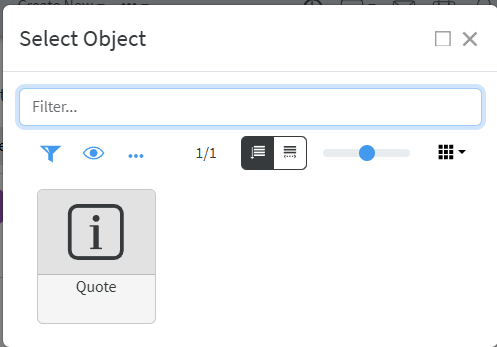](https://docs.profuzdigital.com/uploads/images/gallery/2024-12/Esvimage.png)
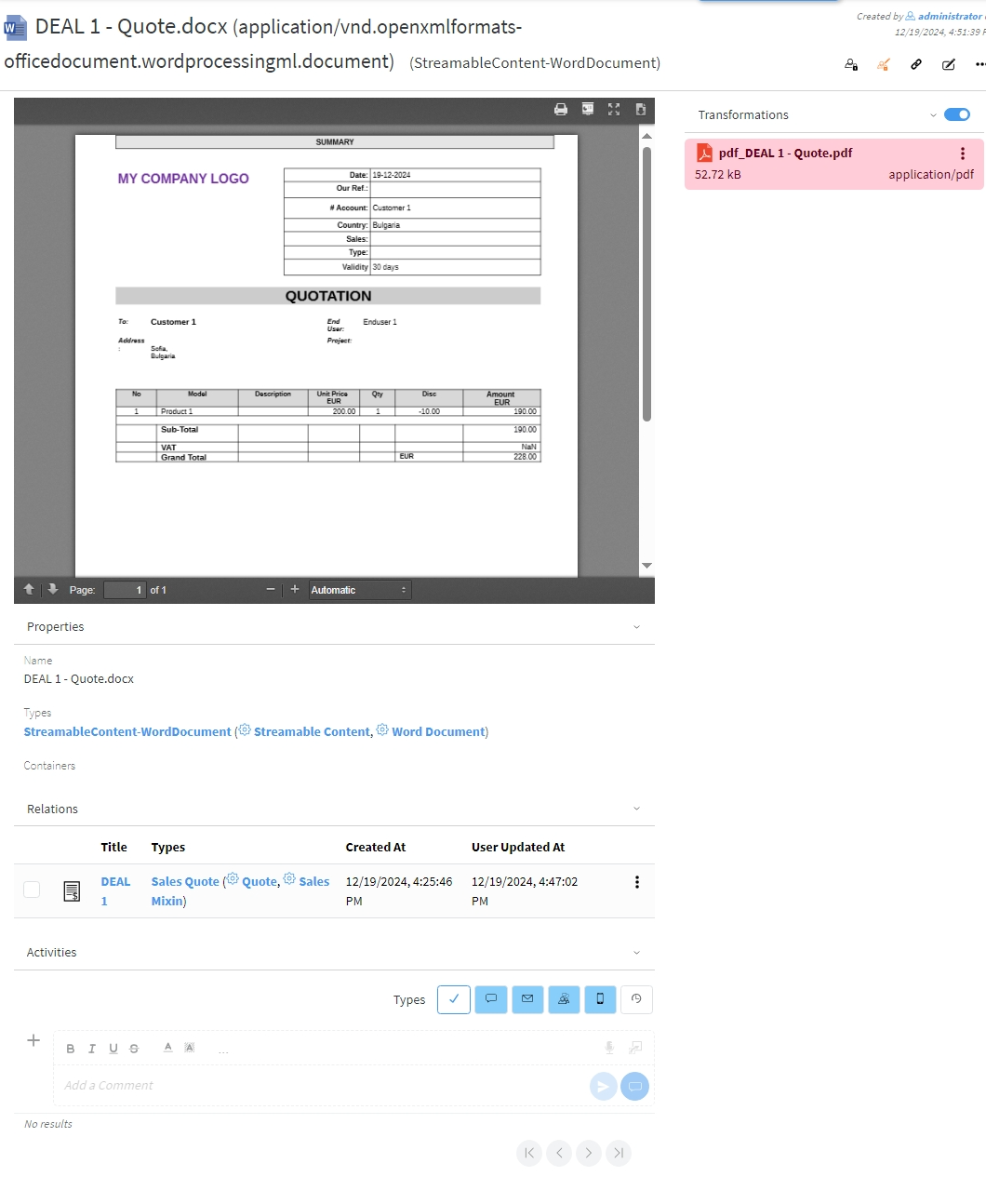
Once selected, the document is generated. It might need some time.
[](https://docs.profuzdigital.com/uploads/images/gallery/2024-12/88Uimage.png)
Then the file is generated in docx format. Docx file is shown in the Contents field.
There is pdf transformation available as well, which can be shown or hidden by swithing on
[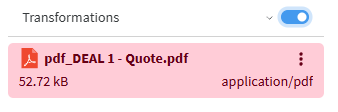](https://docs.profuzdigital.com/uploads/images/gallery/2024-12/Cbnimage.png)
and off the Transformations list
[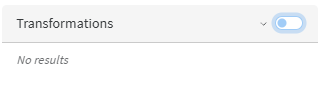](https://docs.profuzdigital.com/uploads/images/gallery/2024-12/YsSimage.png)
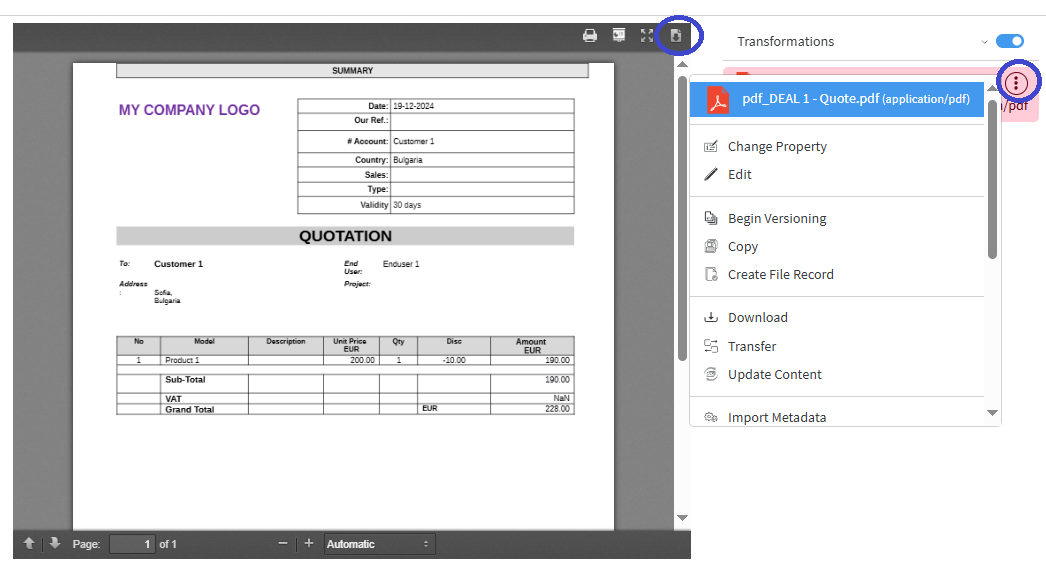
The download of .pdf file can be done by download button in JS viewer [](https://docs.profuzdigital.com/uploads/images/gallery/2024-12/SW6image.png)
or in the Transformation field, by clicking the Actions icon [](https://docs.profuzdigital.com/uploads/images/gallery/2024-12/HiPimage.png)
[](https://docs.profuzdigital.com/uploads/images/gallery/2024-12/XbWimage.png)
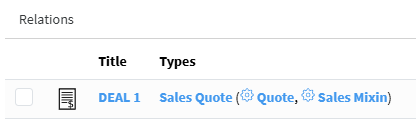
The Quote object can be accessed from the current view of the generated file as it appears at the bottom in the **Relations** section
[](https://docs.profuzdigital.com/uploads/images/gallery/2024-12/Kw8image.png)
A docx file appears in Relations tab at the bottom of **Quote object**. It can be downloaded from there as well via Actions icon
[](https://docs.profuzdigital.com/uploads/images/gallery/2024-12/4FWimage.png)
[](https://docs.profuzdigital.com/uploads/images/gallery/2024-12/JDbimage.png)
Once the status of the Quote is set to Approved, the next step can be done – creating an order
### Creating an Order
- From Create New/Other – Sales order – in case Sales process doesn’t go via Deal-Quote
- From a contact, which type is **External**, and relationship role is **Client** (which might be a company or individual) **Actions/Creates Sales Order** - in case selling process doesn’t go via Deal-Quote
- From Quote the Order can be created by Actions/Create Order
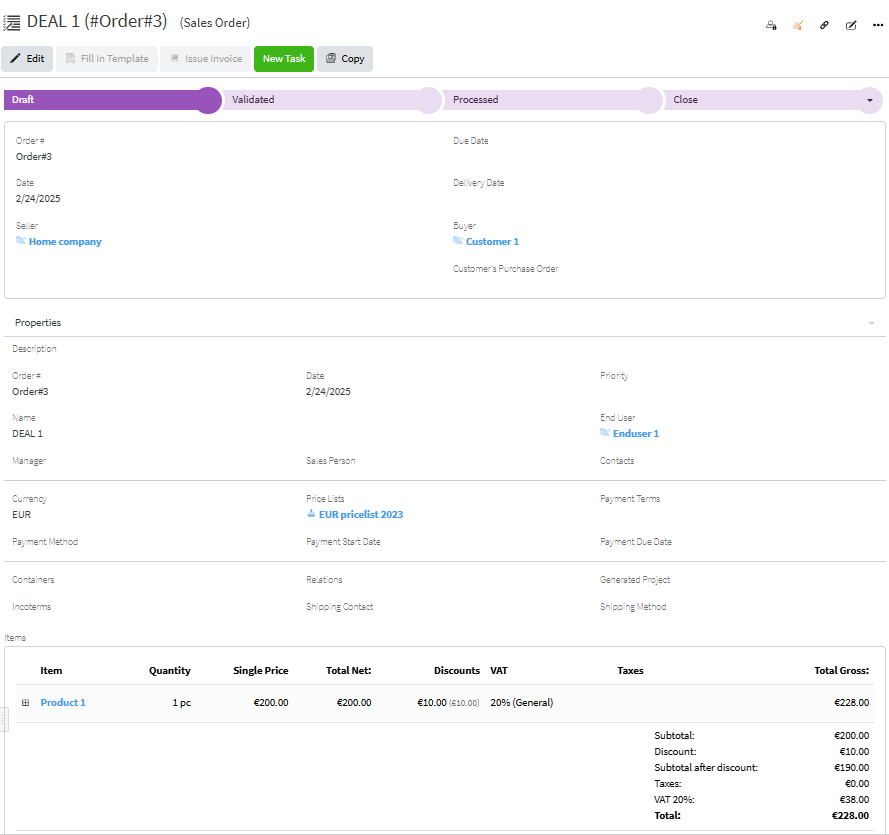
Order statuses by default configuration are Draft – Validated – Processed - Close (Delivered or Canceled)
[](https://docs.profuzdigital.com/uploads/images/gallery/2025-02/yvRimage.png)
Order has the same data as Quote. If necessary, some may be added and some amended.
Order # by default is a text, depending on the company policy for numbering Sales orders, however automatic numbering can be additionally configured. Enumerators can be added in advance to use automatic numbering. [Creating Enumerator](https://docs.profuzdigital.com/books/profuz-lapis-user-guide/page/enumerators#bkmrk-creating-enumerator)
Order statuses by default configuration are Draft – Validated – Processed - Close (Delivered or Canceled)
In order to go to Stage **Processed**, the stock for each Product or Service on stock has to be set. That means that exact stock, from the inventory has to be appointed. If that is not done the current message will appear
[](https://docs.profuzdigital.com/uploads/images/gallery/2024-11/t2simage.png)
This is how the stock is appointed:
Click on the square near the Item as shown below
[](https://docs.profuzdigital.com/uploads/images/gallery/2025-02/Mtuimage.png)
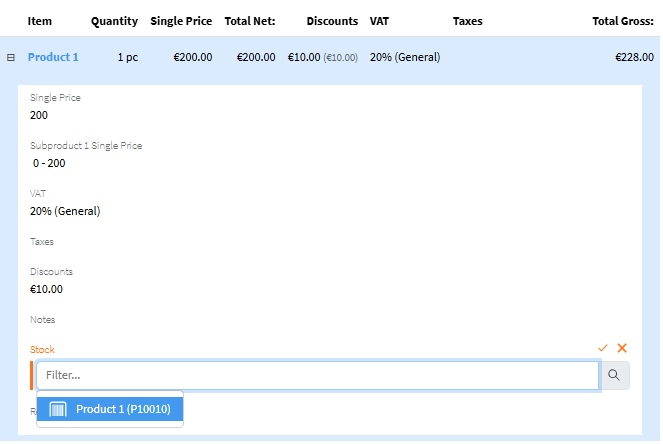
Then the Item area appears, upon hovering on the Stock property, the *Quick Edit* icon appears on the right [](https://docs.profuzdigital.com/uploads/images/gallery/2025-02/LhIimage.png)
[](https://docs.profuzdigital.com/uploads/images/gallery/2025-02/iybimage.png)
The stocks that are available, and which Product corresponds to the Item, appear as choices.
Same can be done in the *Edit* mode of the Order or *Quick Edit* of Items.
After the stocks are set for each Item that needs it, the Status can be changed to Processed and Invoice object can be created.
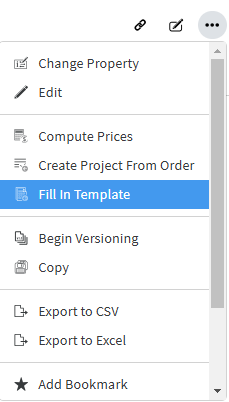
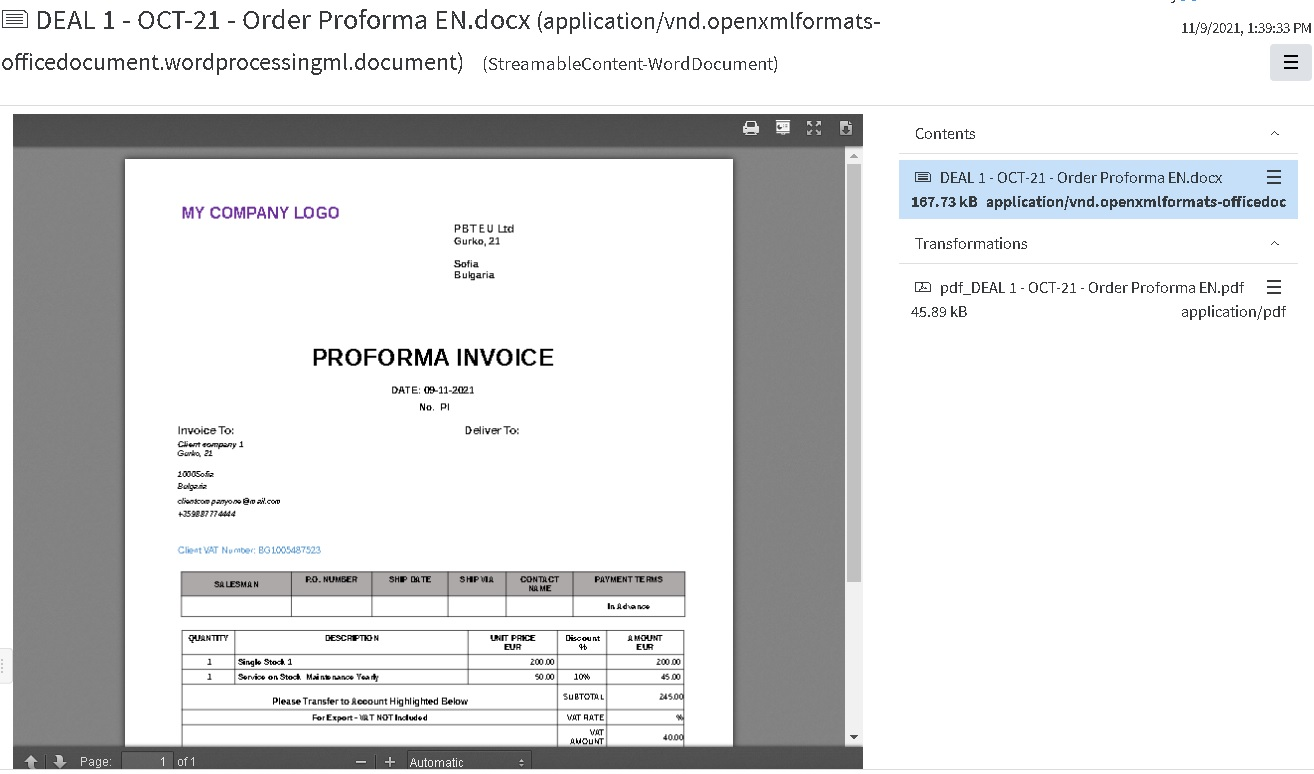
Documents such as Proforma Invoices, Order Acknowledgements (or other) can be generated by Fill in Template in Actions. See [Creating a template](https://docs.profuzdigital.com/books/profuz-lapis-user-guide/page/document-templates#bkmrk-creating-template) for more details.
[](https://docs.profuzdigital.com/uploads/images/gallery/2025-02/du1image.png)
[](https://docs.profuzdigital.com/uploads/images/gallery/2024-11/AOpimage.png)
## Creating a project from Sales Order
More information can be found in [Project Management](https://docs.profuzdigital.com/books/profuz-lapis-user-guide/page/project-management "Project Management") chapter
- From Create New/Other – Project
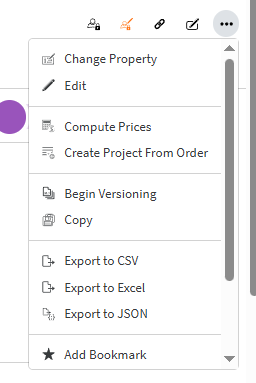
- From the Order can be created by Actions/Create Project from Order
[](https://docs.profuzdigital.com/uploads/images/gallery/2025-03/image.png)
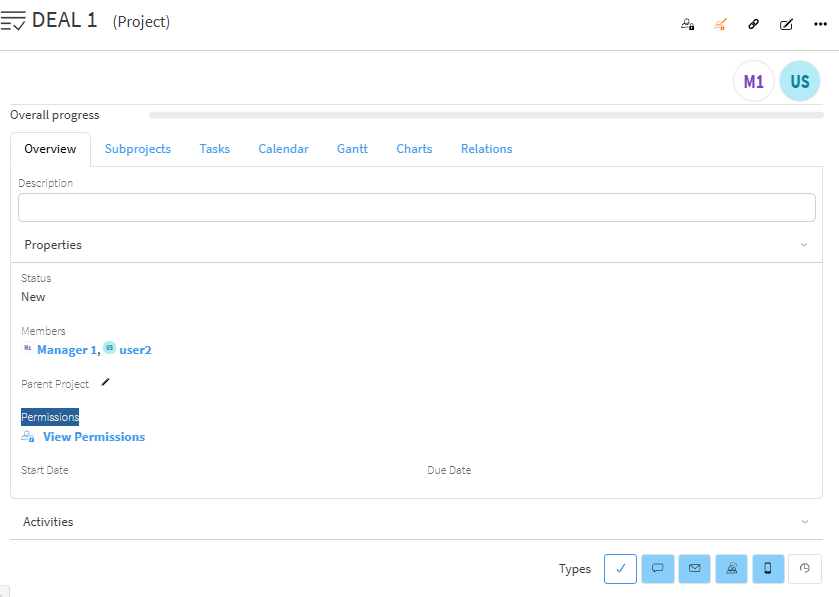
The new object is created of type Project.
[](https://docs.profuzdigital.com/uploads/images/gallery/2025-03/7Upimage.png)
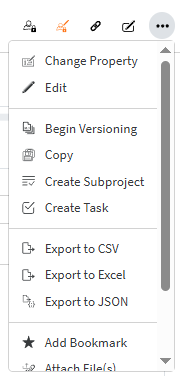
New tasks or subprojects can be added as follows:
[](https://docs.profuzdigital.com/uploads/images/gallery/2025-03/9XMimage.png)
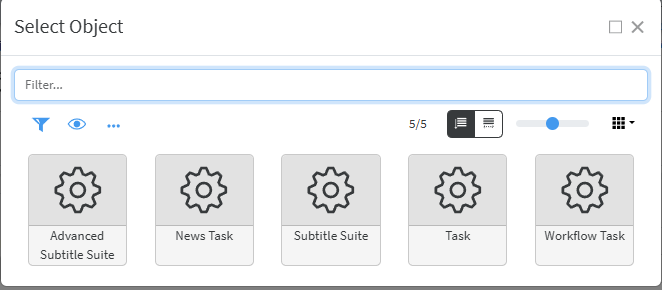
If different types of Tasks are defined, they can be used for the specific processes in the company.
[](https://docs.profuzdigital.com/uploads/images/gallery/2025-03/BzZimage.png)
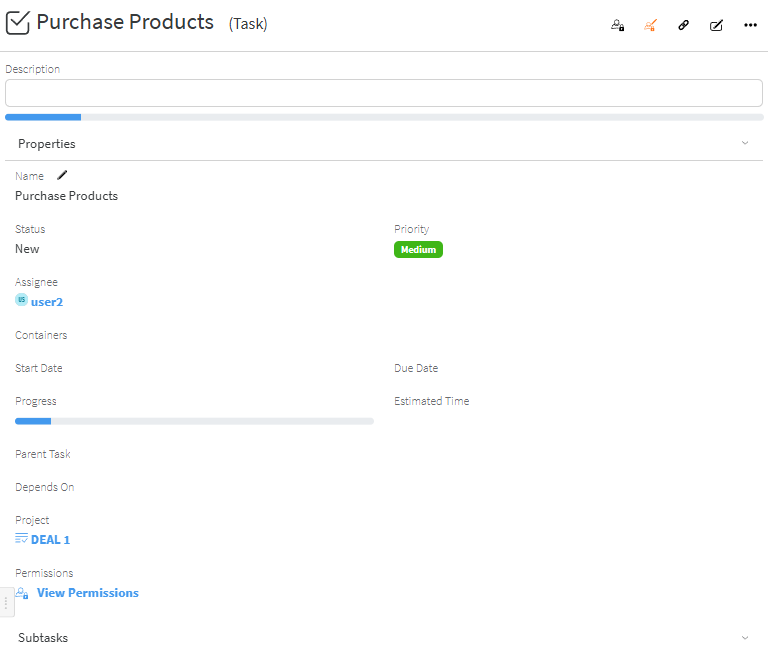
This is how a simple task looks like:
[](https://docs.profuzdigital.com/uploads/images/gallery/2025-03/AgIimage.png)
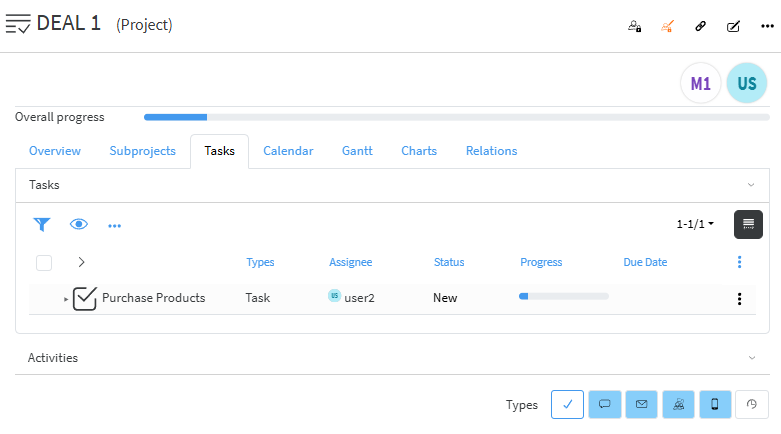
Tasks to the Projects appear in the Tasks tab
[](https://docs.profuzdigital.com/uploads/images/gallery/2025-03/g2himage.png)
## Issue an Invoice
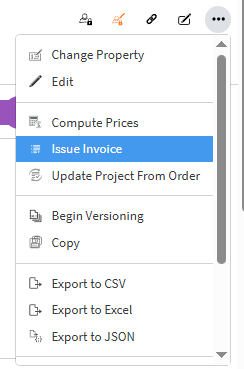
From the order, which status is Processed Invoice can be created by **Actions - Issue Invoice**
[](https://docs.profuzdigital.com/uploads/images/gallery/2025-03/fSIimage.png)
or using the button **Issue Invoice**
[](https://docs.profuzdigital.com/uploads/images/gallery/2025-03/Q1iimage.png)
The object of type Sales Invoice is created with the data from the order.
[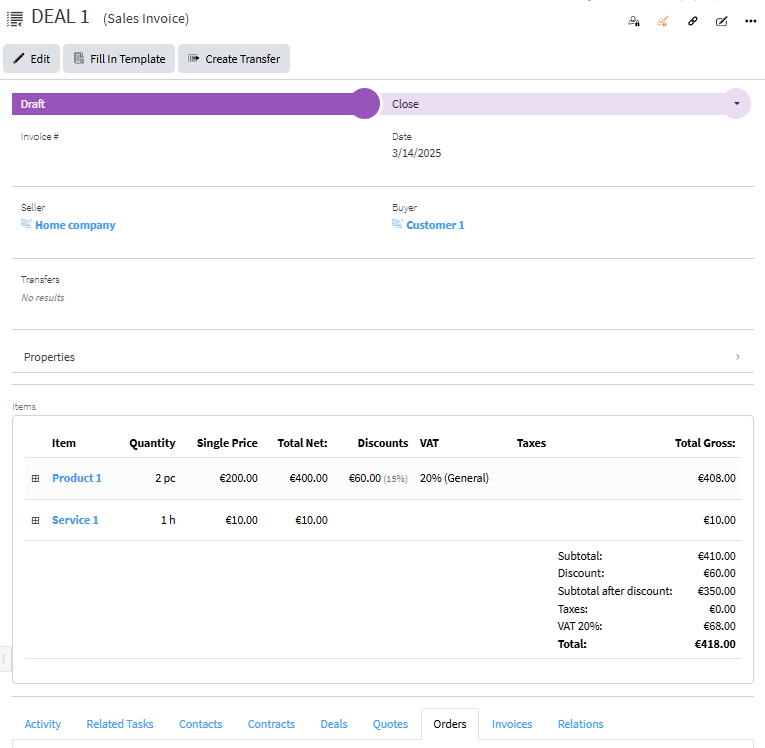](https://docs.profuzdigital.com/uploads/images/gallery/2025-03/WAQimage.png)
Properties field can be shown or hidden by pressing the arrow at the right part of the row [](https://docs.profuzdigital.com/uploads/images/gallery/2025-03/Lakimage.png)
When extended it is generally as follows:
[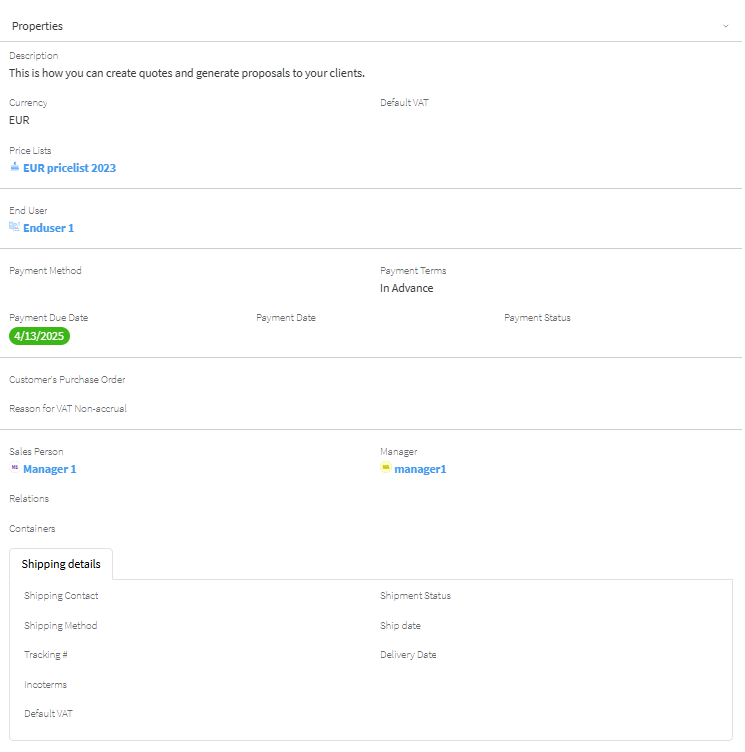](https://docs.profuzdigital.com/uploads/images/gallery/2025-03/ui4image.png)
Generally, depending on the official rules for Invoice numbering, different Enumerators can be chosen. See [Creating Enumerators](https://docs.profuzdigital.com/books/profuz-lapis-user-guide/page/enumerators#bkmrk-creating-enumerator) for details.
When the status is set to Validated, the number and current date are automatically assigned (Number will appear if a proper Enumerator is defined).
If you need to see more details for each item and which stock is assigned to the Item, click on the  near the Item.
[](https://docs.profuzdigital.com/uploads/images/gallery/2025-03/k5ximage.png)
[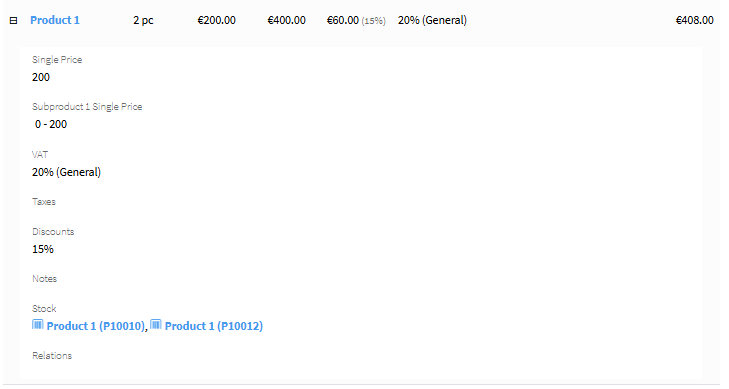](https://docs.profuzdigital.com/uploads/images/gallery/2025-03/xsVimage.png)
The export of the Invoice details to a MS Word document can be generated by Fill in template, choosing the corresponding Template. See [Creating a template](https://docs.profuzdigital.com/books/profuz-lapis-user-guide/page/document-templates#bkmrk-creating-template) for more details.
[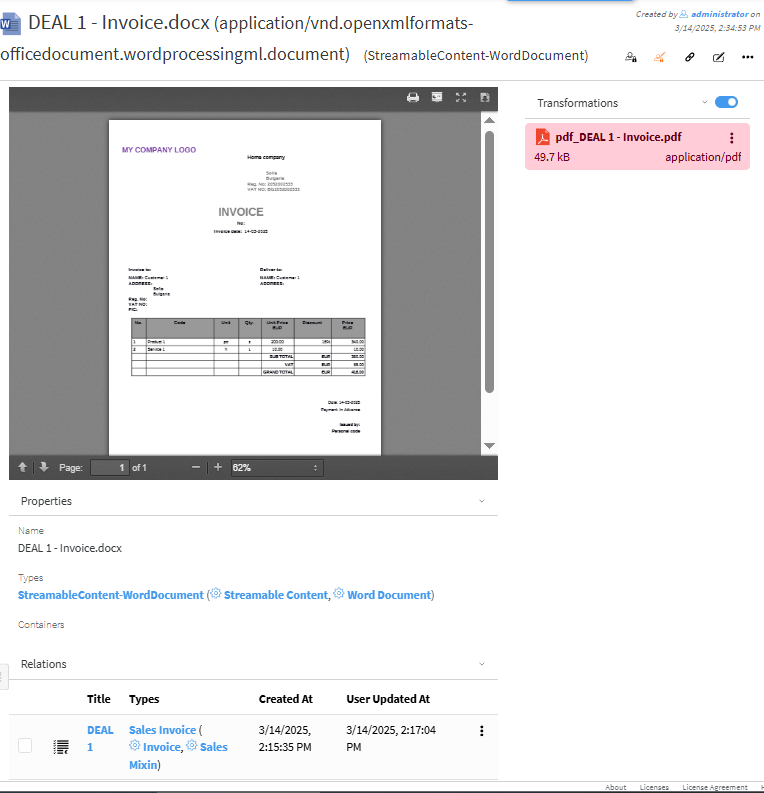](https://docs.profuzdigital.com/uploads/images/gallery/2025-03/IVXimage.png)
The process of delivering Stock items to customers is described in[ Sales Transfer ](https://docs.profuzdigital.com/books/profuz-lapis-user-guide/page/inventory#bkmrk-sales-transfer)section