# Products and services
## Creating New Product
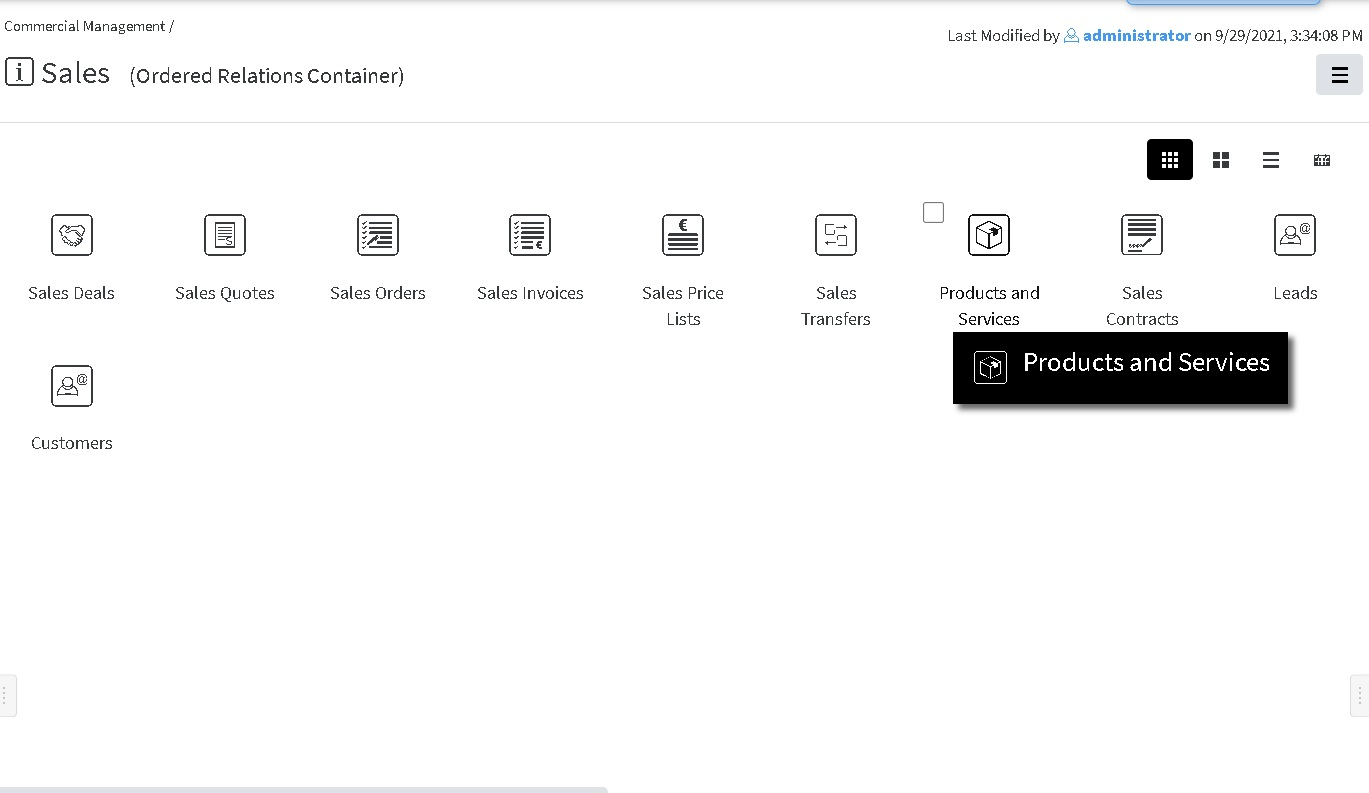
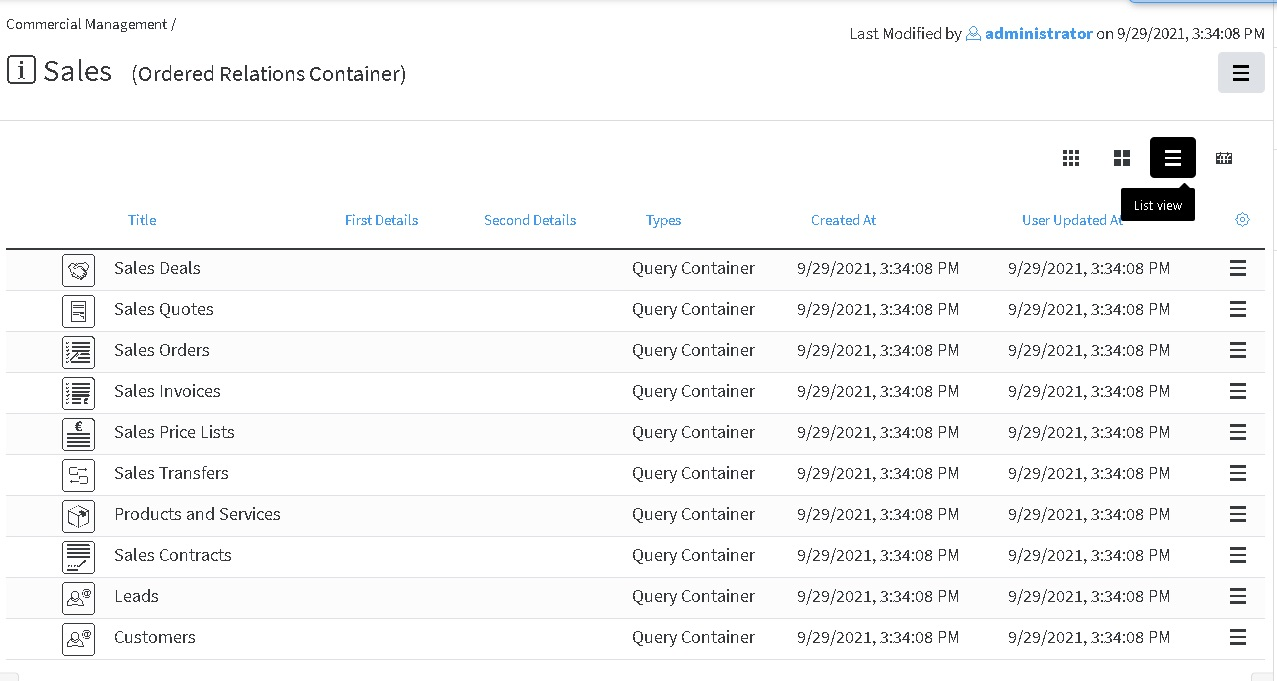
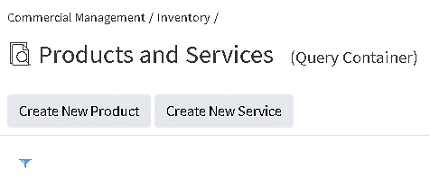
This can be done, using the corresponding buttons, directly from **Commercial Management**, **Products and Services** Container, which can be found in each **Sales**, **Purchases**, **Inventory** Containers
**Commercial Management**, **Sales** - Icons view:
[](https://docs.profuzdigital.com/uploads/images/gallery/2024-11/znZimage.png)
**Commercial Management**, **Sales** - List view
[](https://docs.profuzdigital.com/uploads/images/gallery/2024-11/H7Mimage.png)
[](https://docs.profuzdigital.com/uploads/images/gallery/2024-11/cktimage.png)
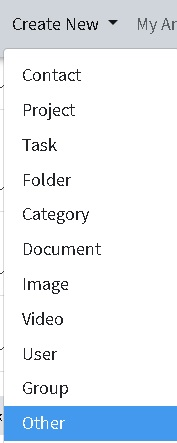
or following the general rule for creating object
[](https://docs.profuzdigital.com/uploads/images/gallery/2024-11/O8Timage.png)
[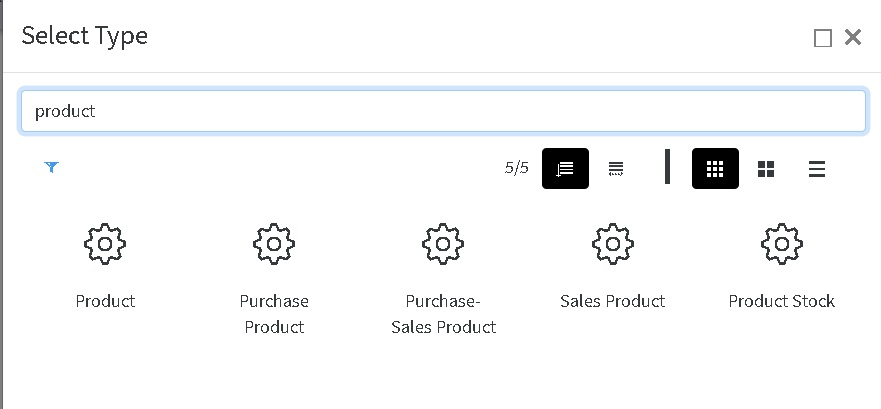](https://docs.profuzdigital.com/uploads/images/gallery/2024-11/0qyimage.png)
Depending on the purpose of the product/service it can be for Purchase only (Purchasing product), for Sale only (Sales product) or for both (Purchase-Sales Product)
When the New Object Window opens, some Common Details for all kind of products can be defined.
[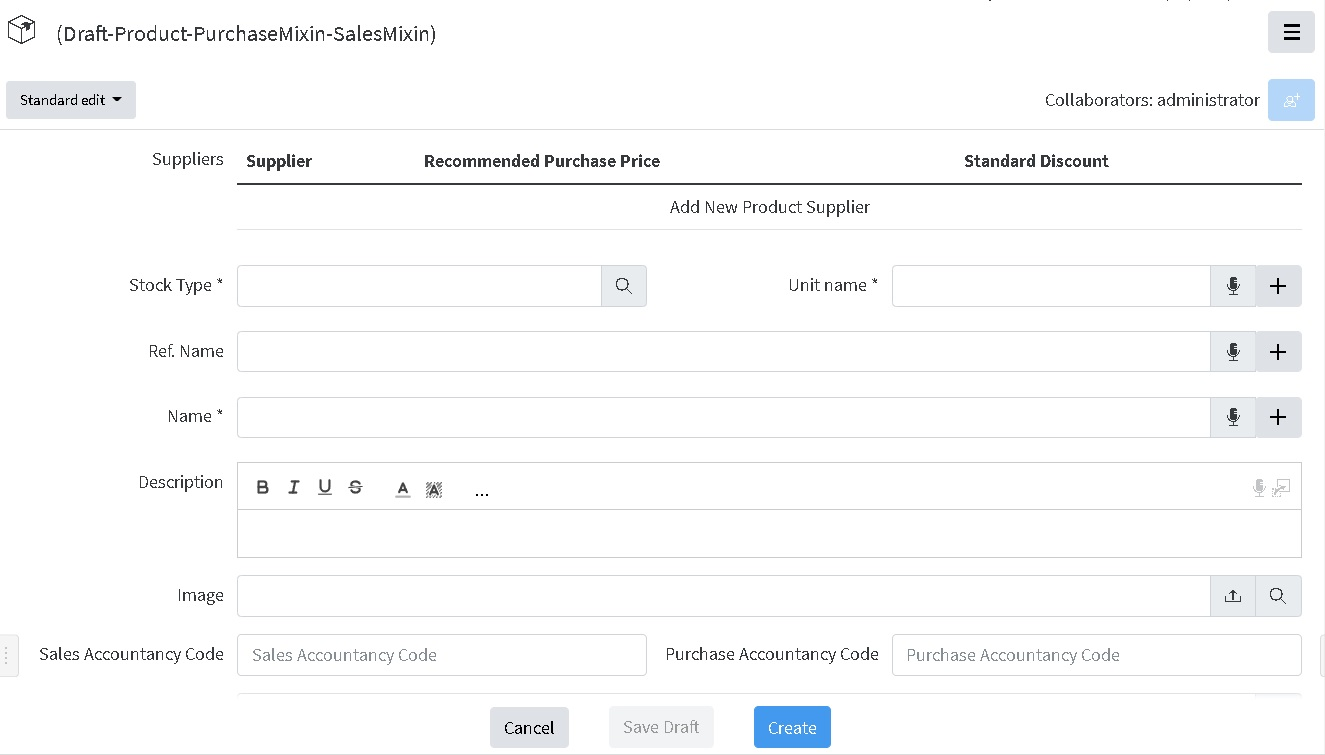](https://docs.profuzdigital.com/uploads/images/gallery/2024-11/OPkimage.png)
A supplier can be added pressing on the **Add New Product Supplier**
Supplier can be chosen by the Options that appear when clicked on the empty field near Supplier\*
[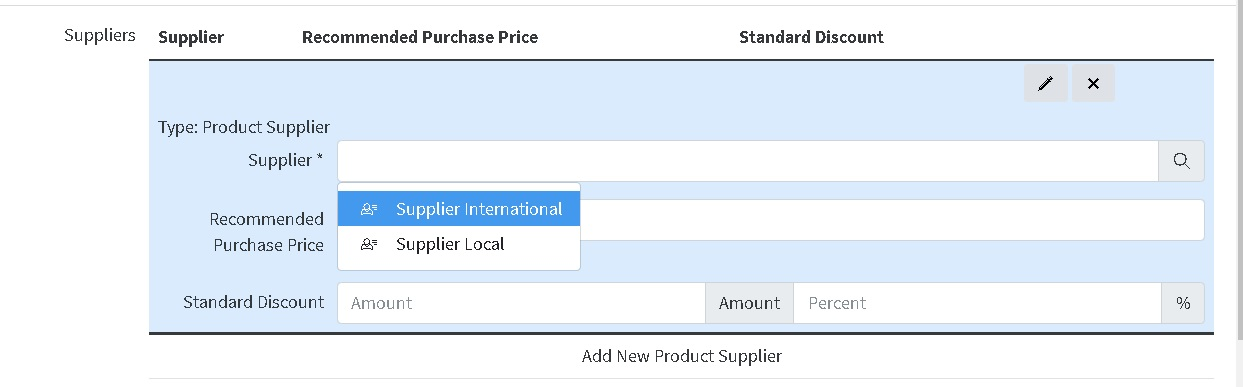](https://docs.profuzdigital.com/uploads/images/gallery/2024-11/m6bimage.png)
Then the Currency options appear by clicking directly on the text Currency
[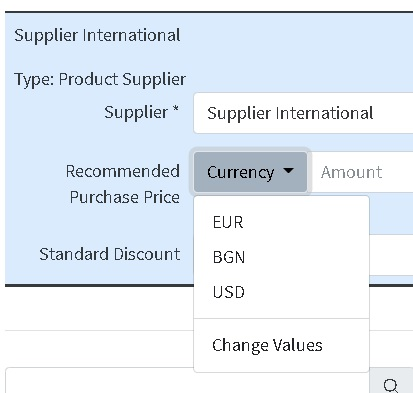](https://docs.profuzdigital.com/uploads/images/gallery/2024-11/j6yimage.png)
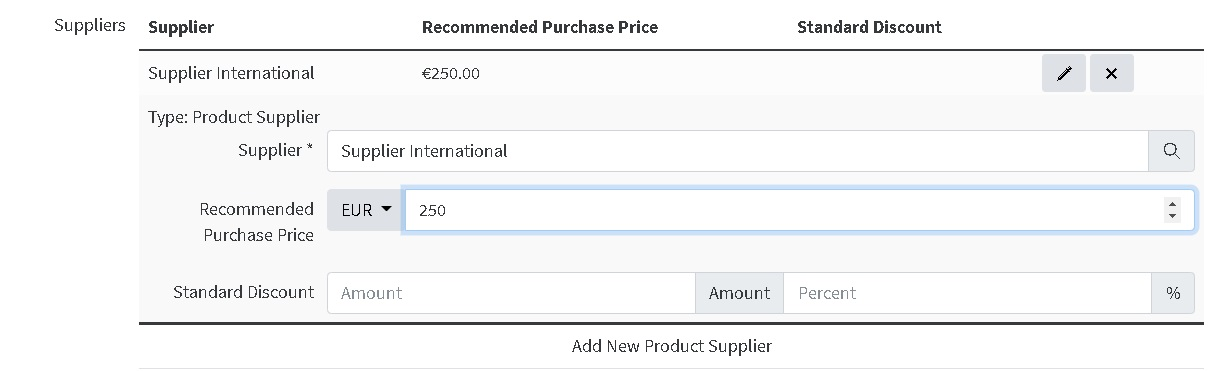
And the price is written in the next field
[](https://docs.profuzdigital.com/uploads/images/gallery/2024-11/Qteimage.png)
Then discounts can be described in fixed amount and/or percentage
If another Supplier needs to be added, that can be done in the similar way by pressing the below the already defined supplier details
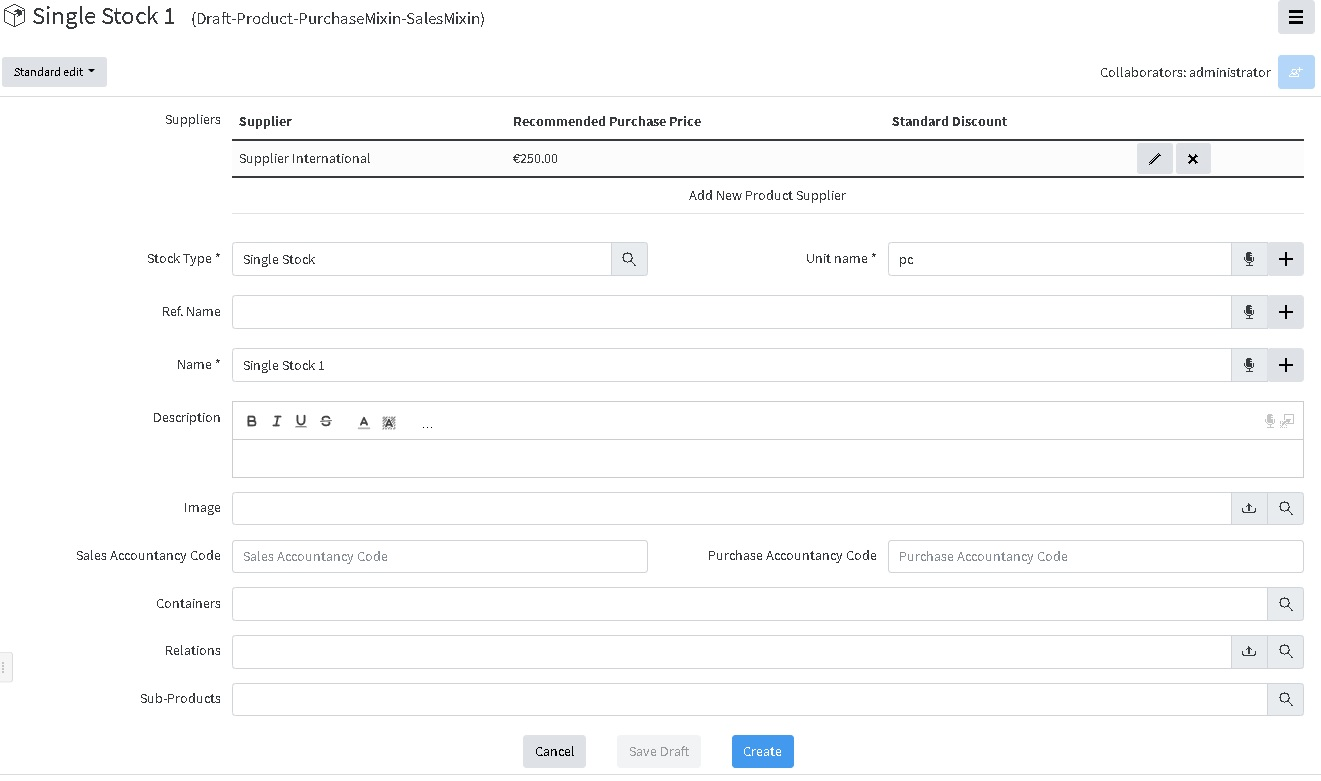
The details: [Stock type](https://docs.profuzdigital.com/books/profuz-lapis-user-guide/page/inventory "Inventory"), Unit name and Name are mandatory (marked with \*). Other details are optional.In order to align with the accountancy papers, there is an option to put as details Purchase Accountancy Code and Sales Accountancy Code.
The process is finished by pressing button **Create** at the bottom of the screen.
[](https://docs.profuzdigital.com/uploads/images/gallery/2024-11/5nHimage.png)
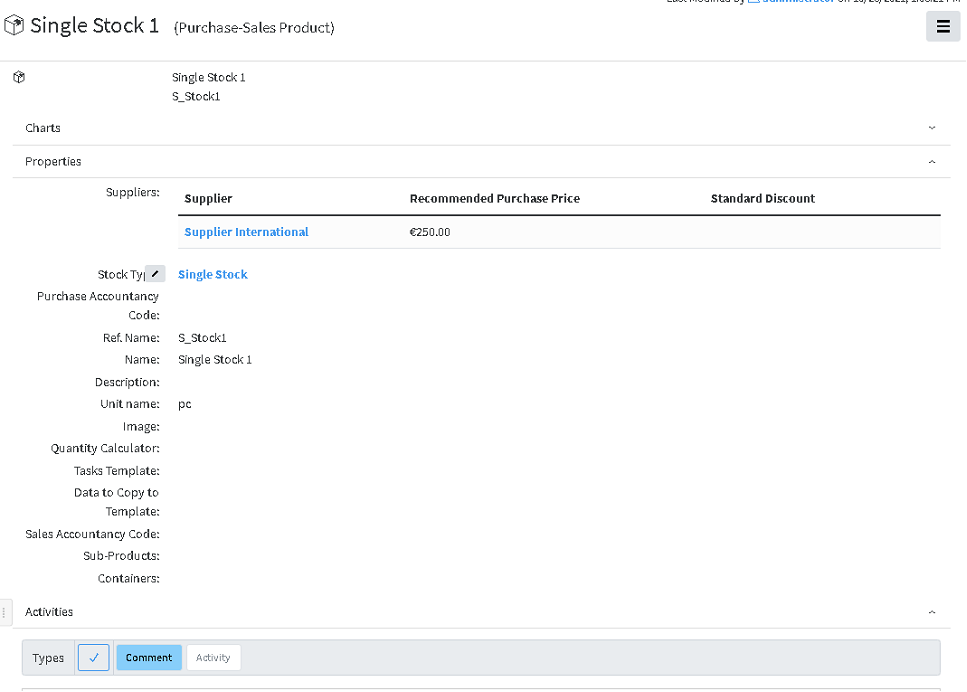
And this is how the Product Page looks like:
[](https://docs.profuzdigital.com/uploads/images/gallery/2024-11/t0Cimage.png)
here are 3 zones – Charts, Properties, Activities, that can be expanded or hidden by pressing the ^ at the end of the rows
## Creating New Service
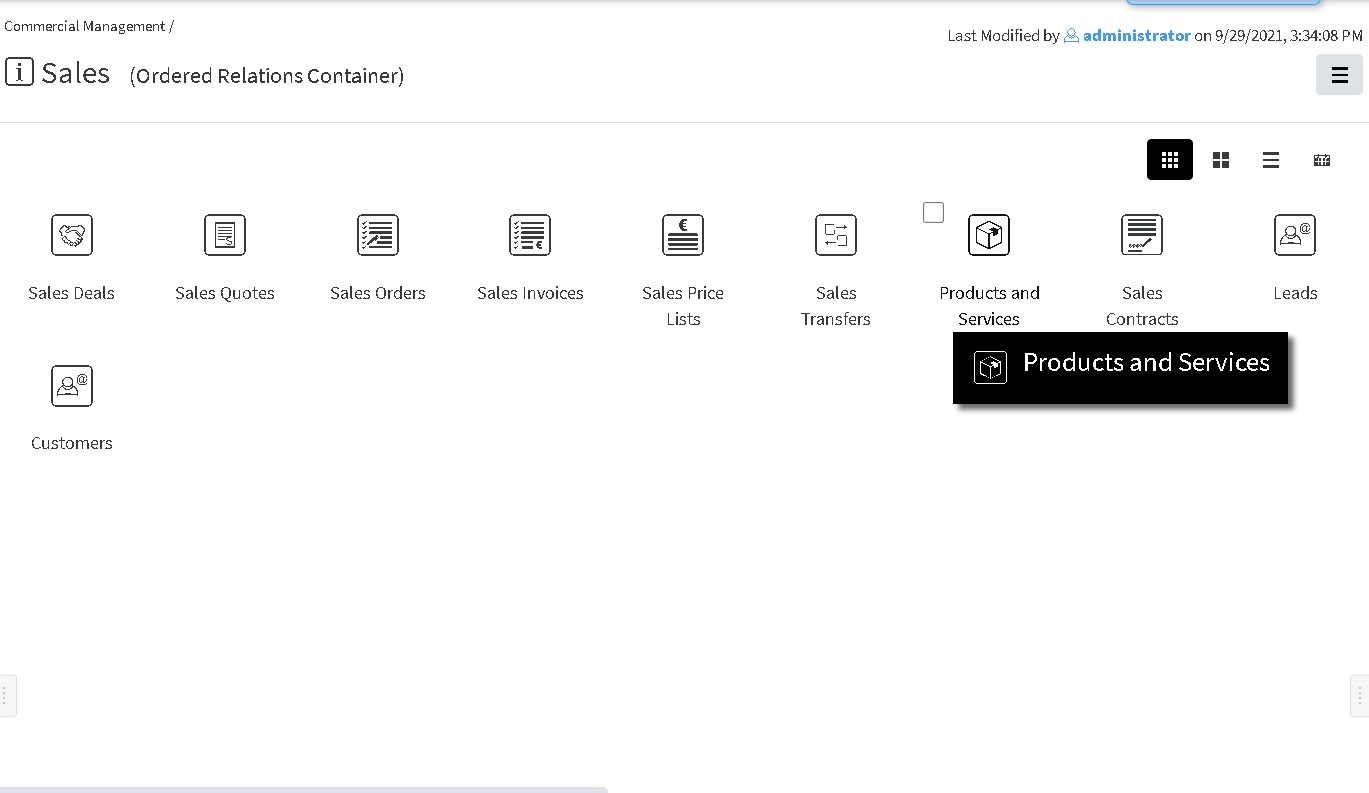
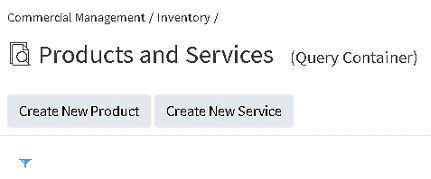
Similarly to creating a new Product, this can be done directly from **Commercial Management**, **Products and Services** Container, which can be found in each **Sales**, **Purchases**, **Inventory** Containers
[](https://docs.profuzdigital.com/uploads/images/gallery/2024-11/Q9Gimage.png)
using the corresponding buttons
[](https://docs.profuzdigital.com/uploads/images/gallery/2024-11/7OIimage.png)
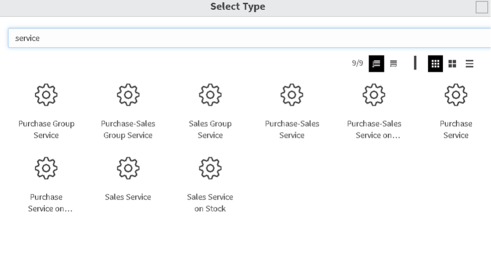
or following the general rule for creating object
[](https://docs.profuzdigital.com/uploads/images/gallery/2024-11/dhJimage.png)
Depending on the purpose of the service, there are several types of services and each has their sales, purchase, or purchase-sales variant.
**Service** – used for any services, apart from the below two cases.
**Group service** – used for many stocks, serviced under one contract with same conditions
**Service on stock** – used for service (for example maintenance) on the specific stock. When defining, the product on which that service will be applied should be specified mandatory.
[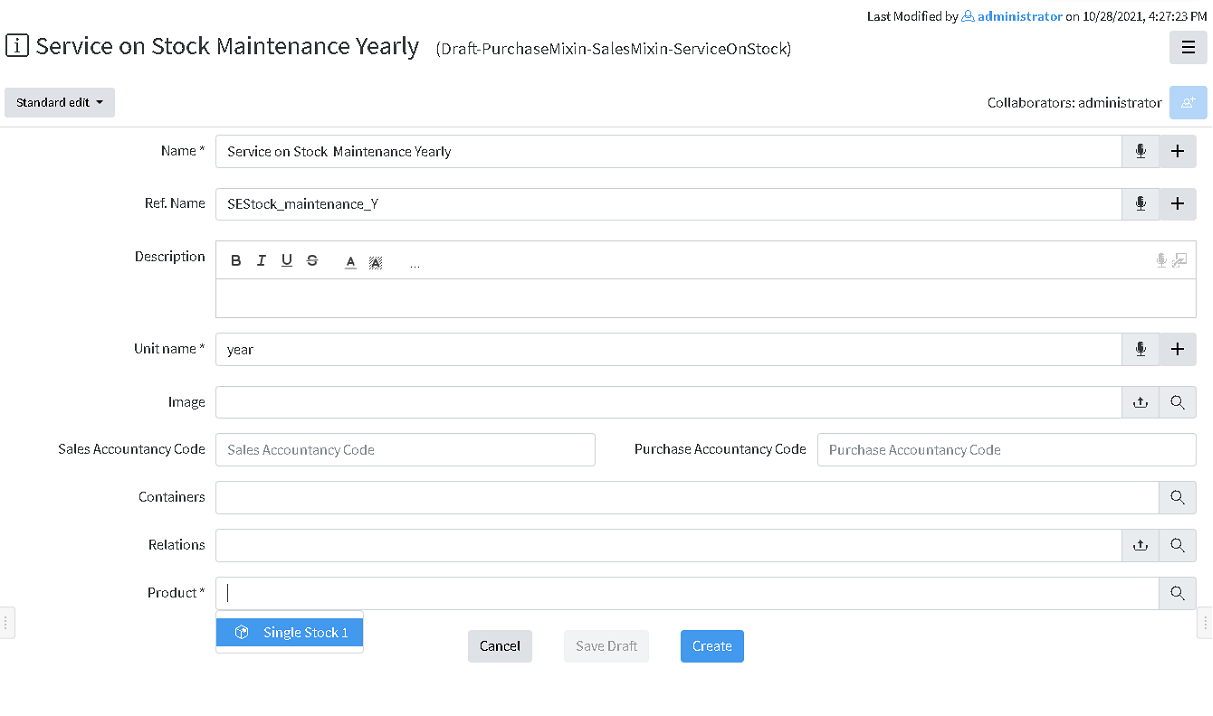](https://docs.profuzdigital.com/uploads/images/gallery/2024-11/MvKimage.png)
The process is finished by pressing button **Create** at the bottom of the screen.
[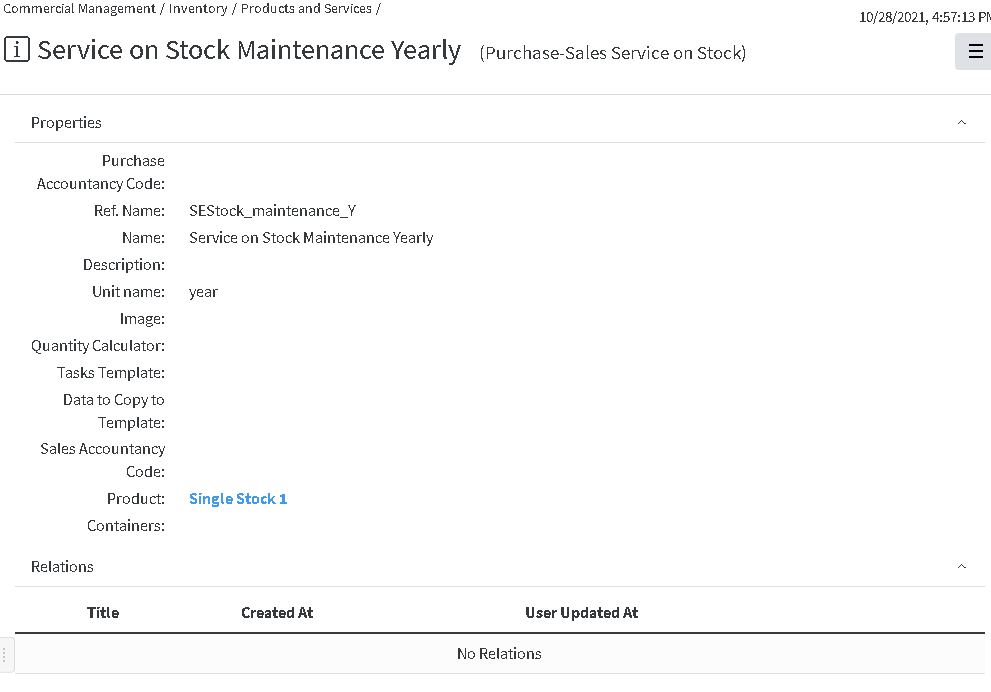](https://docs.profuzdigital.com/uploads/images/gallery/2024-11/hUVimage.png)
## Creating Price list
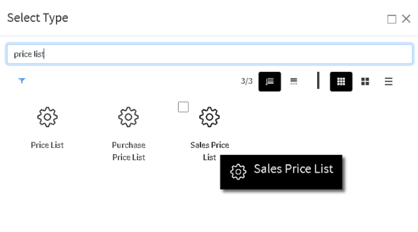
Creating New Price list can be done via Create New – Other and selecting Sales or Purchase Price List
[](https://docs.profuzdigital.com/uploads/images/gallery/2024-11/ajJimage.png)
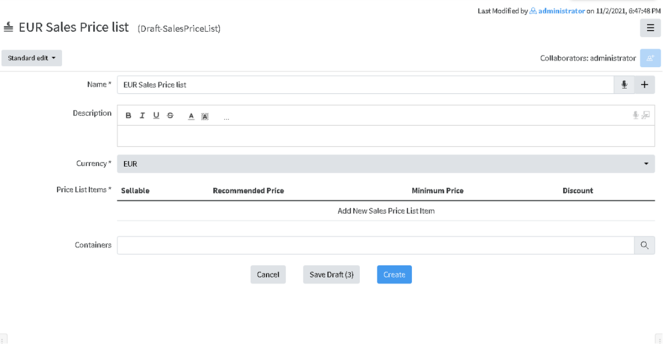
Let’s chose Sales Price List, then the following screen appears
[](https://docs.profuzdigital.com/uploads/images/gallery/2024-11/n1Pimage.png)
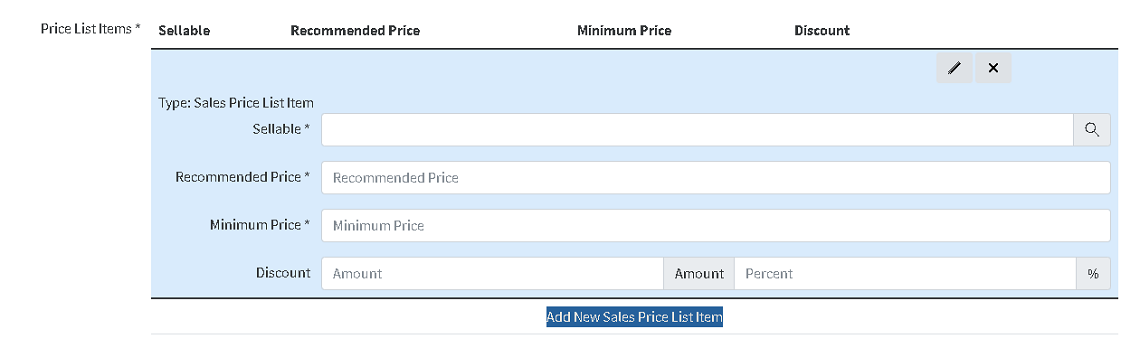
To add an Item in the list just press on **Add New Sales Price List** Item a and the new area will appear
[](https://docs.profuzdigital.com/uploads/images/gallery/2024-11/nAAimage.png)
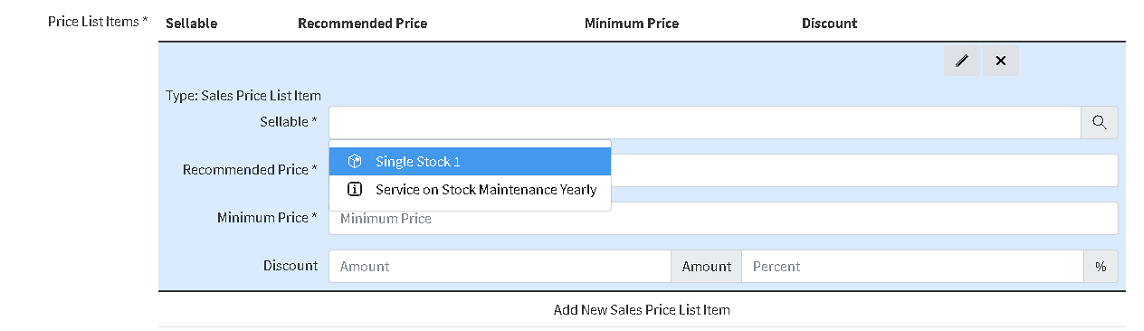
On a Sellable field available products or services should appear as options and one can be chosen to be included in the list
[](https://docs.profuzdigital.com/uploads/images/gallery/2024-11/9myimage.png)
Recommended price and Minimum Price should be defined, as well as Discount amount or percent.
Another sellable item can be added by **Add New Sales Price List.**
By the pencil button  the details for each item can be shown or hidden.
[](https://docs.profuzdigital.com/uploads/images/gallery/2024-11/Dsoimage.png)
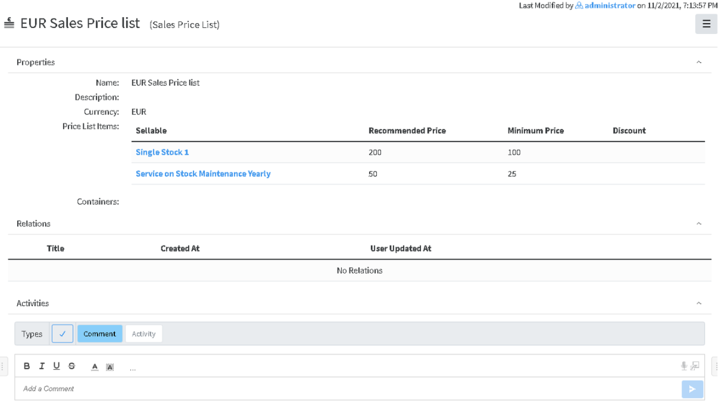
Once all details are defined, process is finished by Create button.
[](https://docs.profuzdigital.com/uploads/images/gallery/2024-11/wWqimage.png)