**Hint**: All queries above can be modified per customer's specific requirements. This is only the default software view.
The most common way to list and edit media content or any other data accessed by Profuz LAPIS is to use the search and to select the result or to manually choose a specific grid designated for this particular data query e.g. media, subtitles, documents and so on.**Hint**: By modified queries users may list and sort only specific data per format or containers. The example below shows how a query can display only mp4 media content.
Query: `[:types INHERITS "Video"] AND [:fileFormat "*mp4*"]` [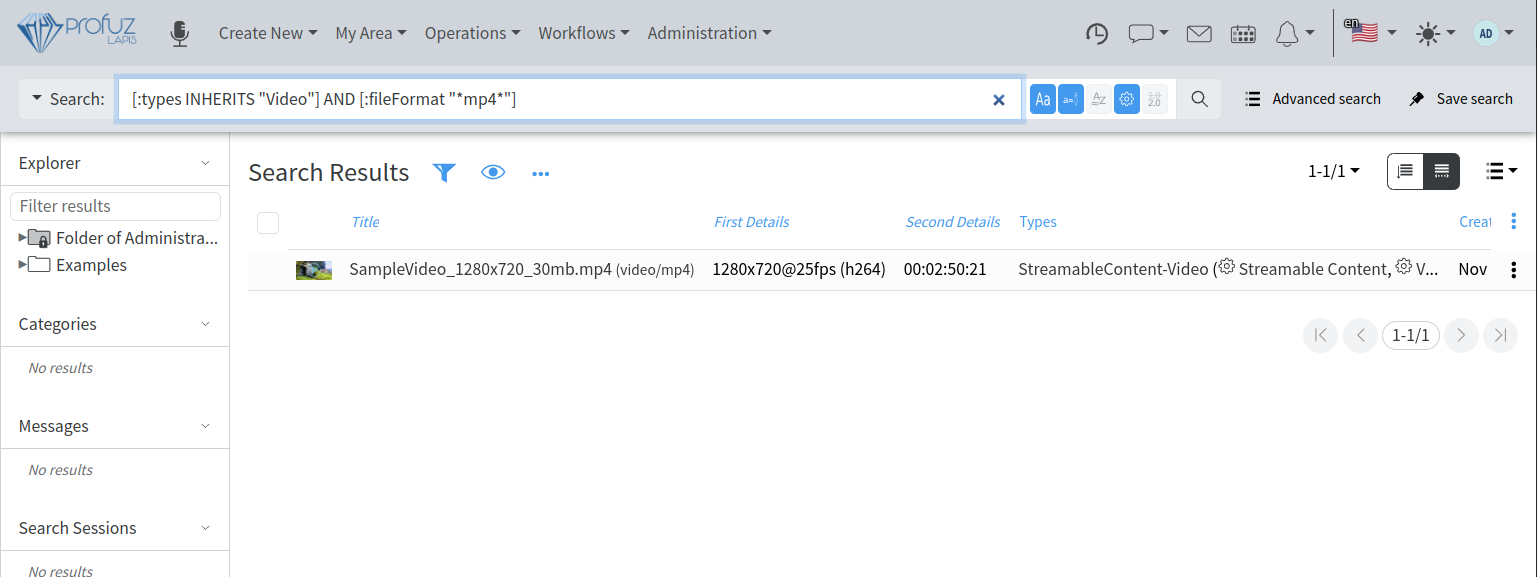](https://docs.profuzdigital.com/uploads/images/gallery/2024-11/GCKimage.png) *Please contact your supplier if you need to modify a query as per specific workflow requirements.* In Profuz LAPIS MAM there are 3 types of video objects: - Video Files called “Streamable Content Video” are files or streams directly accessible from the connected storages or systems. If such file is deleted in the corresponding connected storage outside of LAPIS it will disappear from Profuz LAPIS, too. - Virtual Video Content called “Virtual Streamable Content Video” is an object which keeps records with video metadata and links to 0 or more copies of the video files. - Video Asset called “Asset Video” is an object which may combine several contents of different types in a single entry. Subtitles and audio contents which are present in a single asset are used as subtitles tracks and audio tracks respectively and can be selected for presentation in the player of the main video content. The thumbnails of the 3 types of video objects overlay different icons to visually distinguish between them as shown on the screenshot below: [](https://docs.profuzdigital.com/uploads/images/gallery/2024-11/C3fimage.png) The first is an asset, the second is a virtual content and third is a video file. Each video object has its own contents and transformations– such as thumbnails, proxies, transcodings, etc. In video assets, by clicking on a content, it will be displayed. Each media asset has its own contents and transformations– such as thumbnails, proxy, transcodings, etc. By clicking on the media file, it will appear in the central section of the screen with all its metadata and with real time preview (as pictured below). **Remark 1**: The preview comes from identical copies called proxies and their creation can be triggered in two different ways: First (default): After media content is ingested or uploaded to a data folder when a user clicks “Play” in the video player. Clicking “Play” will will provoke automatic proxy creation. A status bar will appear on the screen, which will show the progress and visualize how long the creation will take. After the process is finished the user will be able to play and edit the desired media asset. Second: Proxy creation can be set to start automatically once media content is ingested/uploaded or appears in a connected storage. **Remark 2**: An important factor about the configuration which can provoke lack of system response is the CPU load. We suggest considering carefully which way to choose depending on the capabilities of the hardware platform where Profuz LAPIS is running. [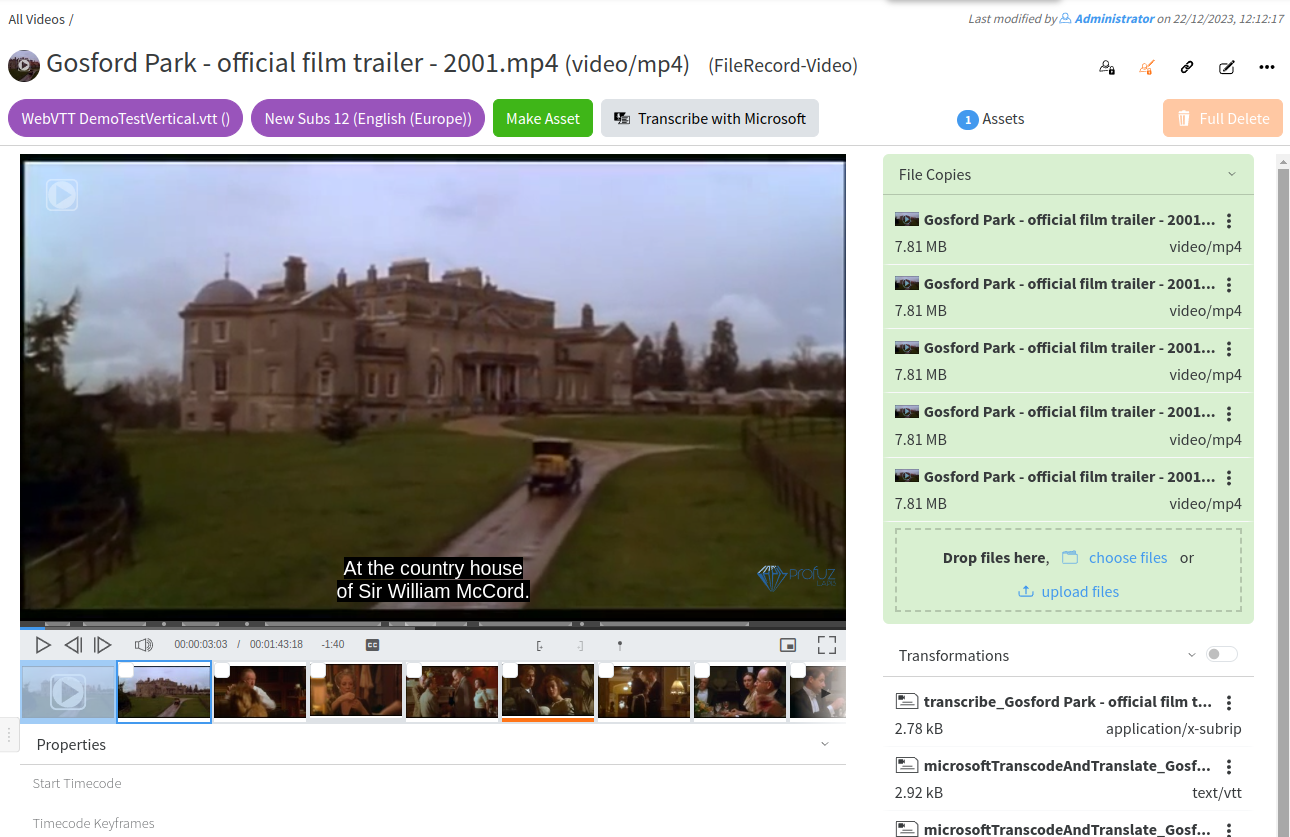](https://docs.profuzdigital.com/uploads/images/gallery/2024-11/Afjimage.png) The available general commands are: Play/Pause, Stop, Fine seeking Frame by Frame, Volume adjustment, Start chunk, End chunk, Create point Marker, Picture-in-picture and Full Screen toggles. Below the preview window basic metadata fields (properties) are stored. **Remark**: The screen above only illustrates the default view. It can be completely modified with different metadata fields. Editing metadata fields is shown below and can be done by first adding metadata fields to the VIDEO Asset type of data. Metadata storage is practically unlimited. It depends on the available system resources.