# Inventory
In the Inventory module, purchased or manufactured products are converted into Stock (with Serial or Part number) and can be kept, transferred, sold etc. Stocks are organized in Warehouses.
[](https://docs.profuzdigital.com/uploads/images/gallery/2024-11/8Jhimage.png)
#### Stock type
There are currently 4 Stock types for products in Lapis – Batch stock, Single Stock, Compound stock, Packaged stock
Batch stock allows you to create a group of multiple units of an item, and assign them a unique value/number/tag called Batch No.
Single Stock is a unique stock item, it has a unique Serial No. and each unit can be traced.
Compound stock is a stock that consists of a list of possible subproducts, which are single stock type.
Stocks are managed within the Inventory, and used in Sales and Purchases processes. Each stock corresponds to a product, defined in the system.
## Creating Warehouse
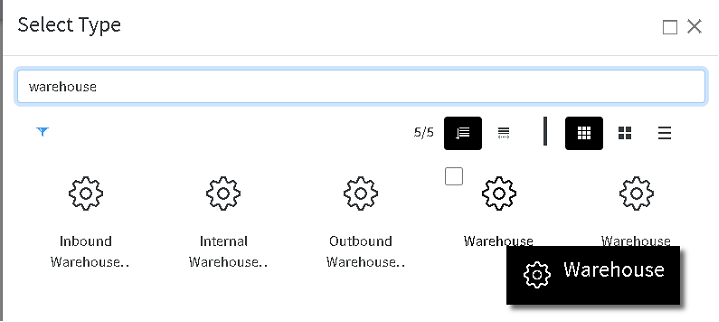
A New warehouse can be created via Create New/Other choosing Warehouse
[](https://docs.profuzdigital.com/uploads/images/gallery/2024-11/QOSimage.png)
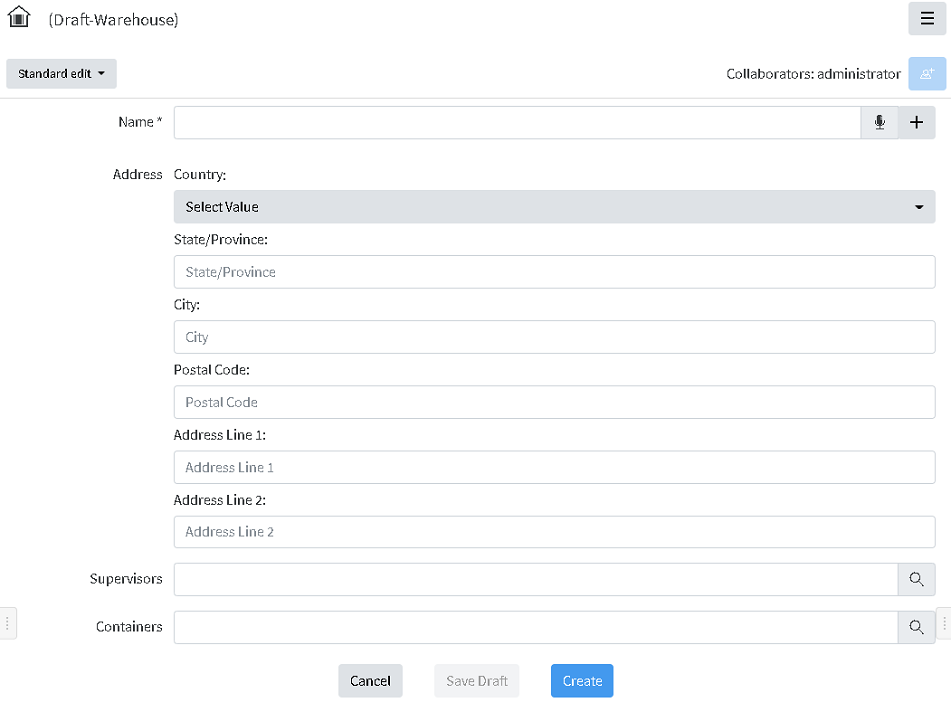
Name, address and Supervisor can be defined, as well as some standard for the system properties like Containers, Relations etc.
[](https://docs.profuzdigital.com/uploads/images/gallery/2024-11/1Bfimage.png)
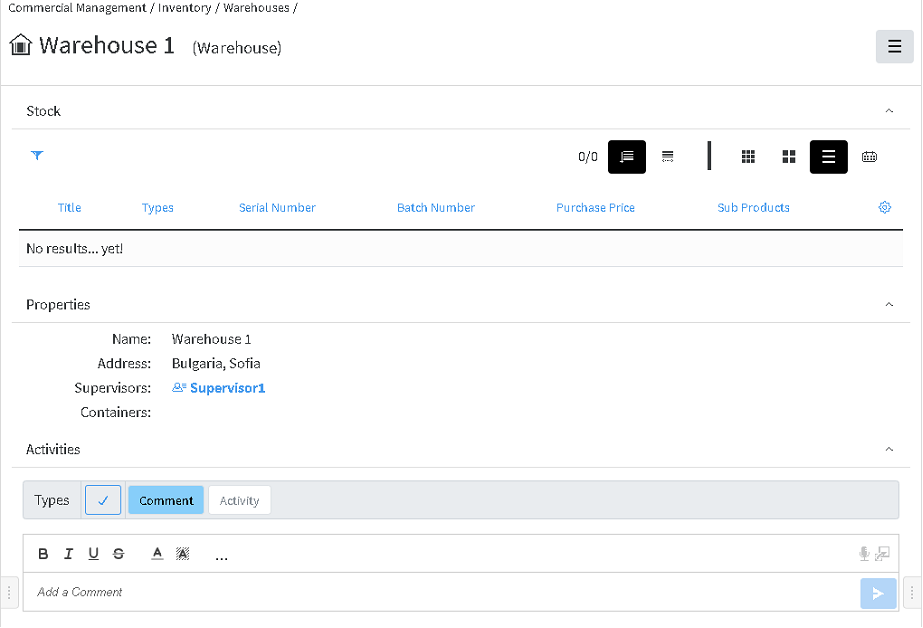
By pressing Create the warehouse is ready and can be seen in the Warehouses container.
[](https://docs.profuzdigital.com/uploads/images/gallery/2024-11/9Zjimage.png)
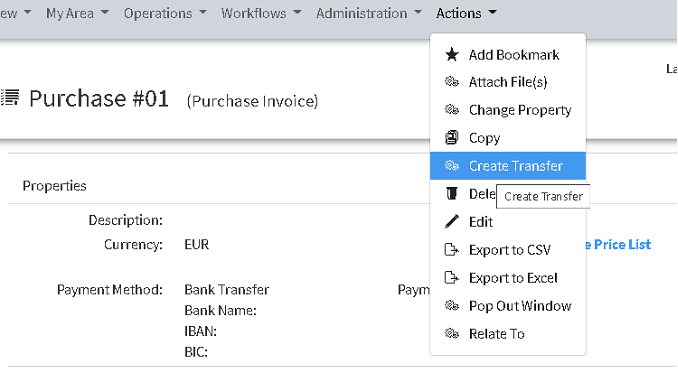
## Creating Stock via Transfer
[](https://docs.profuzdigital.com/uploads/images/gallery/2024-11/sP1image.png)
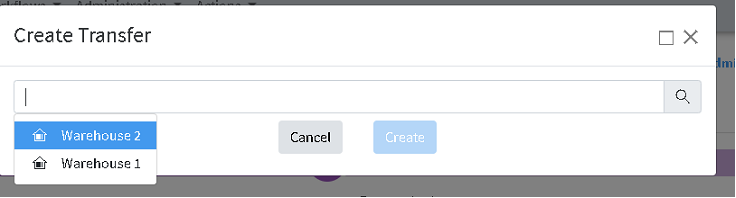
The destination warehouse has to be selected
[](https://docs.profuzdigital.com/uploads/images/gallery/2024-11/3Biimage.png)
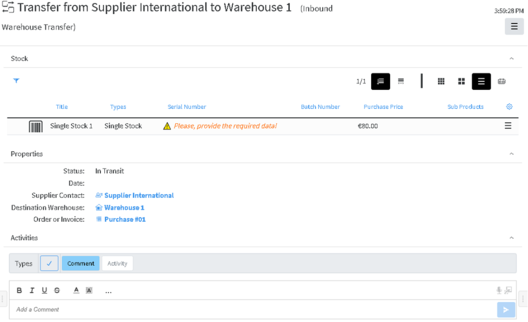
Choosing the warehouse and pressing Create, creates object Inbound Warehouse Transfer, which is actually Purchase Transfer.
It looks this way:
[](https://docs.profuzdigital.com/uploads/images/gallery/2024-11/M35image.png)
Items from the Invoice become stock in the transfer. The Serial number can be set by editing the details of the stock via Edit menu in the right end of the row
[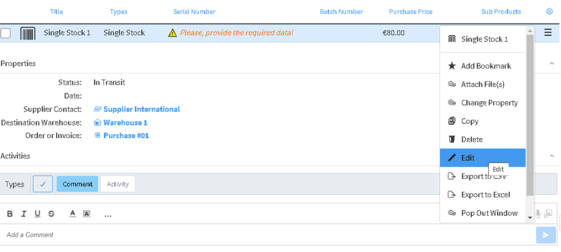](https://docs.profuzdigital.com/uploads/images/gallery/2024-11/fGIimage.png)
Then the Stock Edit screen appears, where details can be added or edited.
[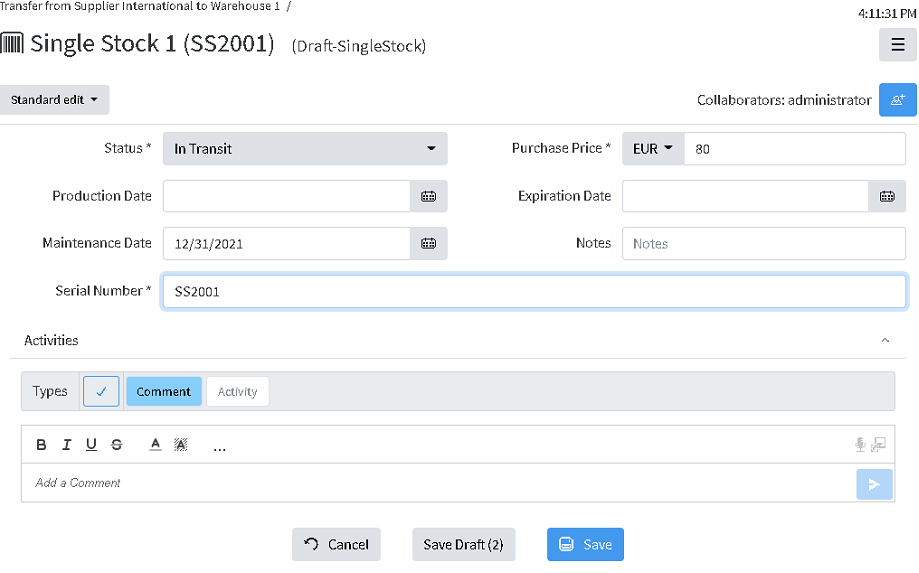](https://docs.profuzdigital.com/uploads/images/gallery/2024-11/gPDimage.png)
After saving the info appears in the Transfer.
[](https://docs.profuzdigital.com/uploads/images/gallery/2024-11/Owlimage.png)
The Tranfer is created with Status is **In Progress**, presuming that the products are shipped but not yet delivered to the Warehouse.
When the products are ready to be entered in the warehouse, the status should be set to Finished, and the Date has to be set.
Once the status is se to Finished, the stocks enter the destination Warehouse.
The Stock in the transfer appear as NON CURRENT, as new version of the stock is created, listed in the corresponding Warehouse
[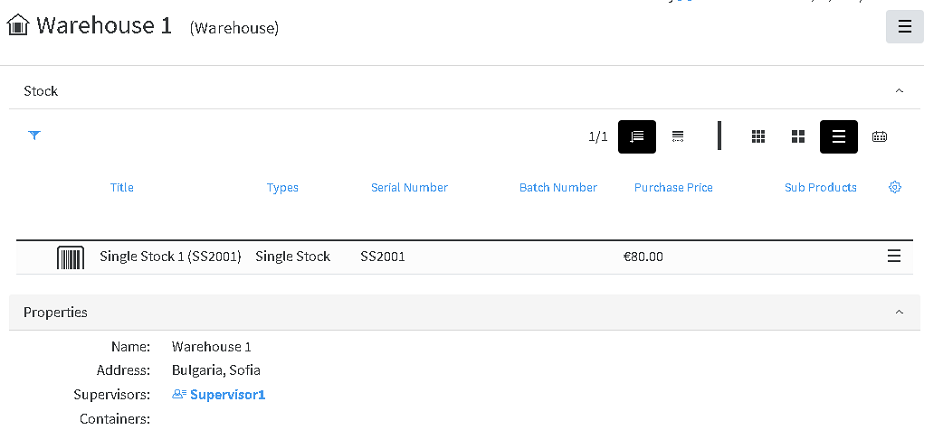](https://docs.profuzdigital.com/uploads/images/gallery/2024-11/ofvimage.png)
Clicking on the stock title, opens the stock object, with the information as follows:
[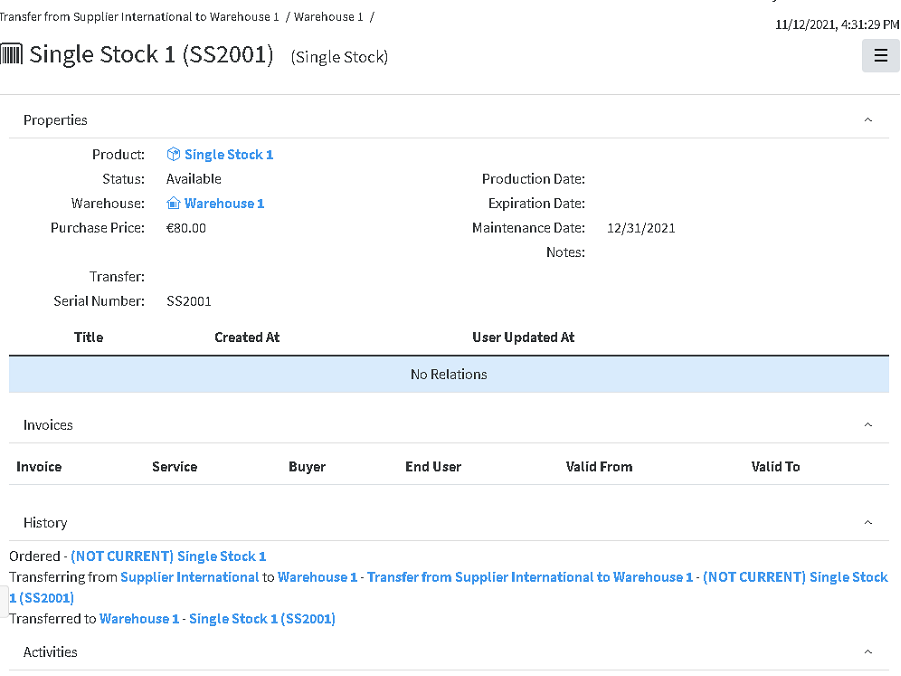](https://docs.profuzdigital.com/uploads/images/gallery/2024-11/DW0image.png)
## Stock versions
With each change in Stock status or if it the stock is a part of Transfers of some kind, the new version of the Stock object is created.
The previous versions are kept in the system for reference and tracking
Here is how to see versions of the stock, which is available:
Find the stock in the warehouse and open it.
[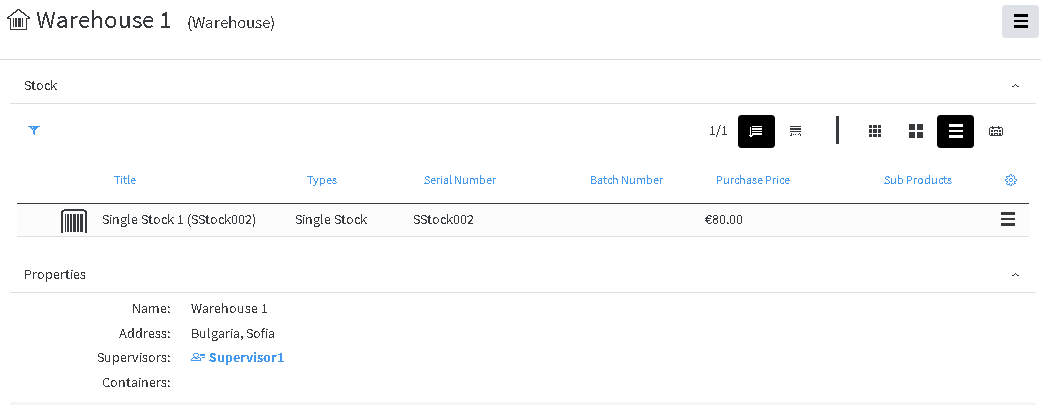](https://docs.profuzdigital.com/uploads/images/gallery/2024-11/Wguimage.png)
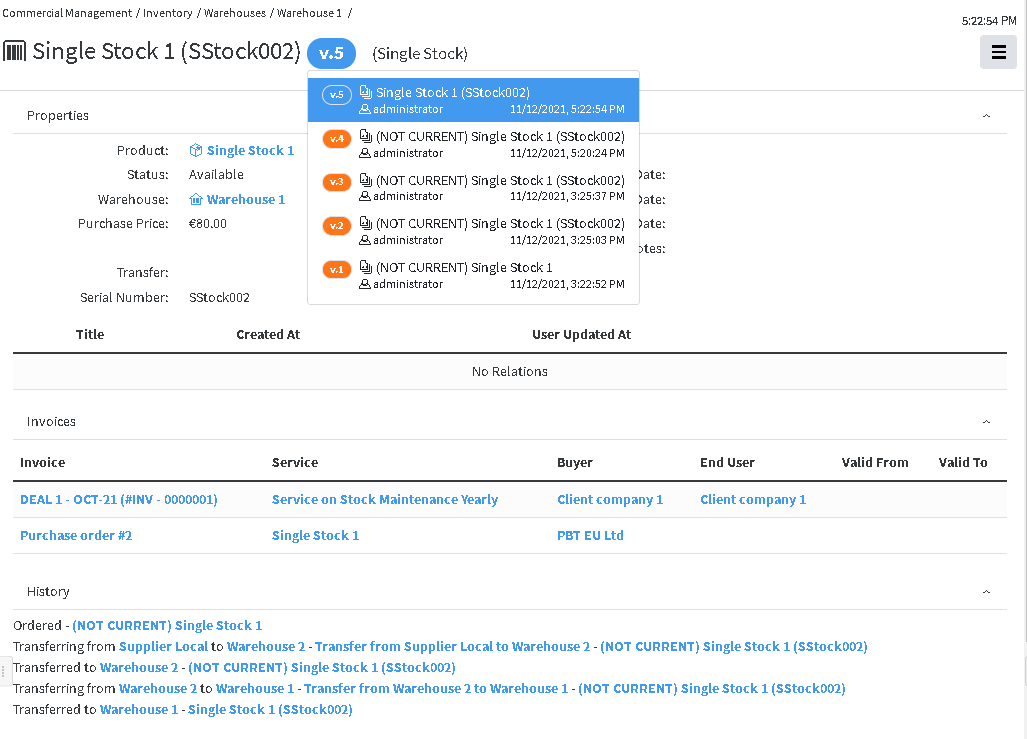
The number next to the name shows how many versions exist
[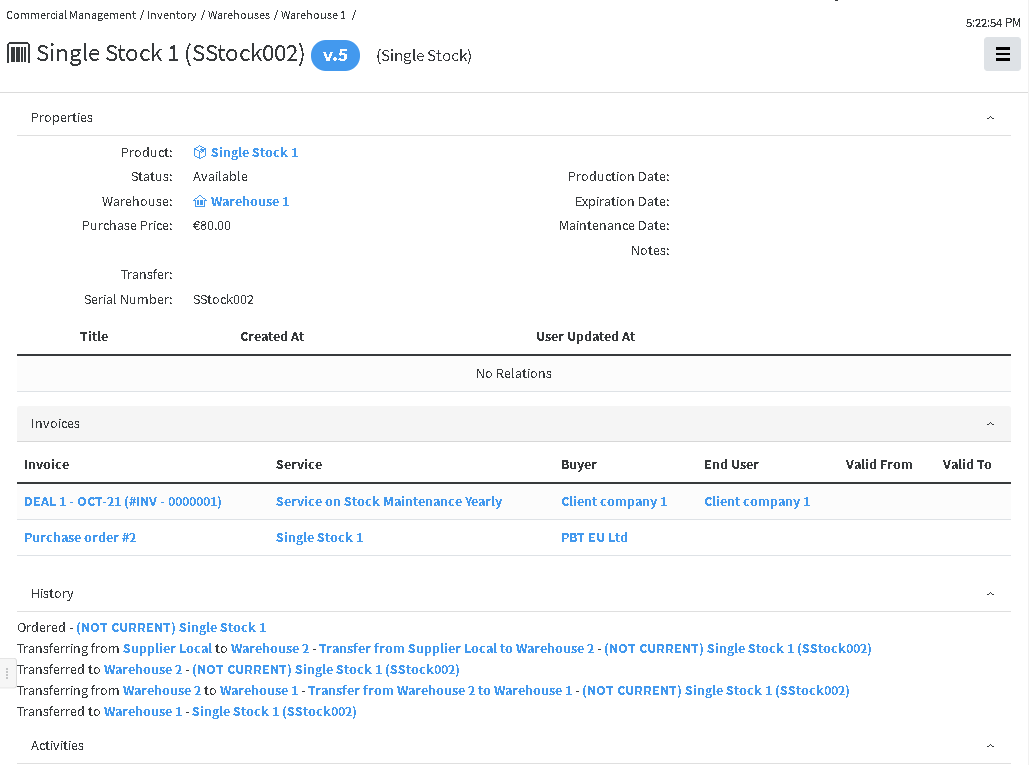](https://docs.profuzdigital.com/uploads/images/gallery/2024-11/t2Yimage.png)
By clicking on the number box, the list with versions appear
[](https://docs.profuzdigital.com/uploads/images/gallery/2024-11/ecDimage.png)
In the History section, the information of the transfers appear.
In the Invoices Section appear information of the Purchase Invoice and Sales invoice (if stock itself or service on it is sold)
## Transfer between warehouses
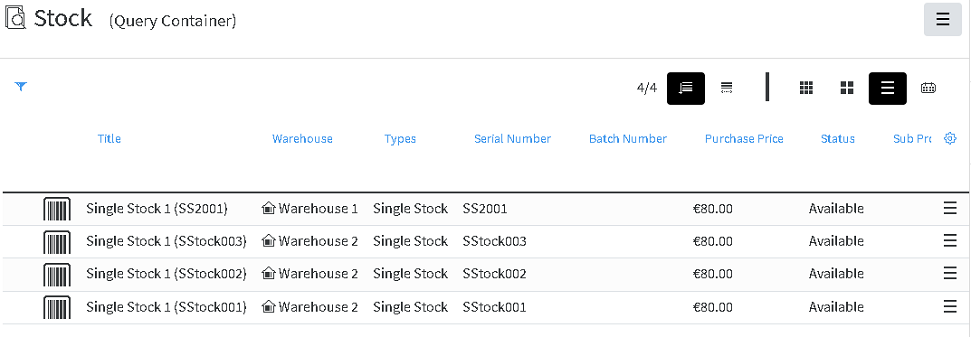
Find the product in the list of stocks In the Stock container
[](https://docs.profuzdigital.com/uploads/images/gallery/2024-11/ZbZimage.png)
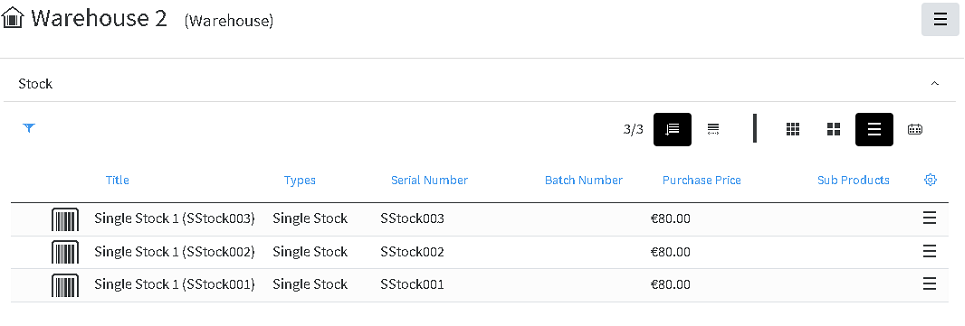
or in the corresponding warehouse
[](https://docs.profuzdigital.com/uploads/images/gallery/2024-11/jrVimage.png)
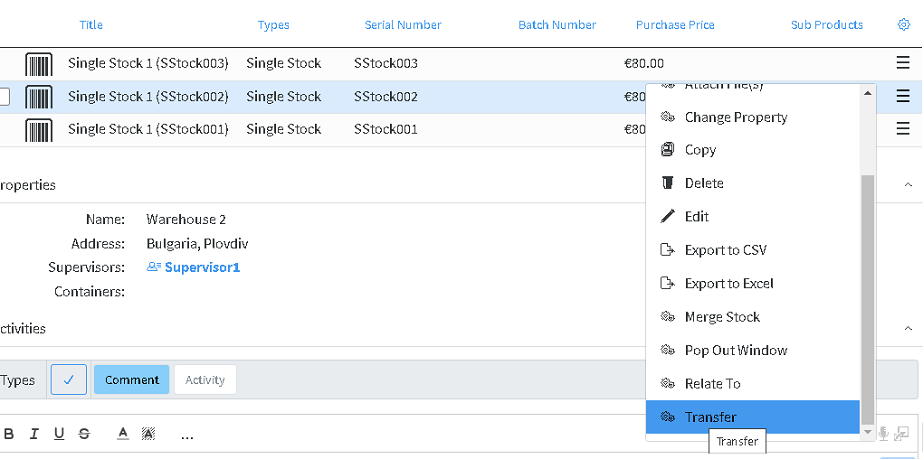
From the menu on the right of the product line, choose **Transfer** and then choose the destination warehouse, and then press Create.
[](https://docs.profuzdigital.com/uploads/images/gallery/2024-11/KM4image.png)
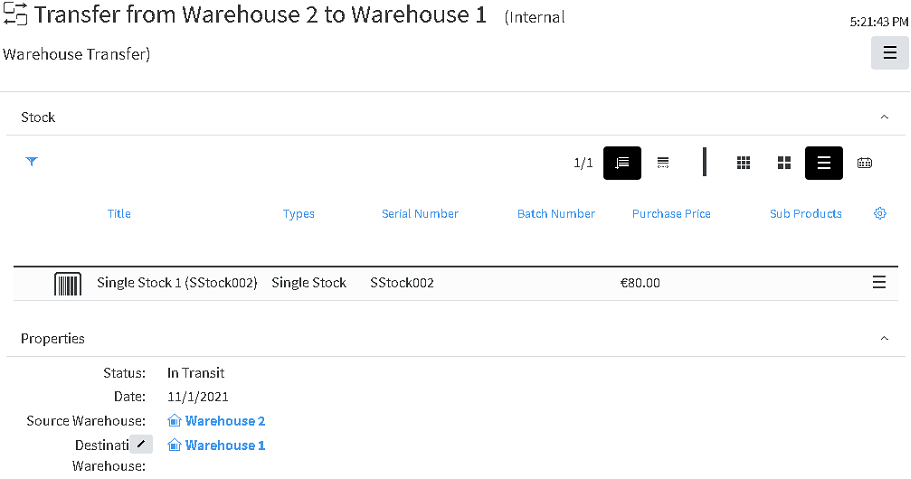
A new transfer is created with status **In Transit**.
[](https://docs.profuzdigital.com/uploads/images/gallery/2024-11/fYaimage.png)
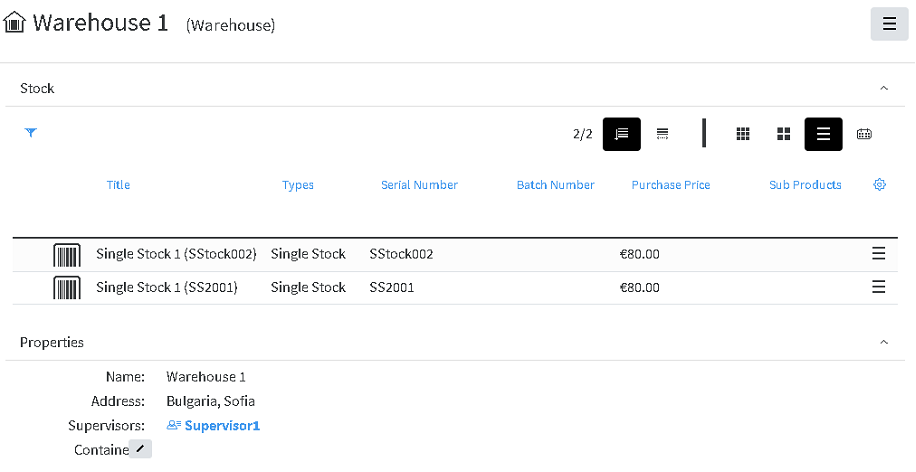
Once status is changed to **Finished**, the stock is moved to the Destination Warehouse.
[](https://docs.profuzdigital.com/uploads/images/gallery/2024-11/JgAimage.png)
## Sales Transfer
During the Sales process, on the Order stage, after validation of the order, the status cannot be changed to Processed, if stocks are not defined for each Item in the Order (If they are products or Service on stock. The following message will appear upon trying to do so.
[](https://docs.profuzdigital.com/uploads/images/gallery/2024-11/r5vimage.png)
Adding a stock to an Item is done by Edit operation, then by clicking of the Item line, to reveal the Item section.
If you add a stock, which does not correspond to the Item product, the following message will appear:
[](https://docs.profuzdigital.com/uploads/images/gallery/2024-11/kRfimage.png)
After selecting stocks, for all Items, the status can be changed to Processed.
Once status Processed is set, the Invoice can be issued, from which Sales Transfer can be created.
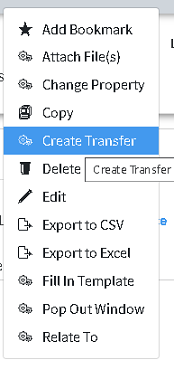
From Sales Invoice, Transfer can be created. This represents shipping and delivering goods to the Buyer.
The stock is taken out of the available Stock items, and kept for reference in Sold Stock container in Inventory section.
[](https://docs.profuzdigital.com/uploads/images/gallery/2024-11/pnsimage.png)
Transfer includes only stock items, not services. It is created with status In transfer.
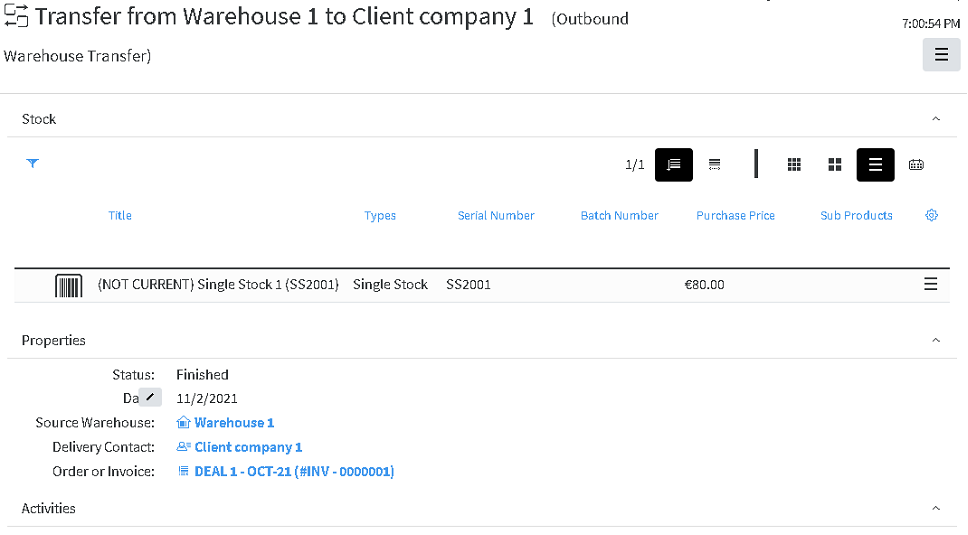
Once the date is set and the status is changed to Finished, the stocks are moved to Sold stock container.
The new version of stock object is created and the one, listed in the transfer become NON CURRENT.
[](https://docs.profuzdigital.com/uploads/images/gallery/2024-11/cZTimage.png)
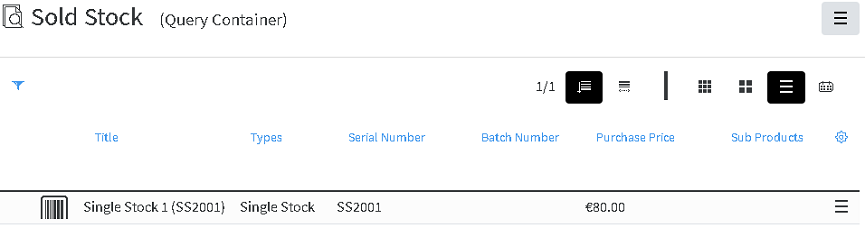
Stock items, included in Sales Invoices and included in Sales transfers with status Finished are listed in the Sold Stock Container in Inventory.
[](https://docs.profuzdigital.com/uploads/images/gallery/2024-11/2Jaimage.png)
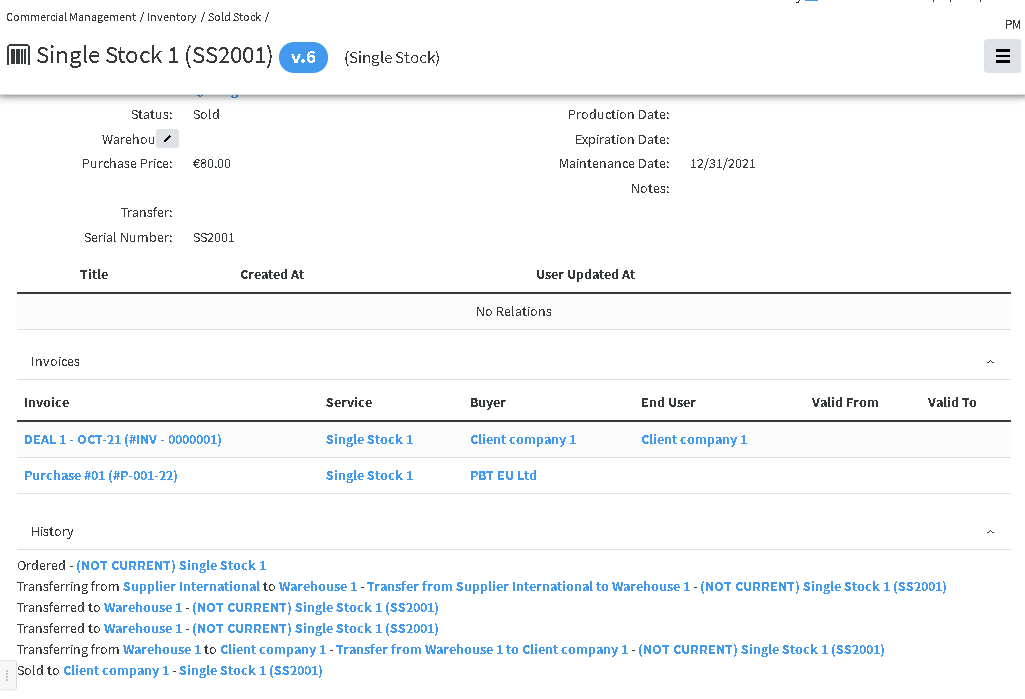
In the Stock object the info for its transfers can be foundin the History Area
[](https://docs.profuzdigital.com/uploads/images/gallery/2024-11/mCIimage.png)