# Create New Type
This system is going to work with information which can be categorized and described through **objects, types and properties.**
Usually this is called **"definition of taxonomies".** In practice, it is used for classification of things or concepts. As a typical object-based software application, LAPIS relies on the principles of taxonomy and applies to objects and concepts. In order to understand the logic of the system and to be able to configure your own taxonomies, you need to have at least a basic understanding of classification principles.
An „**Object “**is the most generic piece of information to describe something, such as person, company, asset, project, task, document, stock, etc.
**„Type“** is a categorization of an Object and holds the characteristics to uniquely describe a particular object, such as person's name, address, phone, age, etc.
The characteristics used to describe a Type are called **„Properties “.** Properties can hold different information such as numbers, dates, colors, texts etc.
## Get to know the default LAPIS Installation
The default LAPIS installation has only one user – the administrator. You can login to the system with username “administrator” and a password “password” at the URL provided by your company system administrator. LAPIS system administrator can login to this URL to start configuring the system.
[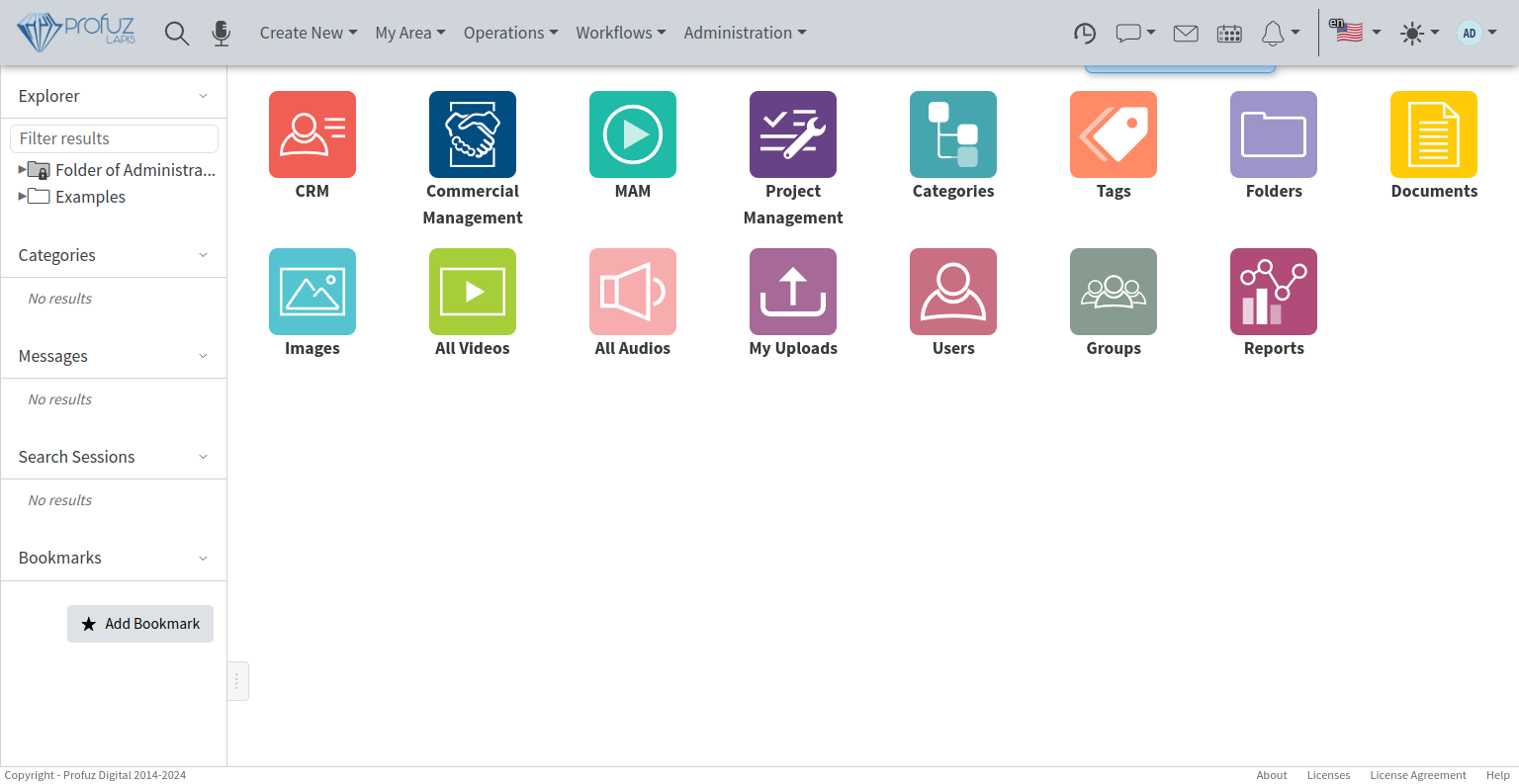](https://docs.profuzdigital.com/uploads/images/gallery/2024-11/Sdkimage.png)
Print screen from default installation with initial dashboard and administrator’s menu.
## Setup Types
If you go to Application Main Menu located in the header at the top of the page- > Administration -> Types
[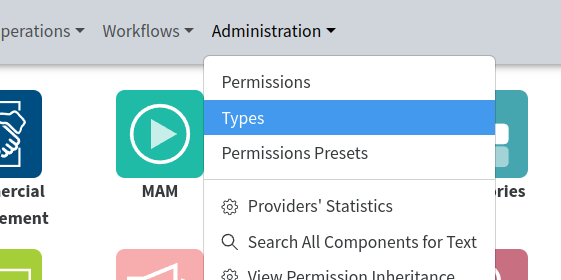](https://docs.profuzdigital.com/uploads/images/gallery/2024-11/cbkimage.png)
you will see a list of all types of data which were setup for you during system default installation and configuration.
All types are marked with the following **Gear Icon **.
Types can be used by the administrator to create similar types, but specific for your organization, with the properties and processes you are used to.
You can create **new types** and **new subtypes** from **Actions menu** in the Application Main Menu located in the header at the top of the page.
Your system is coming with default Types setup. If the Default Types are not enough for your needs, you can change, add new, rearrange or remove properties for every type of object which is not system default object (Object) or system default type (Type). They are locked for editing.
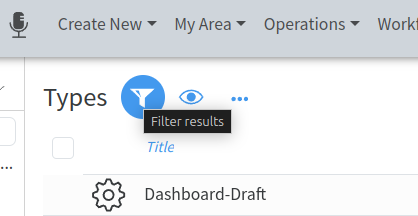
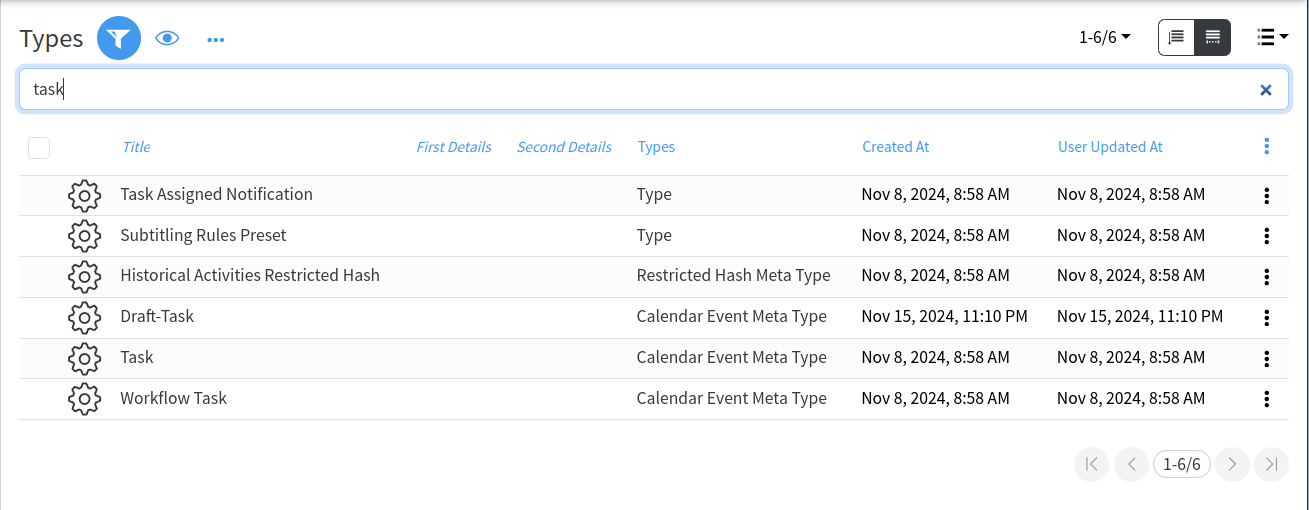
If you want to create a new type or subtype of data, you have to go to **Administration -> Types**, find and select the basic type you want to follow, using Filter, and choose from Actions the Create New or Create New Subtype operation.
[](https://docs.profuzdigital.com/uploads/images/gallery/2024-11/wkzimage.png)
[](https://docs.profuzdigital.com/uploads/images/gallery/2024-11/Rqaimage.png)
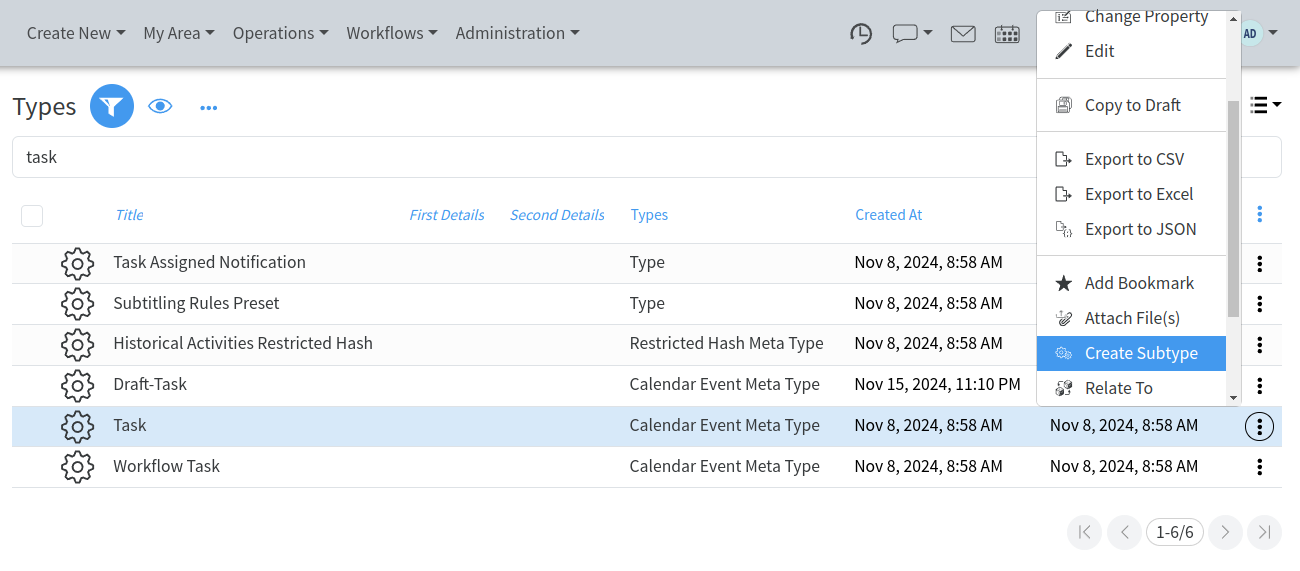
For example, you want to create a new subtype of task which is specific for your business which is “Translation Task”. In order to do that, you have to find the type Task and from Actions you have to choose **Create Subtype**.
[](https://docs.profuzdigital.com/uploads/images/gallery/2024-11/6Loimage.png)
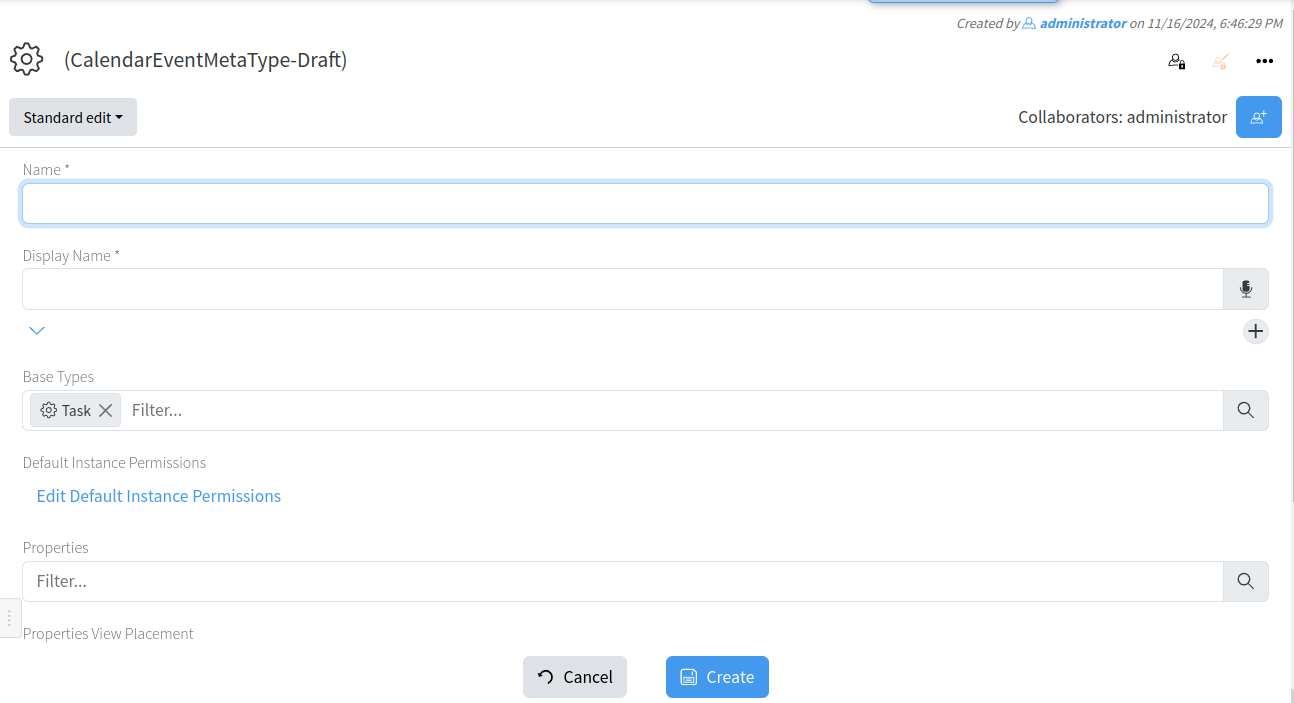
For example, you want to create a new subtype of task which is specific for your business which is “Translation Task”. In order to do that, you have to find the type Task and from Selected Actions you have to choose **Create Subtype**. When the page for creating new Subtype is displayed, first you have to name your new type.
[](https://docs.profuzdigital.com/uploads/images/gallery/2024-11/WmIimage.png)
In the **Name field** you have to write a name without spaces (you can use also special characters as underscore, for example), which will be used as a unique type name in the system.
n the **Display Name field**, you can write the name which will be used by the users of the system to find this type of tasks and work with them, so it is good this to be as intuitive as possible for your organization’s business and culture. The Display Name can be in multiple languages. In the **Default Instance Permissions field**, you decide to whom you want to give access to this type.
This is finalized by pressing the button Create
[](https://docs.profuzdigital.com/uploads/images/gallery/2024-11/24rimage.png)
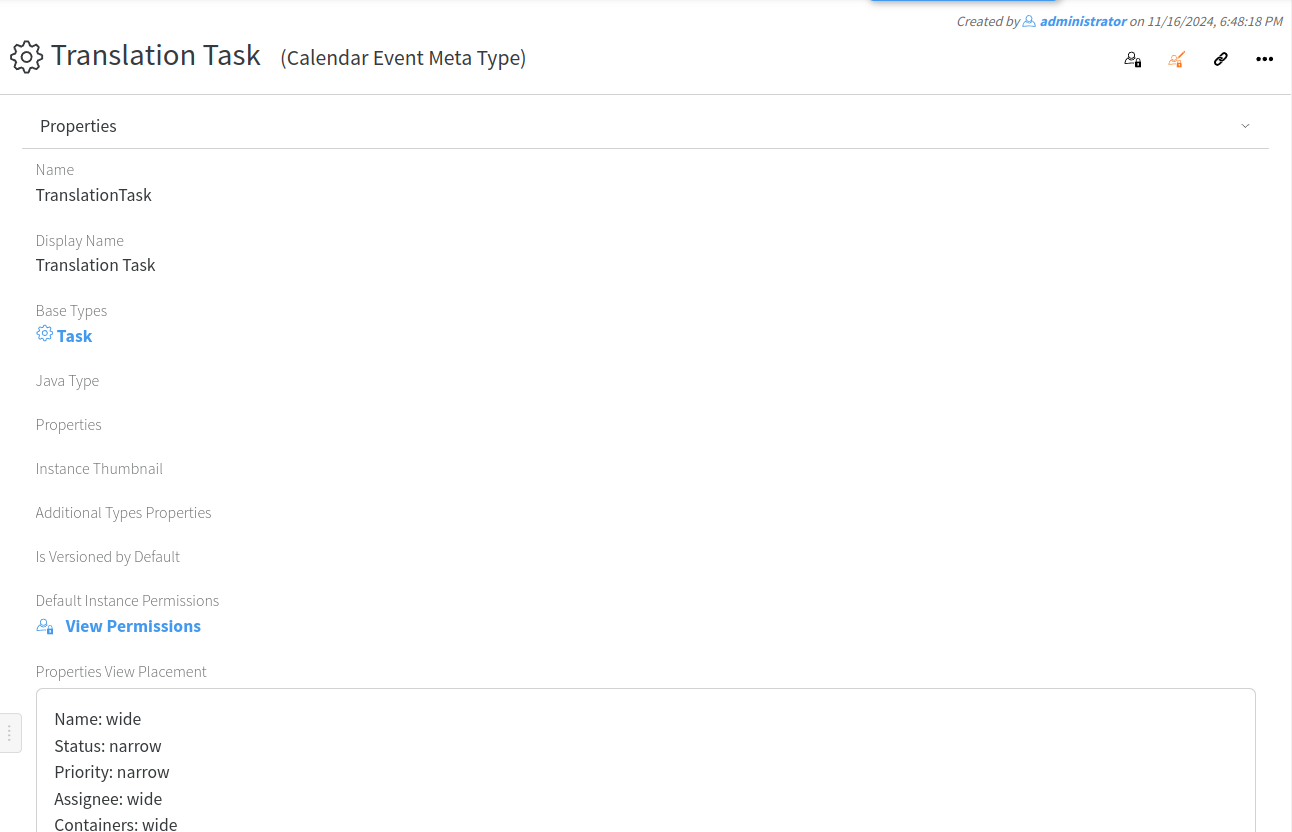
In the **Properties Field**, you choose all additional properties you would like to add to this new Translation Task, in addition to the ones inherited from the Task.
**Property Placements**
A property placement is the way the properties are arranged and displayed in CREATE, VIEW and EDIT pages of the Objects of this Type. .
[](https://docs.profuzdigital.com/uploads/images/gallery/2024-11/XJGimage.png)
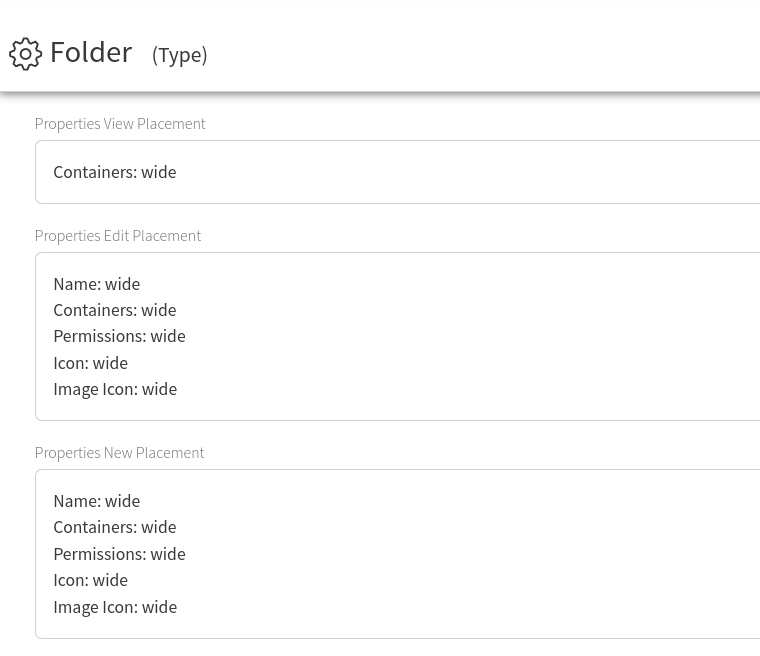
As shown in the example above, there are the following placements: Properties View Placement ( shows which properties are displayed in the main VIEW of the Object and in which order) , Properties Edit Placement (shows which properties are displayed during EDIT operation of the Object and in which order) and Properties New Placement (shows which properties are displayed when creating an Object of this type and in which order).
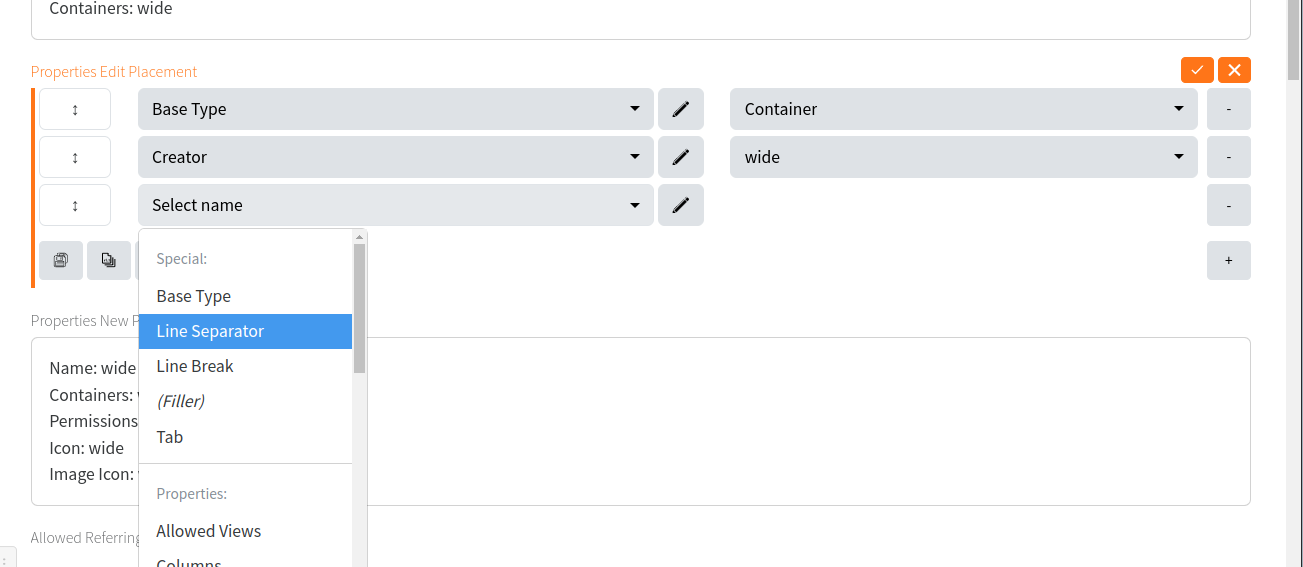
To ADD a new property in the placement list, when in Edit or Quick Edit mode, you have to click on the “+” button and select from the Select Name drop down list. This list contains all the properties defined for this Type (all the properties inherited from the Base Type, plus the properties defined for your Type).
In addition to the listing of the properties, you have to choose their width. This option is needed because of the responsive layout of the pages and takes care to list the properties in one (narrow) or two columns (wide) for desktop displays. On mobile displays they are always shown in a single column.
To rearrange your properties placements, drag and drop the vertical arrow button **↕** on the left to the desired position.
The Line Separator can be used to better separate and group properties visually.
[](https://docs.profuzdigital.com/uploads/images/gallery/2024-11/RTZimage.png)
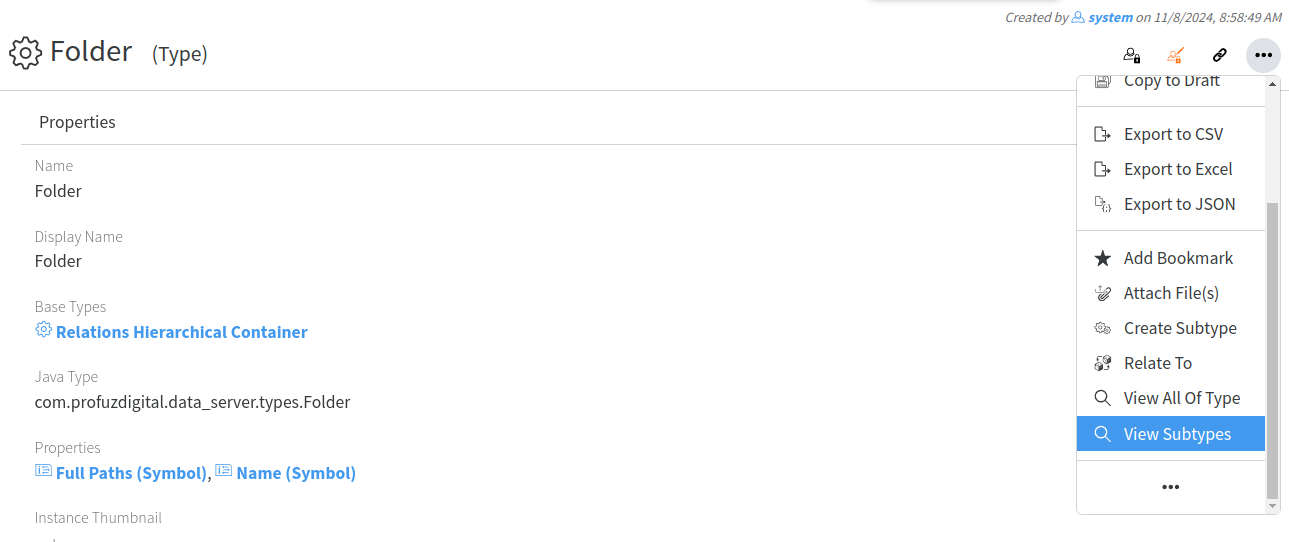
When viewing a Type, the Actions menu in the object's header contains all common actions and the following specific to the Type:
[](https://docs.profuzdigital.com/uploads/images/gallery/2024-11/44Zimage.png)
Create New: creates a new object of this Type; Create Subtype: creates a derivative of this Type; View All of Type: lists all the objects in the system which are of this Type.
These are just few examples of types and what you can do with them, but the same principles can be used to create other types of Objects, totally new (ex. Car, House, etc) or deriving from the default Types in order to make more detailed classifications (ex. Transcription Task, Production Task, Video Editing Task based on the Task; Movable Property, Immovable Property based on the Asset Type).