Users and Permissions
Creating User
Like every Server-clients oriented software Profuz LAPIS allows to manage users with different level of privileges. Adding new user can be done from main Create New drop-down menu. Same is valid for adding new Groups. Each user can be defined to be member of different groups e.g.
- Subtitling QC
- Subtitling Editing
- Subtitling Approval
Accessing permission rights for each task, subtask or other data can be managed by entering inside the location. Go to Action → Edit → Permissions. Click to edit per specific permission request.
Creating User
To create an User go to Create New - User
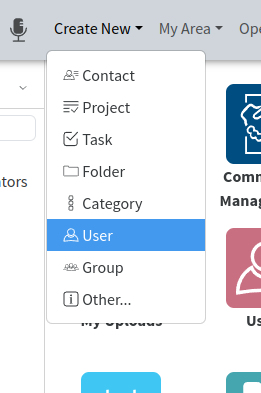
The new window appear where the details about User have to be defined.
Only Username is mandatory.
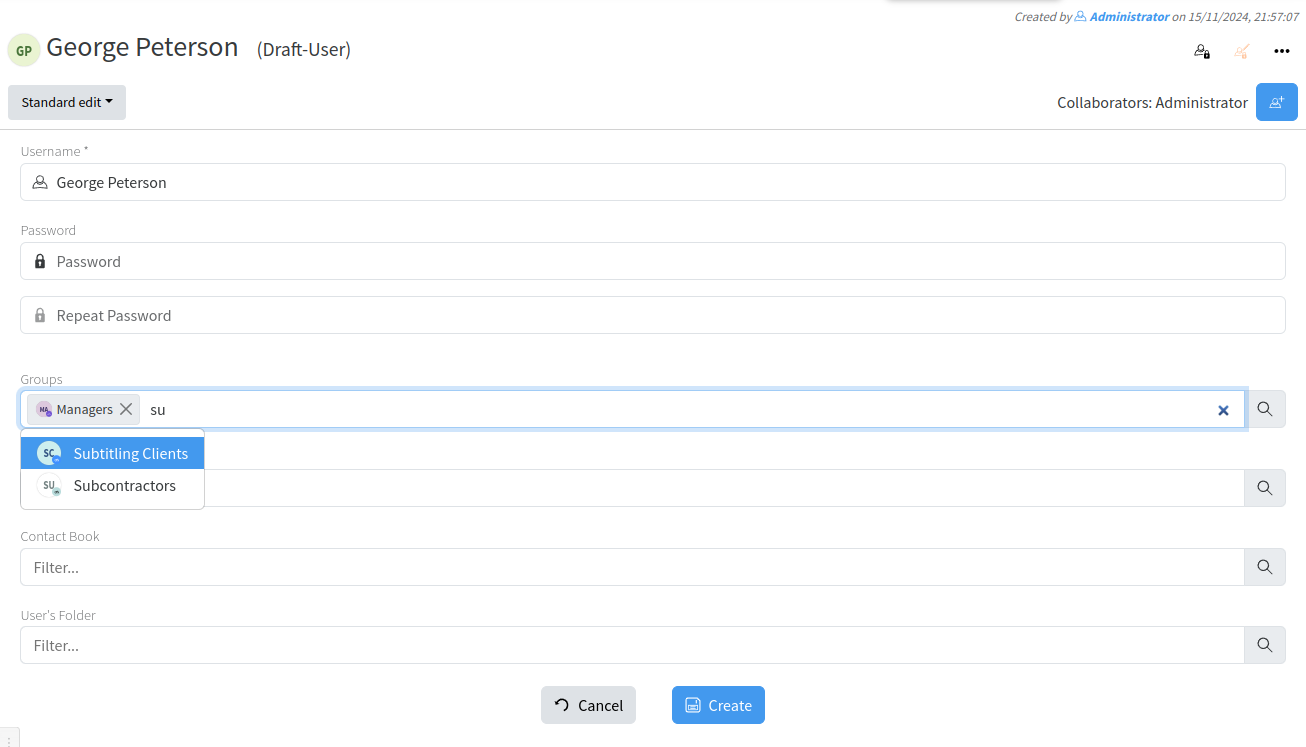
By pressing Create, the User is created.
More details can be added
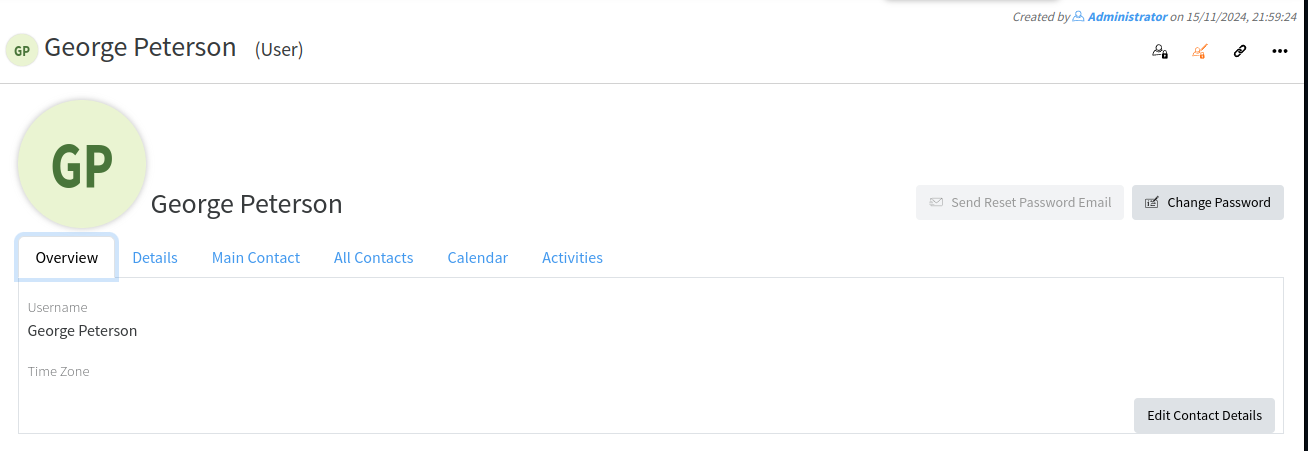
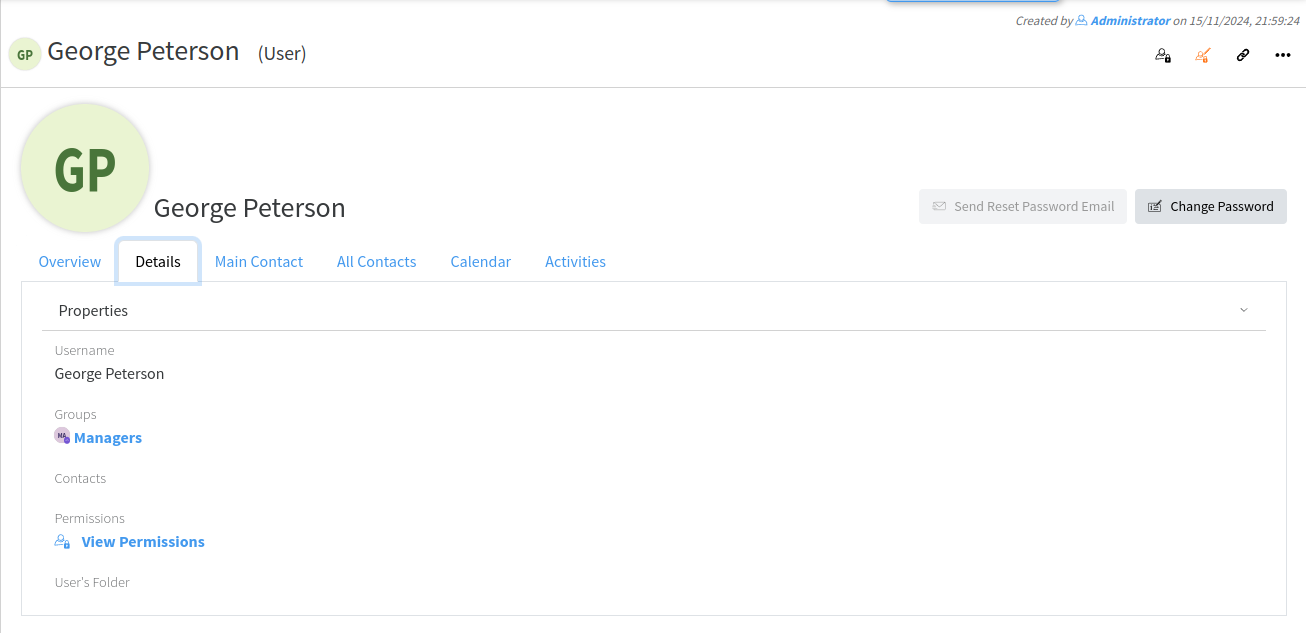
To connect an Existing contact to the User:
- By quick editing
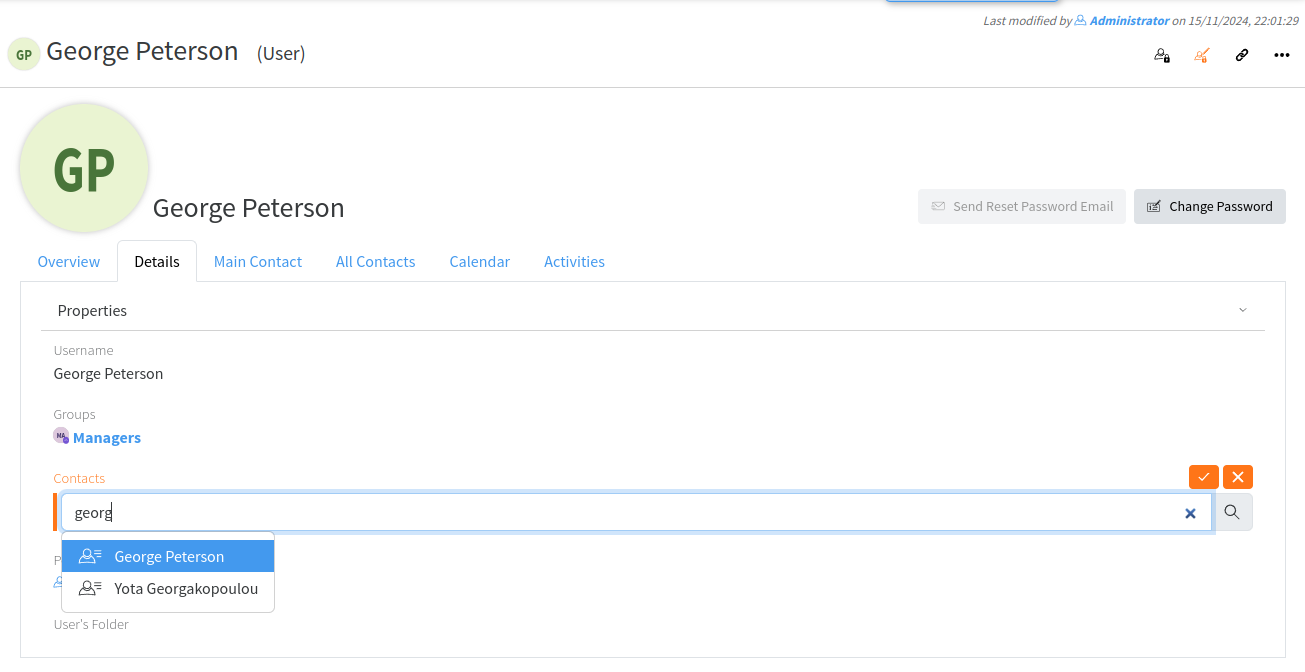
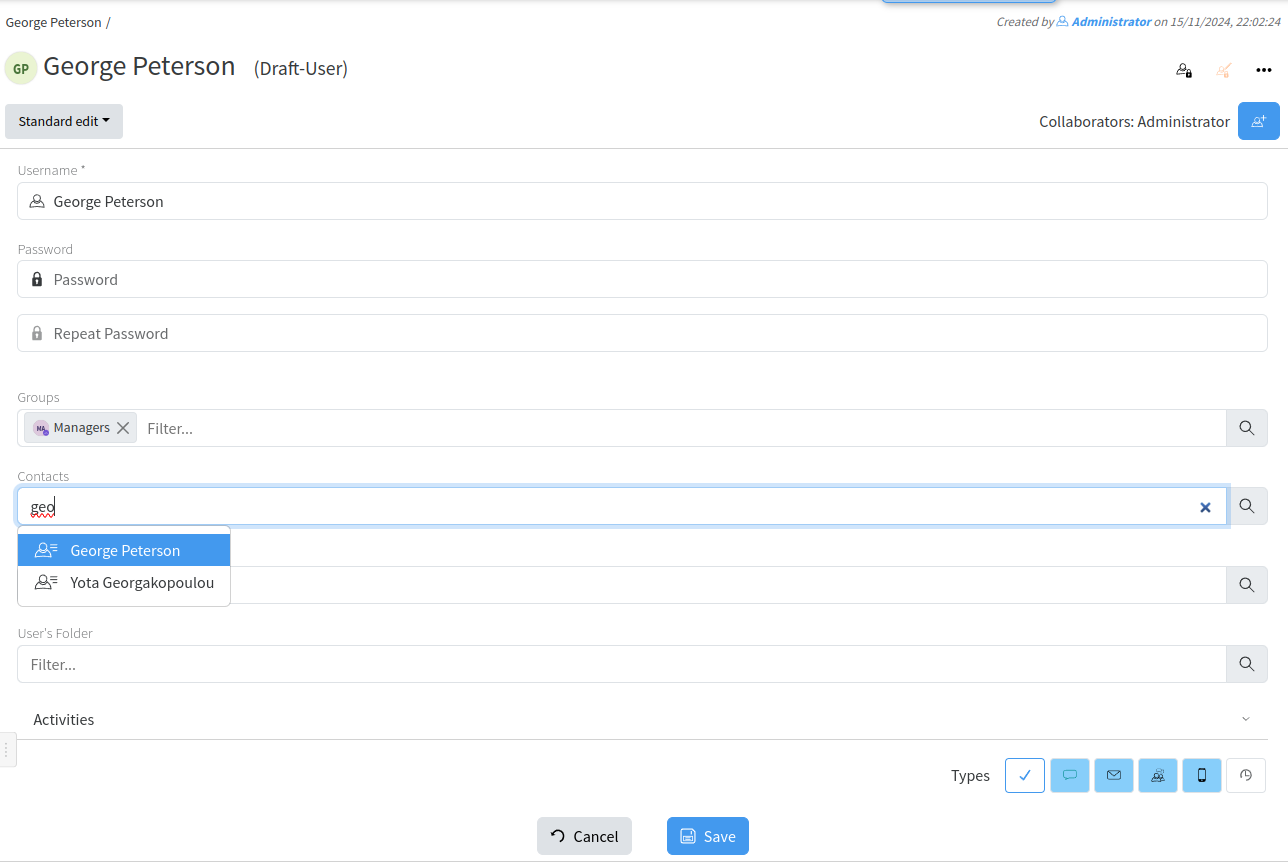
- By Actions - Edit
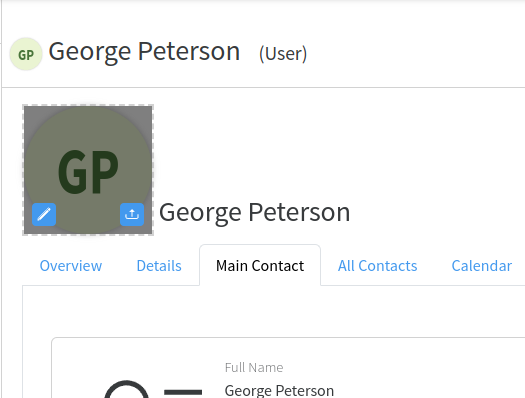
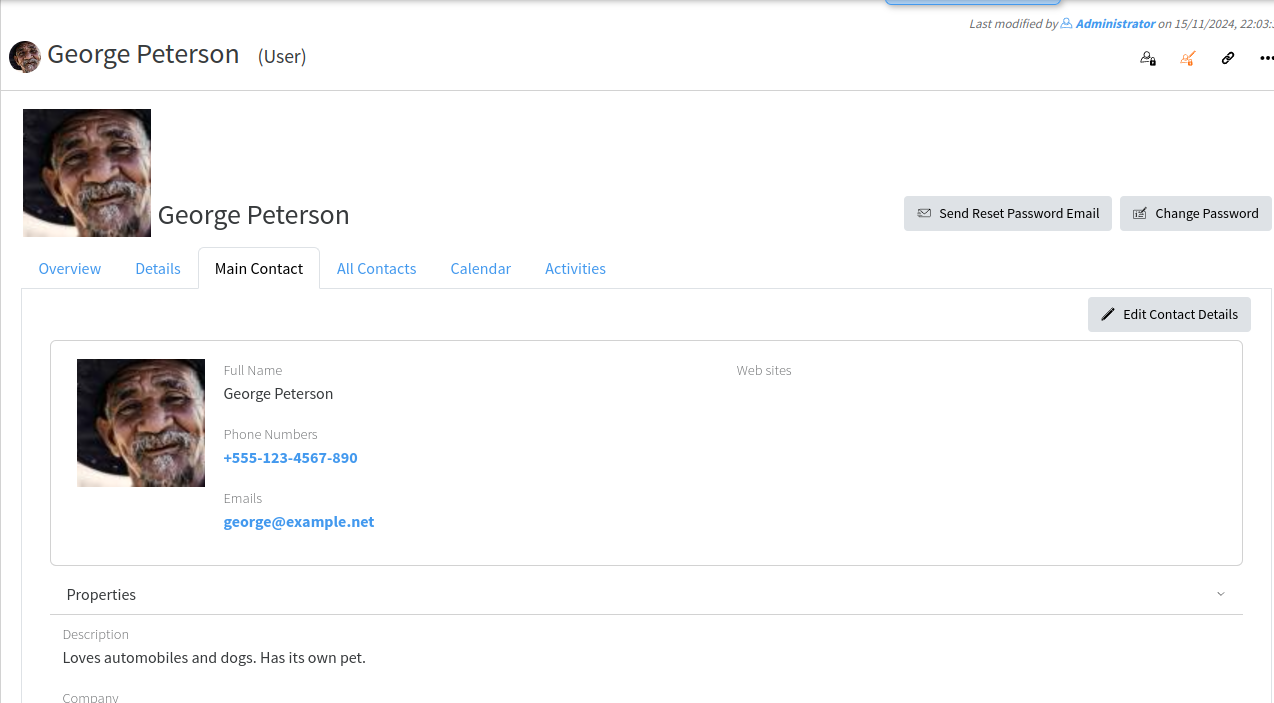
The details of the contact now appear in the Main Contact tab
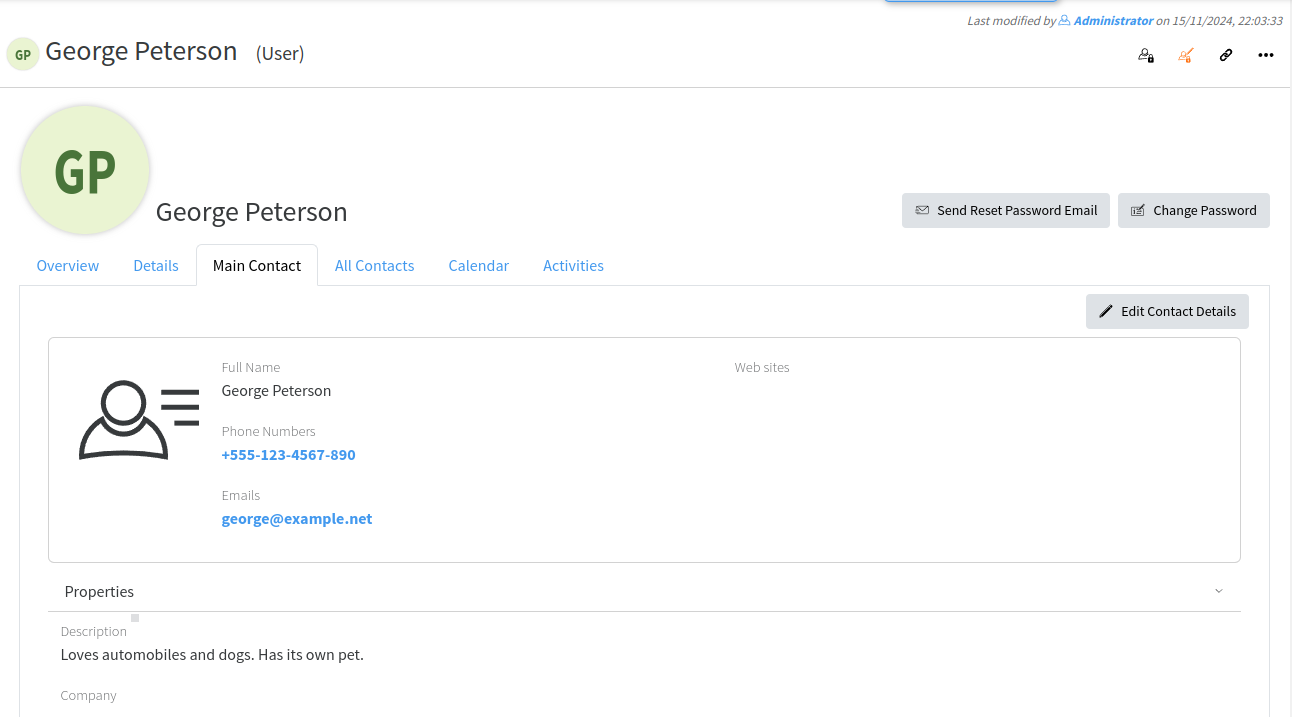
When contact is attached it may have also an image of the user
Managing Permissions
Understanding Permissions logic
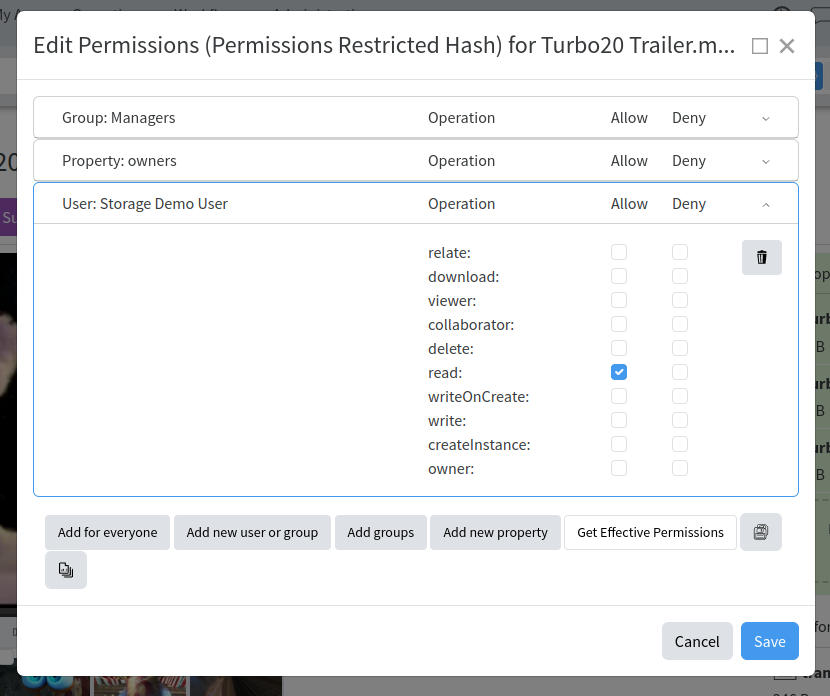
Permissions in LAPIS are per object. They control the common operations that are allowed or denied on an object for particular Users and Groups. The most important ones are:
- read – allows/denies an object to be accessible
- write – allows/denies an object to be modifiable
- delete – allows/denies object to be delete-able
- download – allows/denies an object to be downloadable
- owner – allows/denies all operations
Each object in the system has explicitly set and implicit permissions. Explicit permissions are set to each object and can be changed manually, while implicit permissions are applied to an object through connected to it other objects (for example from a Folder object in which it is present) or other rules (for example an Assignee property gives permissions to its Task). Combination of explicit and implicit permissions gives the effective permissions of an object. Explicit permissions overwrite the Implicit permissions. Deny of an operation has priority in effective (combined) permissions.
When an object is created in the system it receives the default explicit permissions as set for its type. This is configured in the “Default Instance Permissions” property in the corresponding Type or if not set there, from the first ancestor Type in which it is defined.
Define Default Instance Permissions for a Type
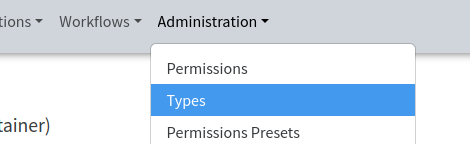
You have to be part of Administrators group to be able to perform these tasks. Go to the menu Administration/Types and find the type you want to manage.
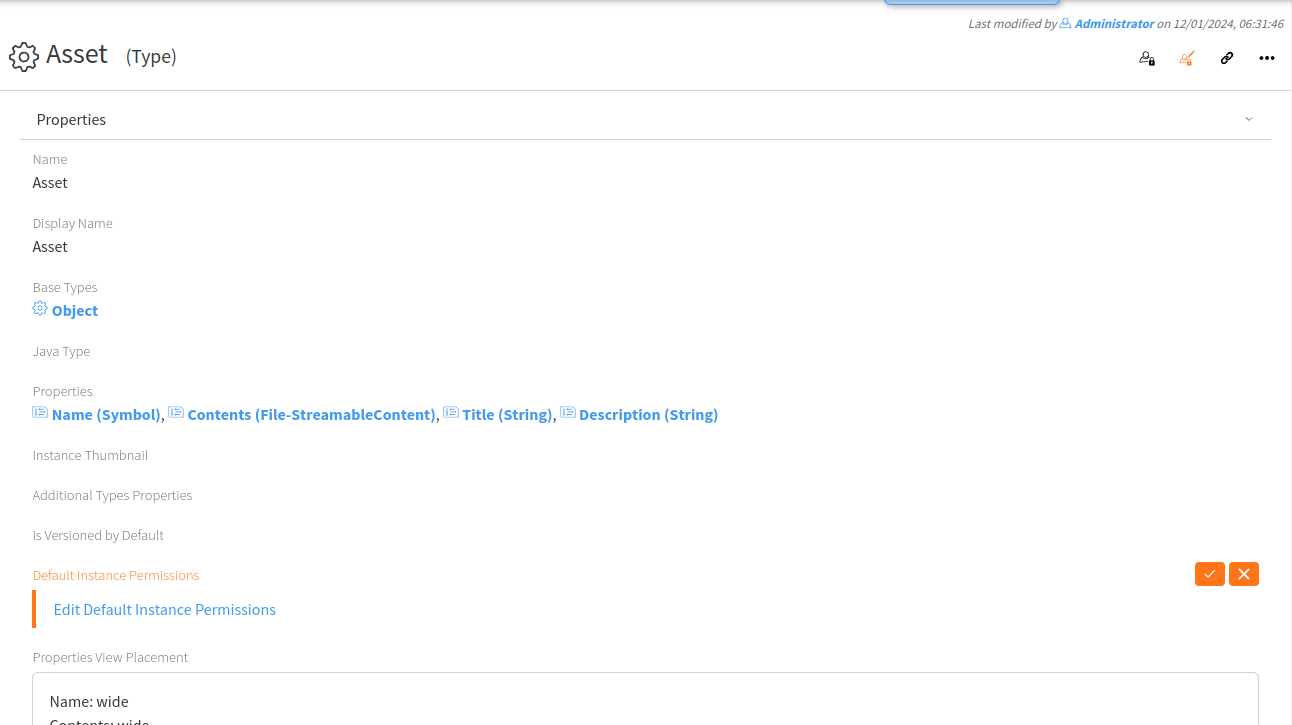
Edit the “Default Instance Permissions” property, add users, groups or Everyone and allow or deny the operations you want for each of those:
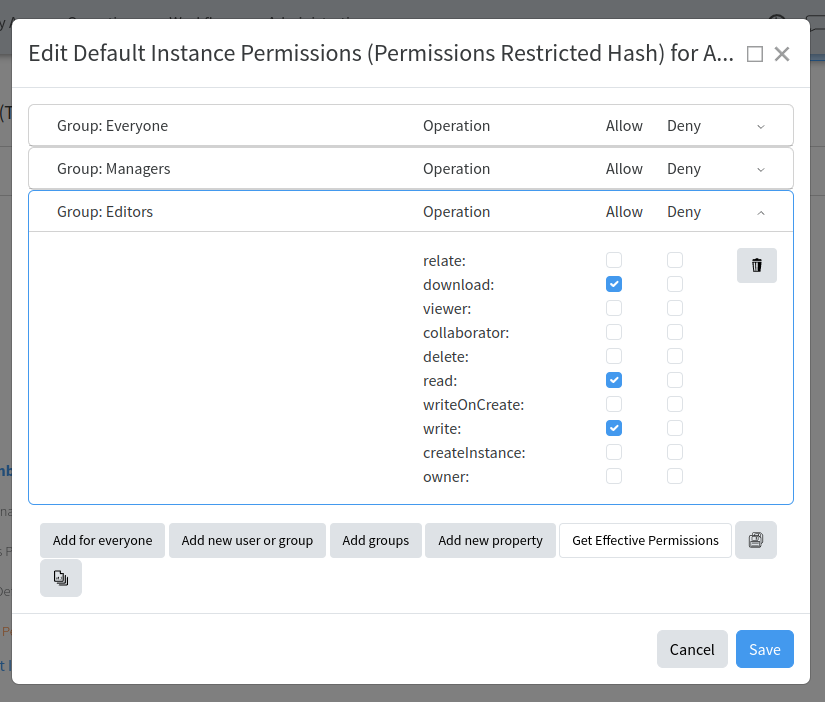
Note that those permissions will be applied to the objects created from now on. All existing objects will keep their existing permissions.
Using Folders, Categories and Tags to manage permissions
Folders, Categories and Tags are all configured to provide inherited permissions to objects they contain. It is enough to set or change permissions to a folder in order to easily propagate them to multiple objects. Note that objects’ explicit permissions will overwrite those set in a folder.
Change explicit permissions of a particular object
Click on Edit Permissions button in the object header:

then click on “Edit Permissions”:
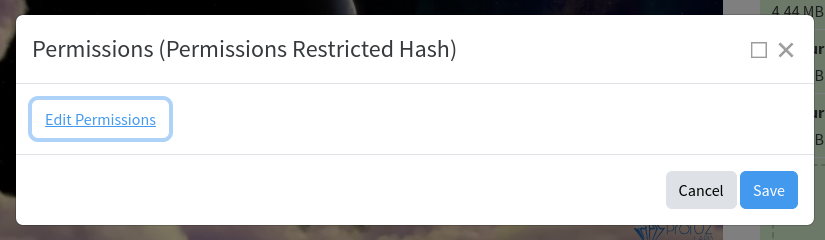
and set the permission you want to be applied to this object: