# Commercial Management
# Sales process
General Sales process goes in the following way:
The Process starts by creating a **Deal**. This is the first entry in the system of the deal details. It can be used for internal approval if necessary or that can be done on some of the following steps as well.
Then **Quote** – **Order** – **Project** - **Invoice**
Before starting sales process, products and services have to be defined. Please refer to Products and Services Section
### Starting a Deal
There are several ways to start a Deal:
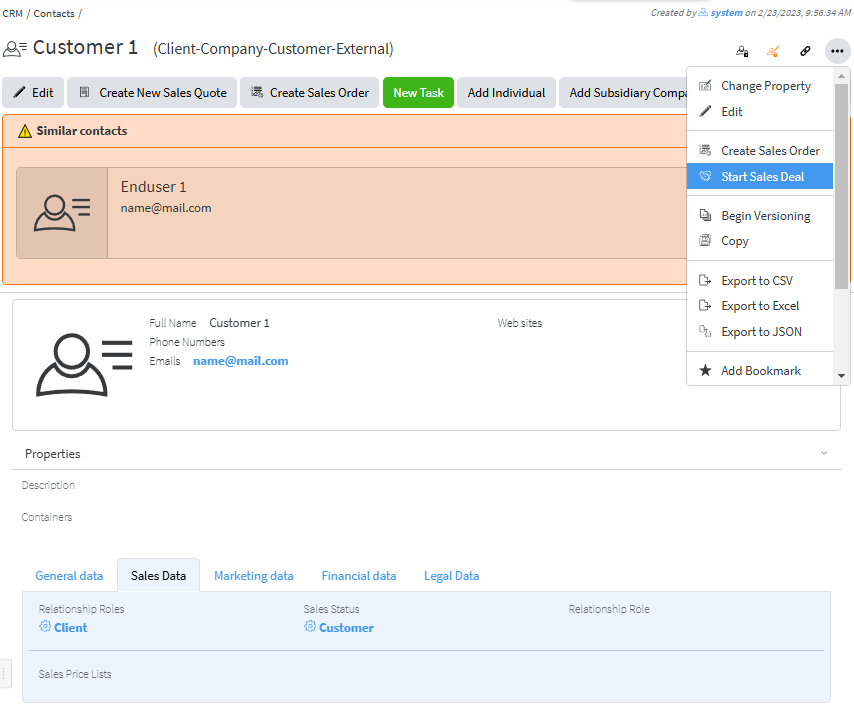
- From a contact, which type is **External**, and relationship role is **Client** (which might be a company or individual) **Actions/Start sales Deal**.
[](https://docs.profuzdigital.com/uploads/images/gallery/2024-11/wn4image.png)
- From **Create new** menu choose **Other**, then search for **Sales Deal** and select it. Press SAVE
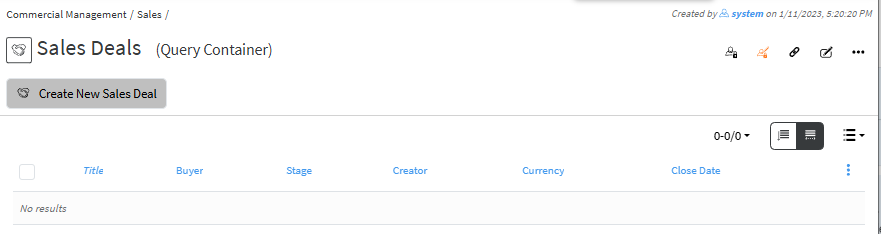
- From **Commercial module** – **Sales Deals** – with the button Create New Sales deal
[](https://docs.profuzdigital.com/uploads/images/gallery/2024-11/ES5image.png)
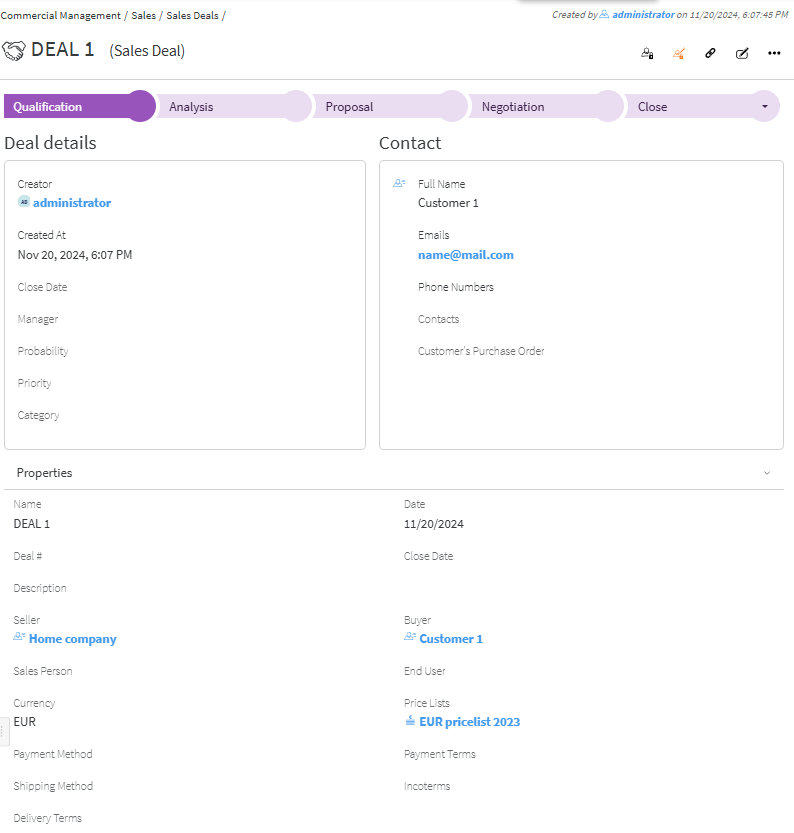
The details then need to be added.
**Name** – a name of the deal
**Description** – some description or additional details can be added
**Close date** – if there is a deadline it can be added here
**Currency** – it is selected from a dropdown menu. If not selected USD is used by default.
**Price list** – it is selected from a drop-down menu, as options shown depend on the currency chosen. For Price list see [Creating Price List](https://docs.profuzdigital.com/books/profuz-lapis-user-guide/page/products-and-services#bkmrk-creating-price-list)
**Payment method, Payment terms, Shipping method** and **Contacts** are added if needed.
**Deal #** by default is a text, depending on the company policy for numbering Sales deal, however automatic numbering can be additionally configured. Enumerators can be added in advance to use automatic numbering. [Creating Enumerator](https://docs.profuzdigital.com/books/profuz-lapis-user-guide/page/enumerators#bkmrk-creating-enumerator)
By Pressing **Create**, the Deal is created.
[](https://docs.profuzdigital.com/uploads/images/gallery/2024-11/Jdmimage.png)
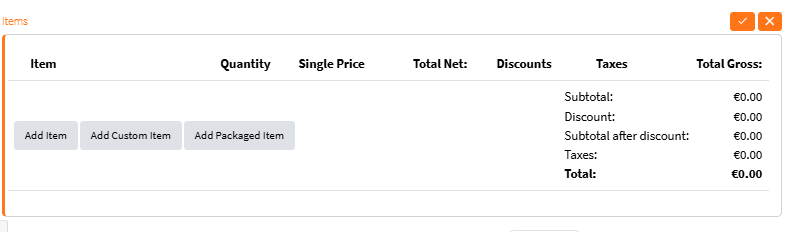
Items (Sellables) can be added after that in Edit Mode (**Actions/Edit**) or by quick edit button [](https://docs.profuzdigital.com/uploads/images/gallery/2024-11/8Zqimage.png)
When pressing Add item at the bottom left of the deal screen, a field with item details is shown.
[](https://docs.profuzdigital.com/uploads/images/gallery/2024-11/oxoimage.png)
By clicking in an empty field a list with suggested Products is shown,
[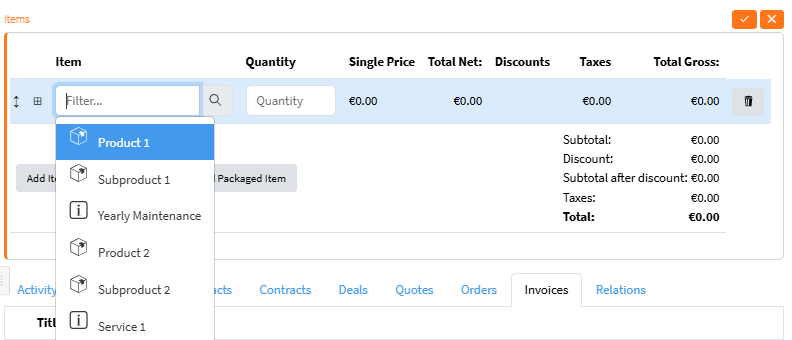](https://docs.profuzdigital.com/uploads/images/gallery/2024-11/jfVimage.png)
If another one needs to be found or new created you have to click on the **magnifier** and in the pop up screen you can find an existing item.
[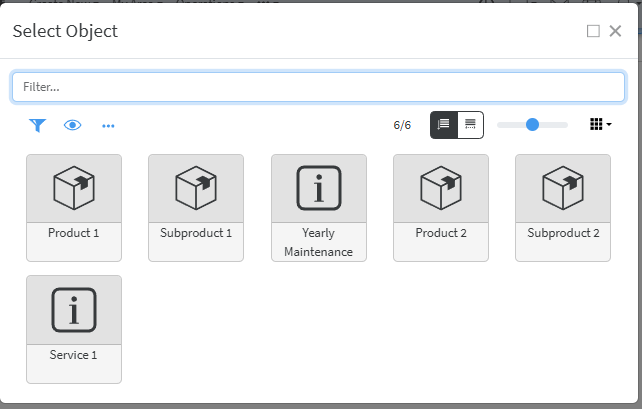](https://docs.profuzdigital.com/uploads/images/gallery/2024-11/1rzimage.png)
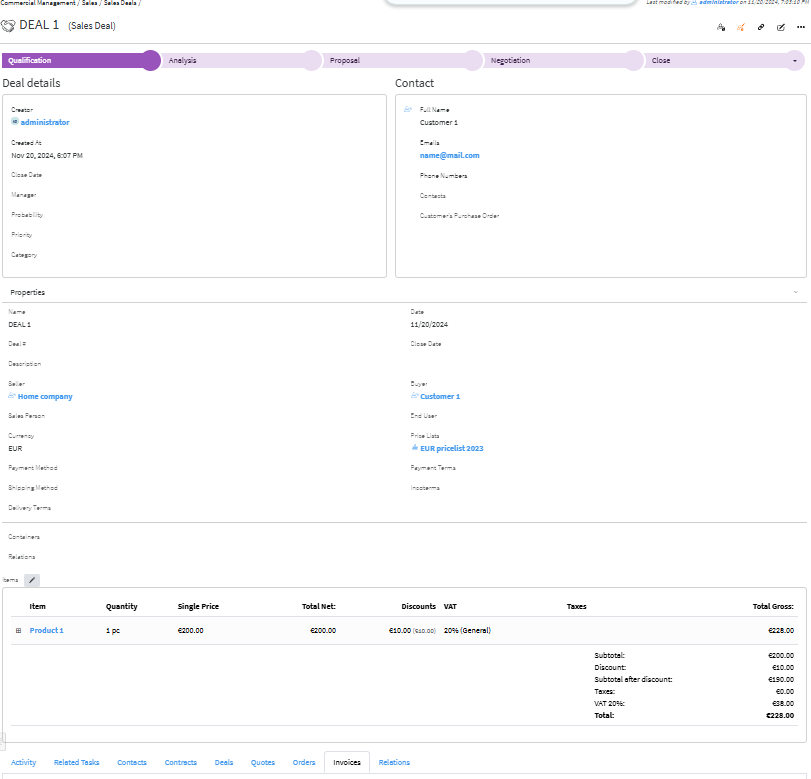
Once the Item is added and quantity is set to 1 or more, the price from Price List appears. It can be edited if necessary.
[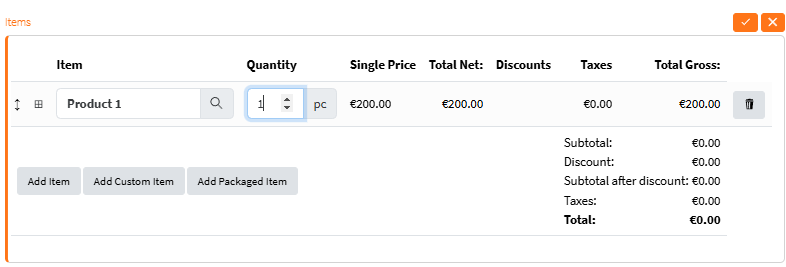](https://docs.profuzdigital.com/uploads/images/gallery/2024-11/1Muimage.png)
Some additional information needs to be filled in and it appears by pressing here [](https://docs.profuzdigital.com/uploads/images/gallery/2024-11/4Vwimage.png)
[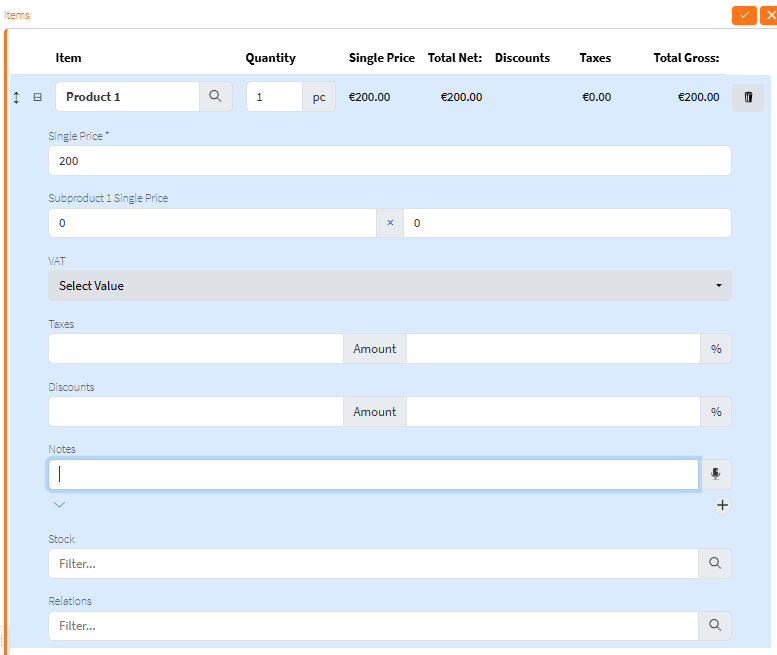](https://docs.profuzdigital.com/uploads/images/gallery/2024-11/vUeimage.png)
Quantity and single price can be edited.
The VAT, additional taxes and discounts (in % or with a value) can be added.
Stock will be defined later.
[](https://docs.profuzdigital.com/uploads/images/gallery/2024-11/deIimage.png)
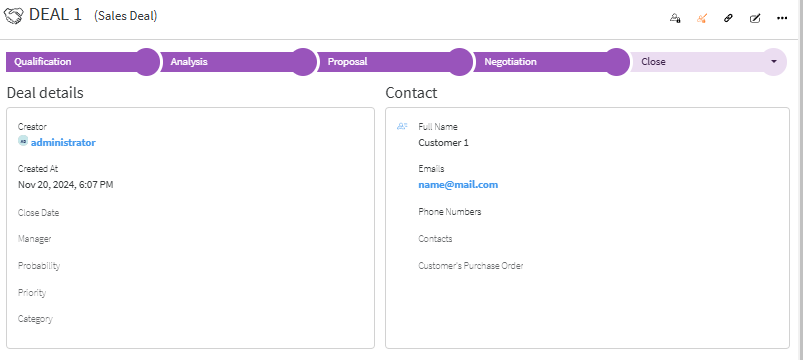
Deal statuses by default configuration are
Qualification – Analysis – Proposal – Negotiation – Close Approved/Close Declined
Depending on customer’s needs these statuses can be more or less and named in a different way.
[](https://docs.profuzdigital.com/uploads/images/gallery/2024-11/w6Wimage.png)
In the Deal Object at the bottom of the page there are several tabs with useful links and information.
**Activities**
At the bottom of the page, in Activity tab, the Several types of Activities can be monitored
They can be swithed on by pressing the corresponding button.
[](https://docs.profuzdigital.com/uploads/images/gallery/2024-12/PTJimage.png)
The two main types are:
Comments  and Activity logs [](https://docs.profuzdigital.com/uploads/images/gallery/2024-12/oPyimage.png)
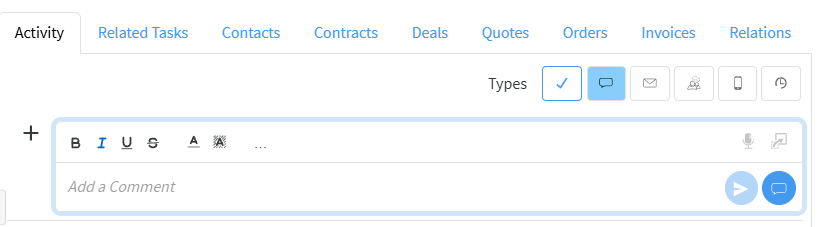
Comments are used for real time comments and notes.
Adding a comment - In the corresponding field *Add a Comment* is visible in grey.
[](https://docs.profuzdigital.com/uploads/images/gallery/2024-12/ScWimage.png)
The comment is written there and it is added by pressing Submit Button.[](https://docs.profuzdigital.com/uploads/images/gallery/2024-11/H8ximage.png)
They can be formatted with colors, fonts, styles, etc and edited if needed.
[](https://docs.profuzdigital.com/uploads/images/gallery/2024-11/dHwimage.png)
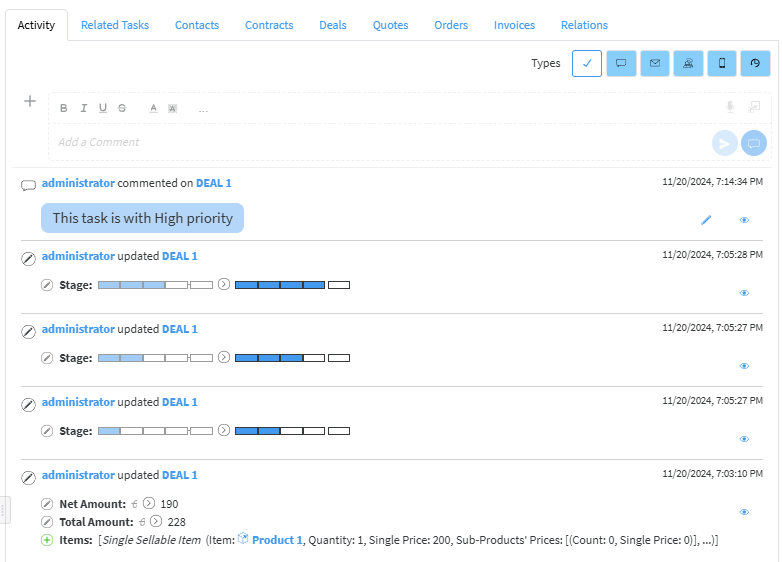
Activity [](https://docs.profuzdigital.com/uploads/images/gallery/2024-12/uzJimage.png)– shows log of the Activities
[](https://docs.profuzdigital.com/uploads/images/gallery/2024-11/c3oimage.png)
In **Relations** tab any related file or object can be seen **Relating a file or an object.**
### Creating a Quote
From Deal the Quote can be created by Actions/Generate Quote with the details that are in the Deal
[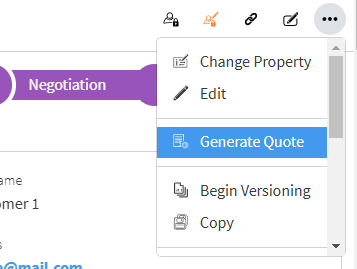](https://docs.profuzdigital.com/uploads/images/gallery/2024-12/LSximage.png)
Quote # by default is a text, depending on the company policy for numbering Sales quote, however automatic numbering can be additionally configured. Enumerators can be added in advance to use automatic numbering. [Creating Enumerator](https://docs.profuzdigital.com/books/profuz-lapis-user-guide/page/enumerators#bkmrk-creating-enumerator)
[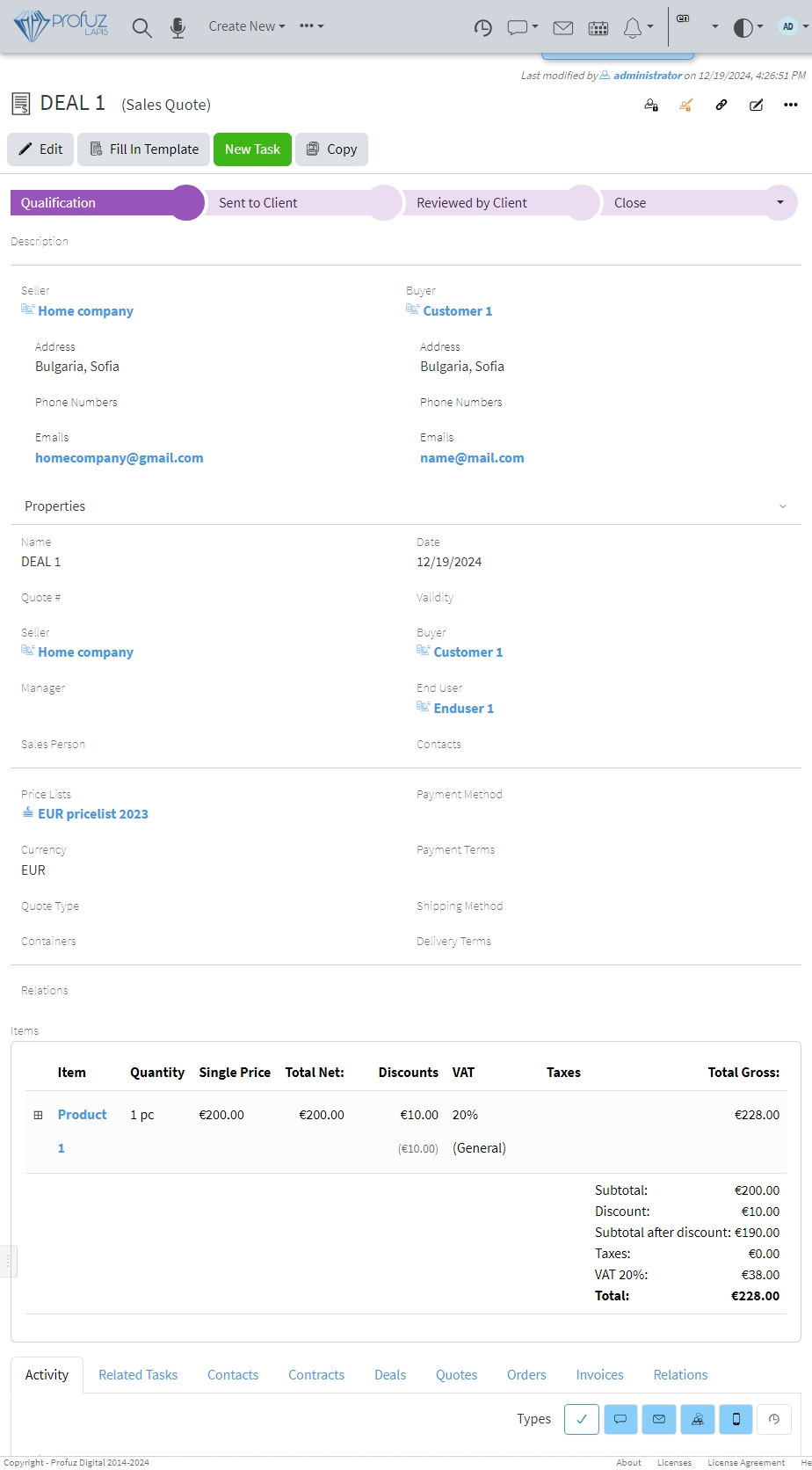](https://docs.profuzdigital.com/uploads/images/gallery/2024-12/4gjimage.png)
Quote Statuses by default are Qualifications – Sent to Client – Reviewed by Client – Close(Approved/Declined)
[](https://docs.profuzdigital.com/uploads/images/gallery/2024-12/Yhsimage.png)
To create A file from Template with the details from the object, go to Actions – Fill in Template from the Object Operations menu, at the upper right  See [Creating a template](https://docs.profuzdigital.com/books/profuz-lapis-user-guide/page/document-templates#bkmrk-creating-template)
[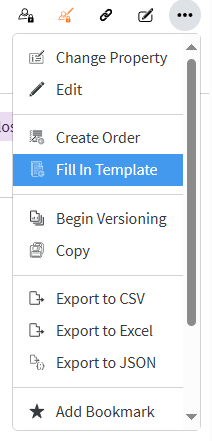](https://docs.profuzdigital.com/uploads/images/gallery/2024-12/lgaimage.png)
and choose the Template you need.
Or using the Button if available
[](https://docs.profuzdigital.com/uploads/images/gallery/2024-12/IoQimage.png)
[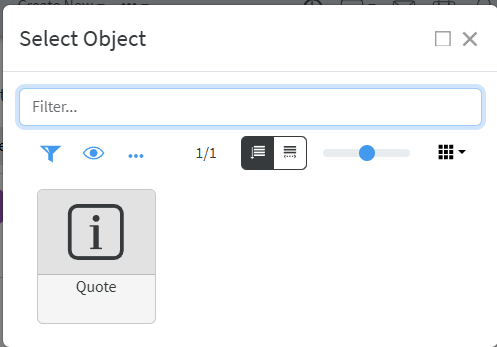](https://docs.profuzdigital.com/uploads/images/gallery/2024-12/Esvimage.png)
Once selected, the document is generated. It might need some time.
[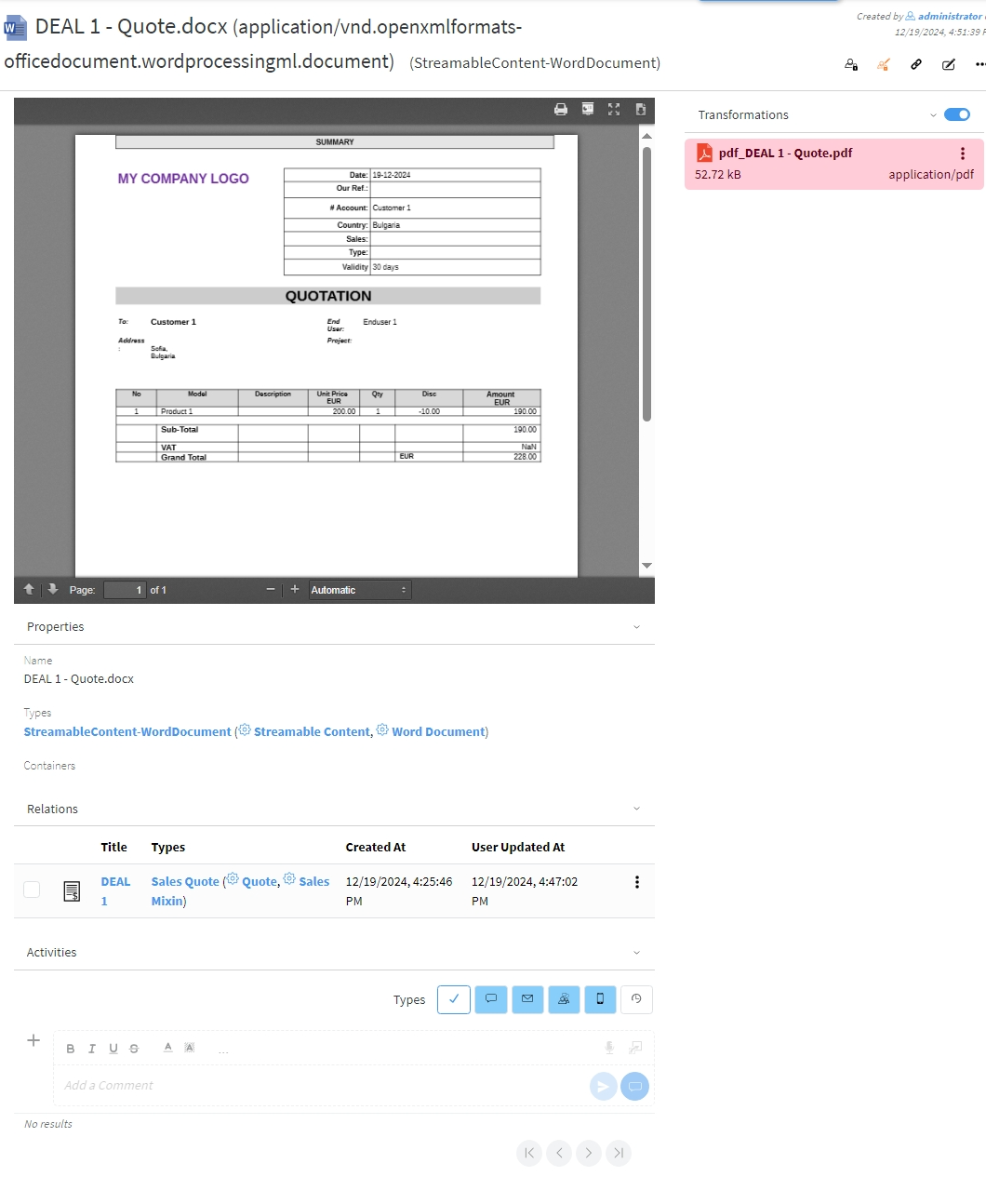](https://docs.profuzdigital.com/uploads/images/gallery/2024-12/88Uimage.png)
Then the file is generated in docx format. Docx file is shown in the Contents field.
There is pdf transformation available as well, which can be shown or hidden by swithing on
[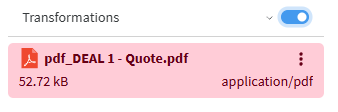](https://docs.profuzdigital.com/uploads/images/gallery/2024-12/Cbnimage.png)
and off the Transformations list
[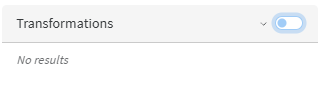](https://docs.profuzdigital.com/uploads/images/gallery/2024-12/YsSimage.png)
The download of .pdf file can be done by download button in JS viewer [](https://docs.profuzdigital.com/uploads/images/gallery/2024-12/SW6image.png)
or in the Transformation field, by clicking the Actions icon [](https://docs.profuzdigital.com/uploads/images/gallery/2024-12/HiPimage.png)
[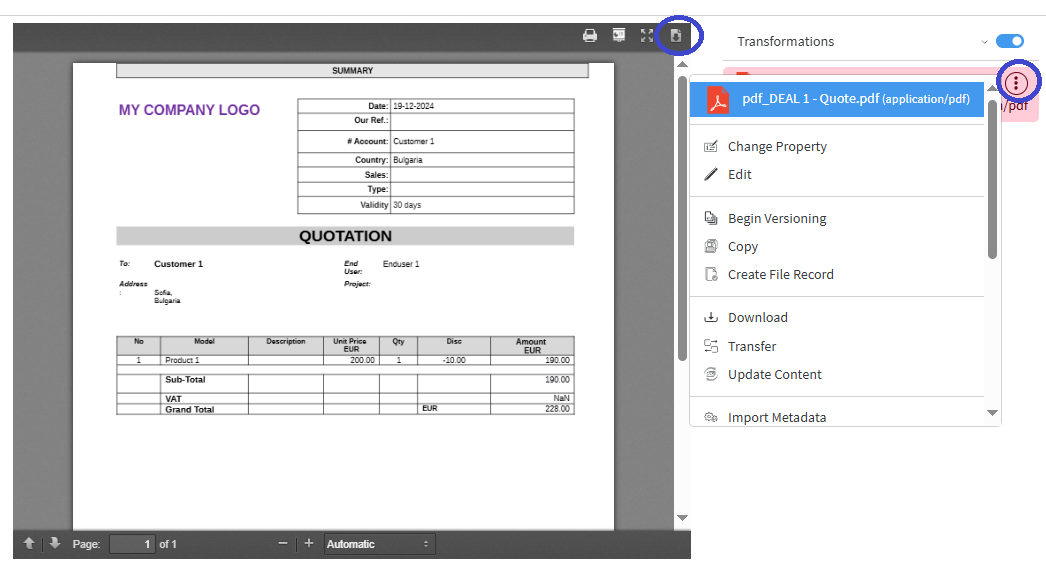](https://docs.profuzdigital.com/uploads/images/gallery/2024-12/XbWimage.png)
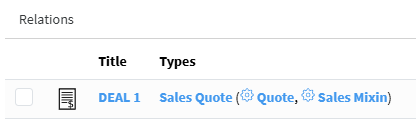
The Quote object can be accessed from the current view of the generated file as it appears at the bottom in the **Relations** section
[](https://docs.profuzdigital.com/uploads/images/gallery/2024-12/Kw8image.png)
A docx file appears in Relations tab at the bottom of **Quote object**. It can be downloaded from there as well via Actions icon
[](https://docs.profuzdigital.com/uploads/images/gallery/2024-12/4FWimage.png)
[](https://docs.profuzdigital.com/uploads/images/gallery/2024-12/JDbimage.png)
Once the status of the Quote is set to Approved, the next step can be done – creating an order
### Creating an Order
- From Create New/Other – Sales order – in case Sales process doesn’t go via Deal-Quote
- From a contact, which type is **External**, and relationship role is **Client** (which might be a company or individual) **Actions/Creates Sales Order** - in case selling process doesn’t go via Deal-Quote
- From Quote the Order can be created by Actions/Create Order
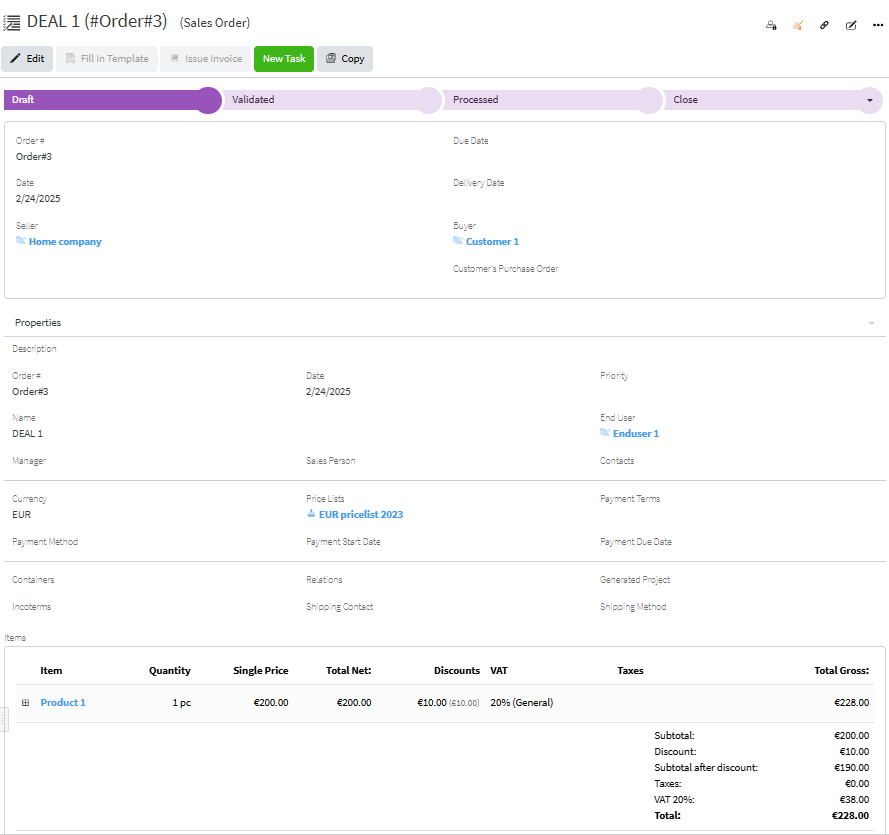
Order statuses by default configuration are Draft – Validated – Processed - Close (Delivered or Canceled)
[](https://docs.profuzdigital.com/uploads/images/gallery/2025-02/yvRimage.png)
Order has the same data as Quote. If necessary, some may be added and some amended.
Order # by default is a text, depending on the company policy for numbering Sales orders, however automatic numbering can be additionally configured. Enumerators can be added in advance to use automatic numbering. [Creating Enumerator](https://docs.profuzdigital.com/books/profuz-lapis-user-guide/page/enumerators#bkmrk-creating-enumerator)
Order statuses by default configuration are Draft – Validated – Processed - Close (Delivered or Canceled)
In order to go to Stage **Processed**, the stock for each Product or Service on stock has to be set. That means that exact stock, from the inventory has to be appointed. If that is not done the current message will appear
[](https://docs.profuzdigital.com/uploads/images/gallery/2024-11/t2simage.png)
This is how the stock is appointed:
Click on the square near the Item as shown below
[](https://docs.profuzdigital.com/uploads/images/gallery/2025-02/Mtuimage.png)
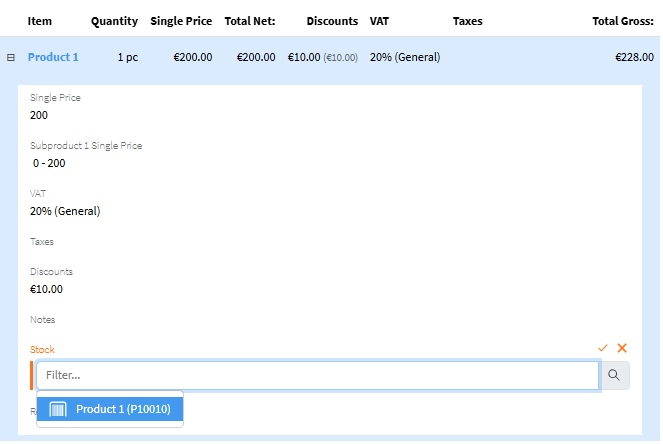
Then the Item area appears, upon hovering on the Stock property, the *Quick Edit* icon appears on the right [](https://docs.profuzdigital.com/uploads/images/gallery/2025-02/LhIimage.png)
[](https://docs.profuzdigital.com/uploads/images/gallery/2025-02/iybimage.png)
The stocks that are available, and which Product corresponds to the Item, appear as choices.
Same can be done in the *Edit* mode of the Order or *Quick Edit* of Items.
After the stocks are set for each Item that needs it, the Status can be changed to Processed and Invoice object can be created.
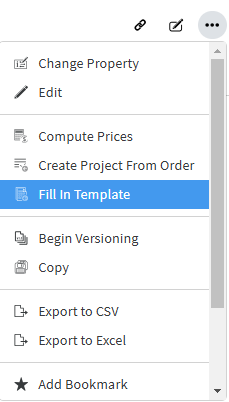
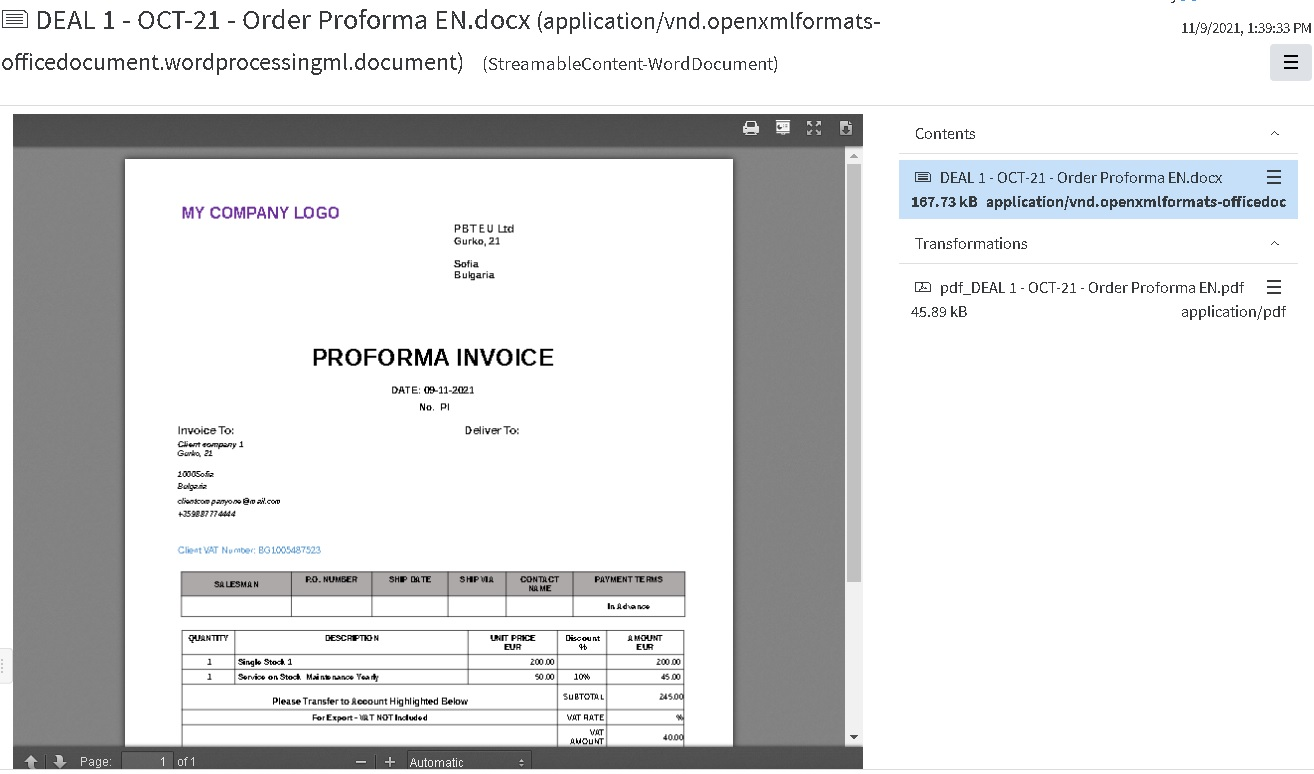
Documents such as Proforma Invoices, Order Acknowledgements (or other) can be generated by Fill in Template in Actions. See [Creating a template](https://docs.profuzdigital.com/books/profuz-lapis-user-guide/page/document-templates#bkmrk-creating-template) for more details.
[](https://docs.profuzdigital.com/uploads/images/gallery/2025-02/du1image.png)
[](https://docs.profuzdigital.com/uploads/images/gallery/2024-11/AOpimage.png)
## Creating a project from Sales Order
More information can be found in [Project Management](https://docs.profuzdigital.com/books/profuz-lapis-user-guide/page/project-management "Project Management") chapter
- From Create New/Other – Project
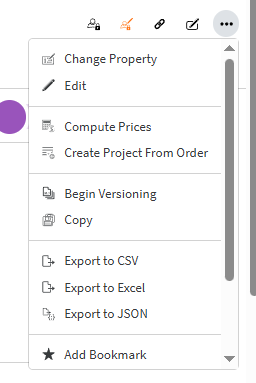
- From the Order can be created by Actions/Create Project from Order
[](https://docs.profuzdigital.com/uploads/images/gallery/2025-03/image.png)
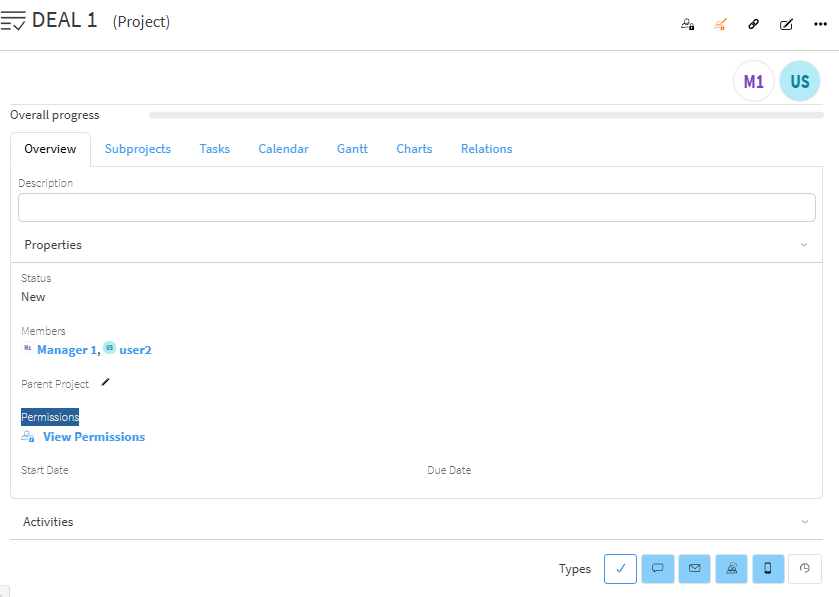
The new object is created of type Project.
[](https://docs.profuzdigital.com/uploads/images/gallery/2025-03/7Upimage.png)
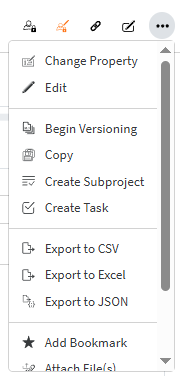
New tasks or subprojects can be added as follows:
[](https://docs.profuzdigital.com/uploads/images/gallery/2025-03/9XMimage.png)
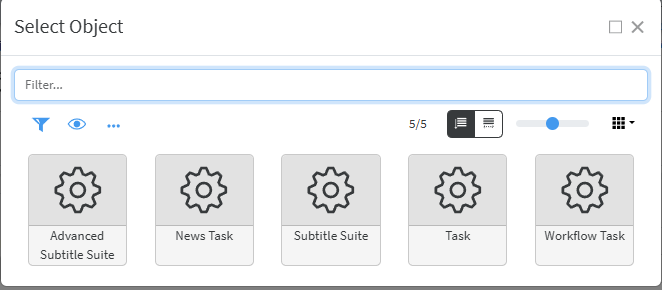
If different types of Tasks are defined, they can be used for the specific processes in the company.
[](https://docs.profuzdigital.com/uploads/images/gallery/2025-03/BzZimage.png)
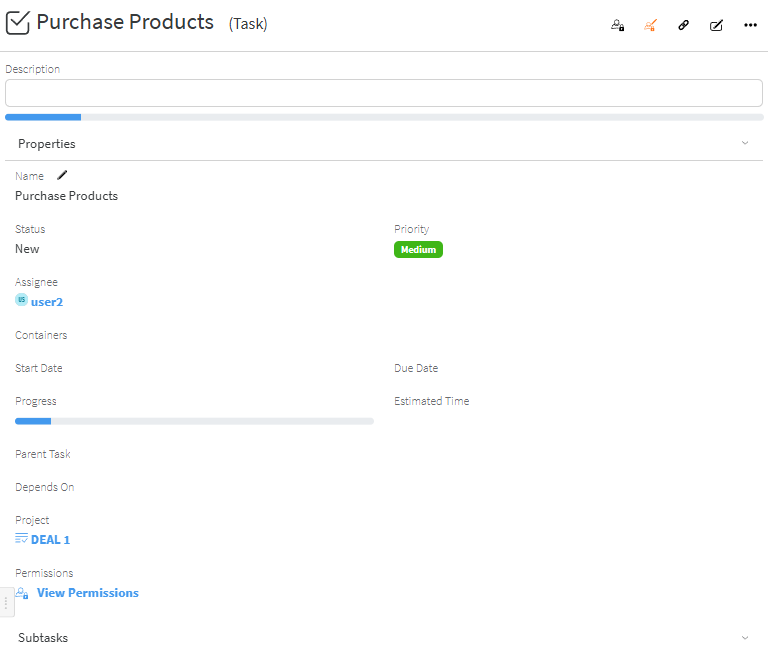
This is how a simple task looks like:
[](https://docs.profuzdigital.com/uploads/images/gallery/2025-03/AgIimage.png)
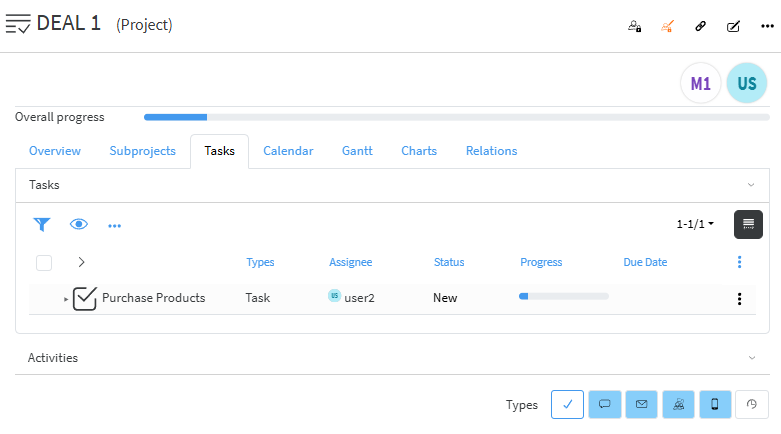
Tasks to the Projects appear in the Tasks tab
[](https://docs.profuzdigital.com/uploads/images/gallery/2025-03/g2himage.png)
## Issue an Invoice
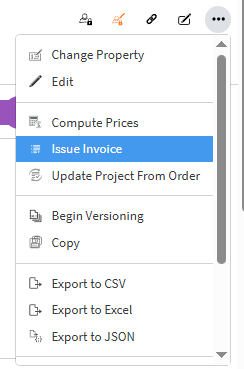
From the order, which status is Processed Invoice can be created by **Actions - Issue Invoice**
[](https://docs.profuzdigital.com/uploads/images/gallery/2025-03/fSIimage.png)
or using the button **Issue Invoice**
[](https://docs.profuzdigital.com/uploads/images/gallery/2025-03/Q1iimage.png)
The object of type Sales Invoice is created with the data from the order.
[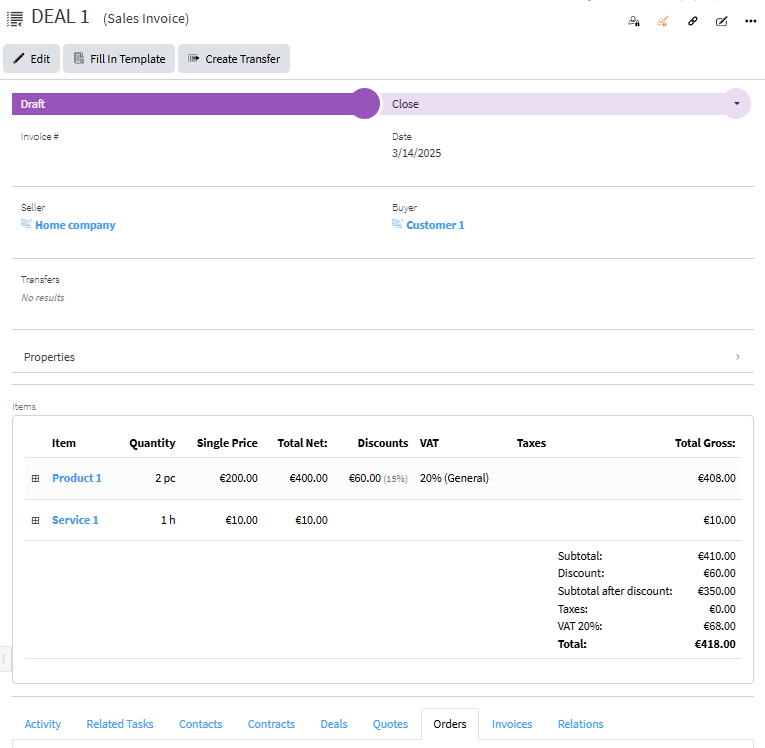](https://docs.profuzdigital.com/uploads/images/gallery/2025-03/WAQimage.png)
Properties field can be shown or hidden by pressing the arrow at the right part of the row [](https://docs.profuzdigital.com/uploads/images/gallery/2025-03/Lakimage.png)
When extended it is generally as follows:
[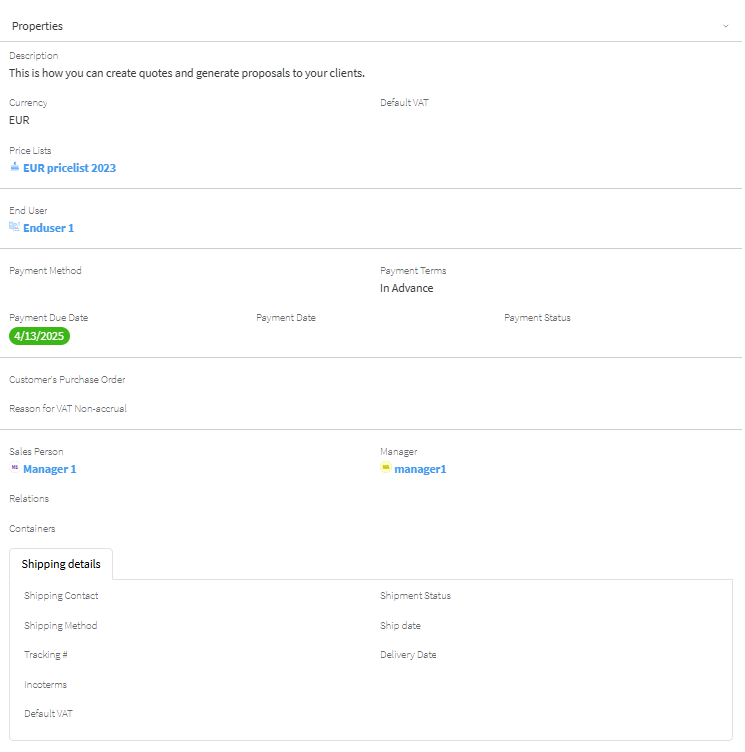](https://docs.profuzdigital.com/uploads/images/gallery/2025-03/ui4image.png)
Generally, depending on the official rules for Invoice numbering, different Enumerators can be chosen. See [Creating Enumerators](https://docs.profuzdigital.com/books/profuz-lapis-user-guide/page/enumerators#bkmrk-creating-enumerator) for details.
When the status is set to Validated, the number and current date are automatically assigned (Number will appear if a proper Enumerator is defined).
If you need to see more details for each item and which stock is assigned to the Item, click on the  near the Item.
[](https://docs.profuzdigital.com/uploads/images/gallery/2025-03/k5ximage.png)
[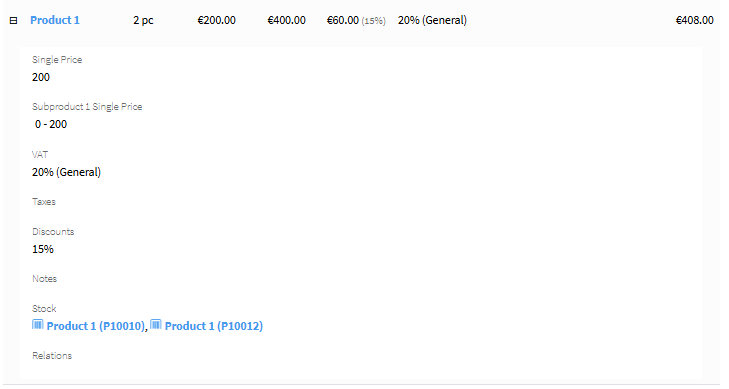](https://docs.profuzdigital.com/uploads/images/gallery/2025-03/xsVimage.png)
The export of the Invoice details to a MS Word document can be generated by Fill in template, choosing the corresponding Template. See [Creating a template](https://docs.profuzdigital.com/books/profuz-lapis-user-guide/page/document-templates#bkmrk-creating-template) for more details.
[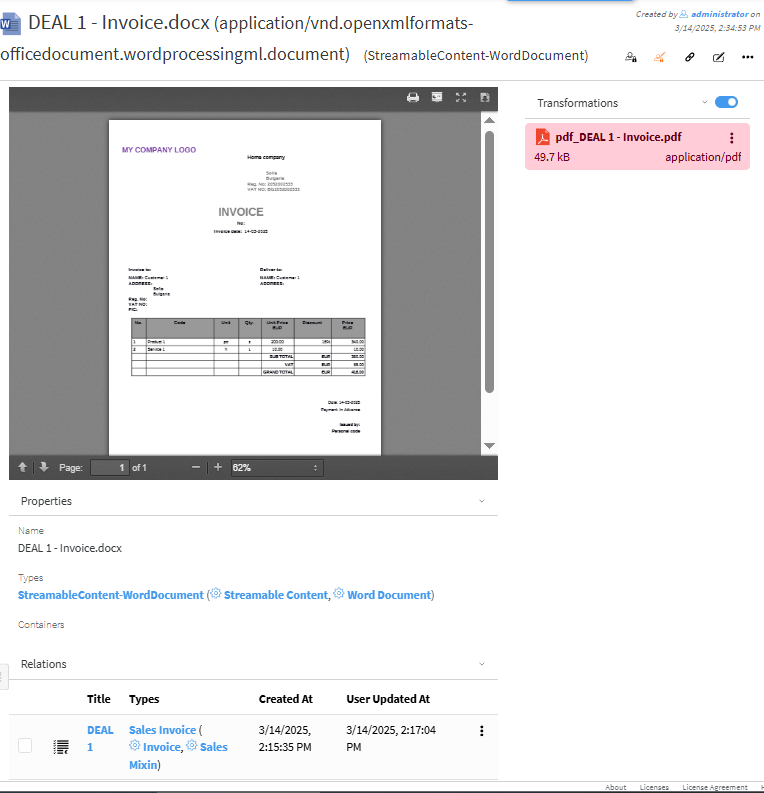](https://docs.profuzdigital.com/uploads/images/gallery/2025-03/IVXimage.png)
The process of delivering Stock items to customers is described in[ Sales Transfer ](https://docs.profuzdigital.com/books/profuz-lapis-user-guide/page/inventory#bkmrk-sales-transfer)section
# Products and services
## Creating New Product
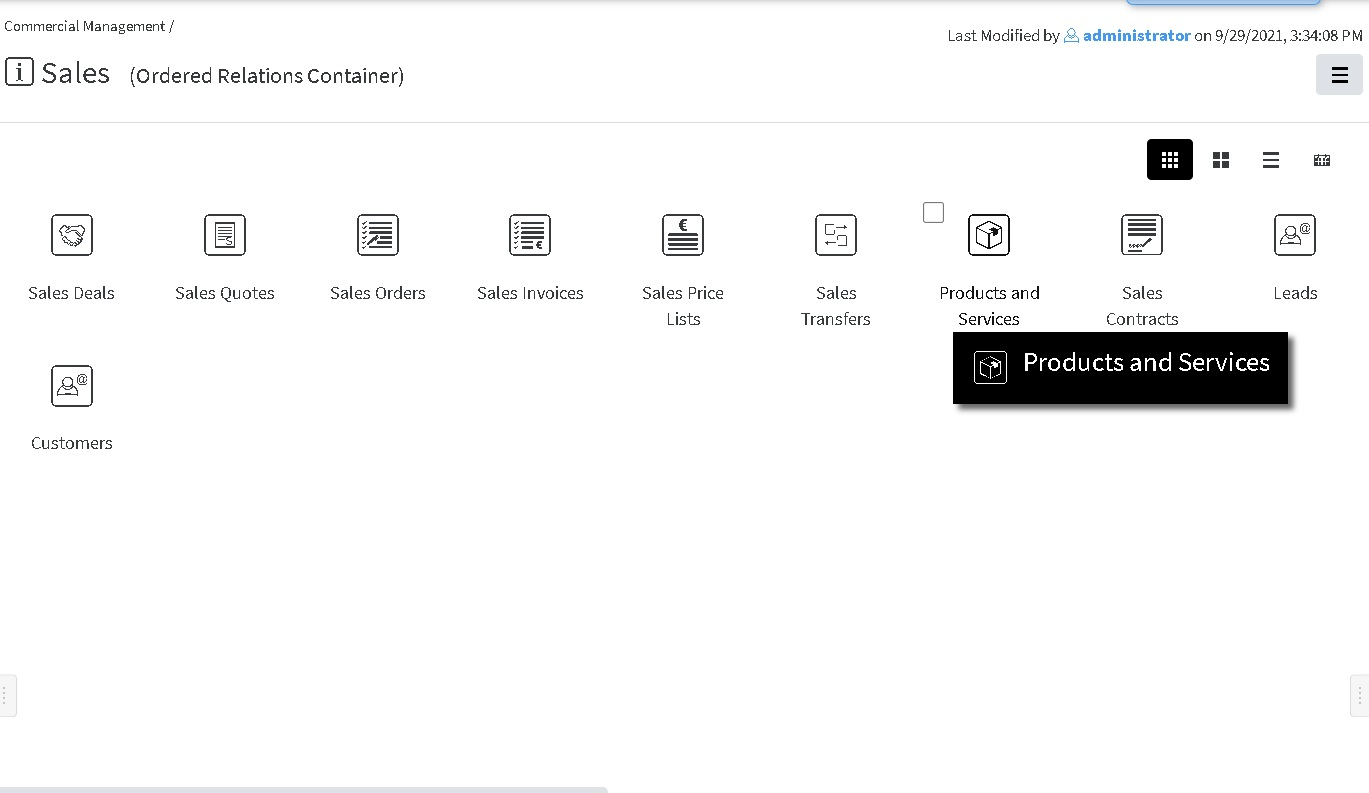
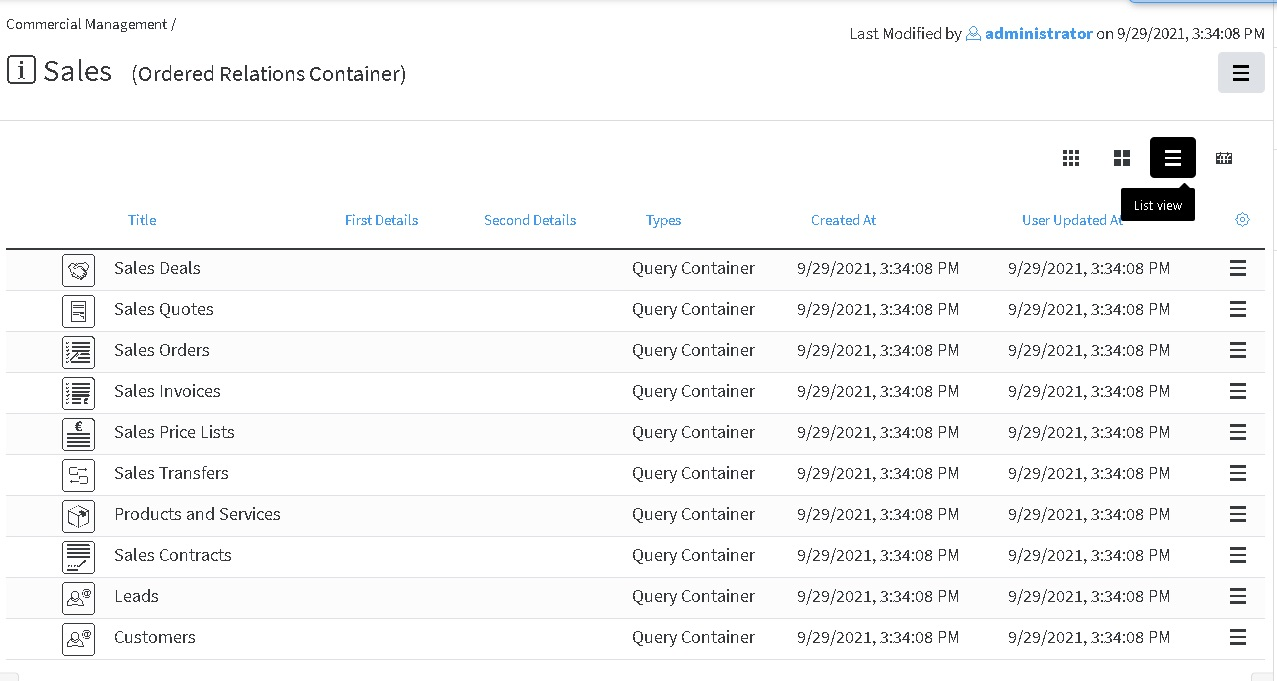
This can be done, using the corresponding buttons, directly from **Commercial Management**, **Products and Services** Container, which can be found in each **Sales**, **Purchases**, **Inventory** Containers
**Commercial Management**, **Sales** - Icons view:
[](https://docs.profuzdigital.com/uploads/images/gallery/2024-11/znZimage.png)
**Commercial Management**, **Sales** - List view
[](https://docs.profuzdigital.com/uploads/images/gallery/2024-11/H7Mimage.png)
[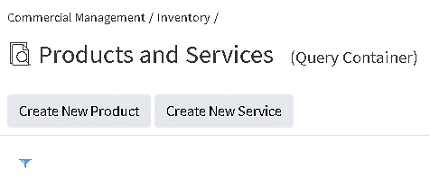](https://docs.profuzdigital.com/uploads/images/gallery/2024-11/cktimage.png)
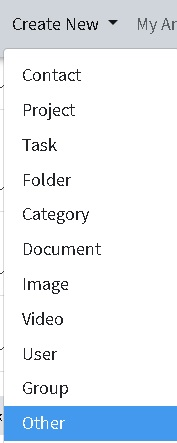
or following the general rule for creating object
[](https://docs.profuzdigital.com/uploads/images/gallery/2024-11/O8Timage.png)
[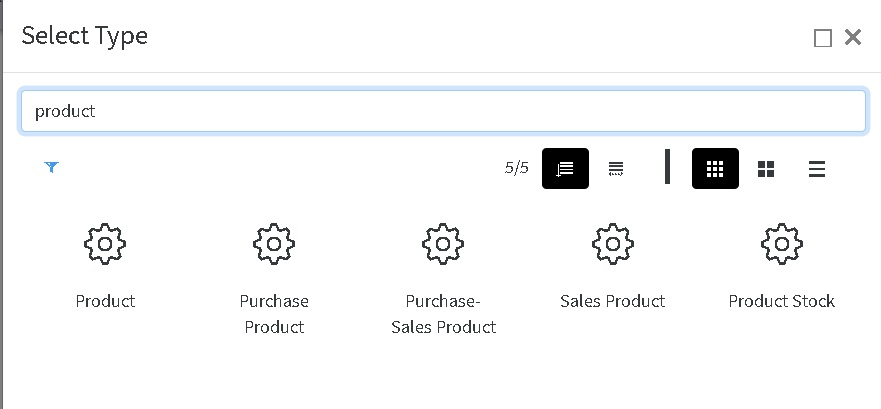](https://docs.profuzdigital.com/uploads/images/gallery/2024-11/0qyimage.png)
Depending on the purpose of the product/service it can be for Purchase only (Purchasing product), for Sale only (Sales product) or for both (Purchase-Sales Product)
When the New Object Window opens, some Common Details for all kind of products can be defined.
[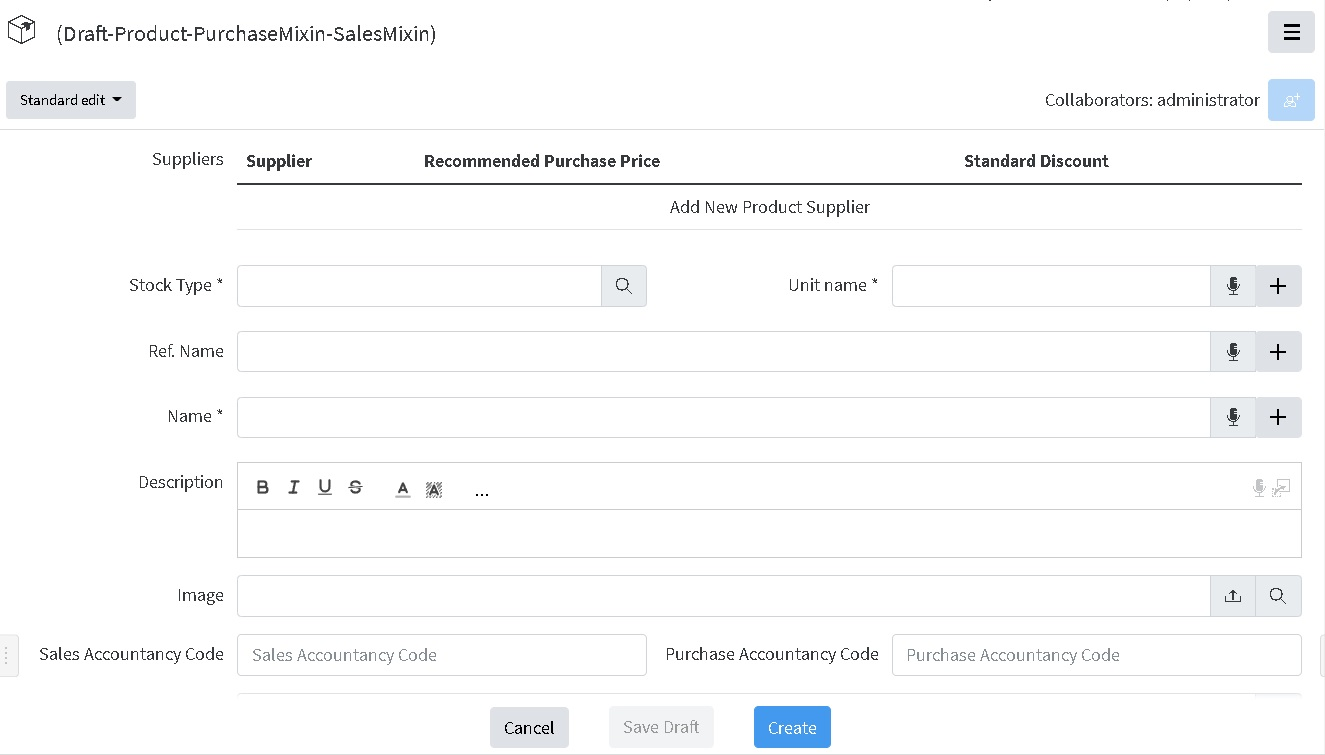](https://docs.profuzdigital.com/uploads/images/gallery/2024-11/OPkimage.png)
A supplier can be added pressing on the **Add New Product Supplier**
Supplier can be chosen by the Options that appear when clicked on the empty field near Supplier\*
[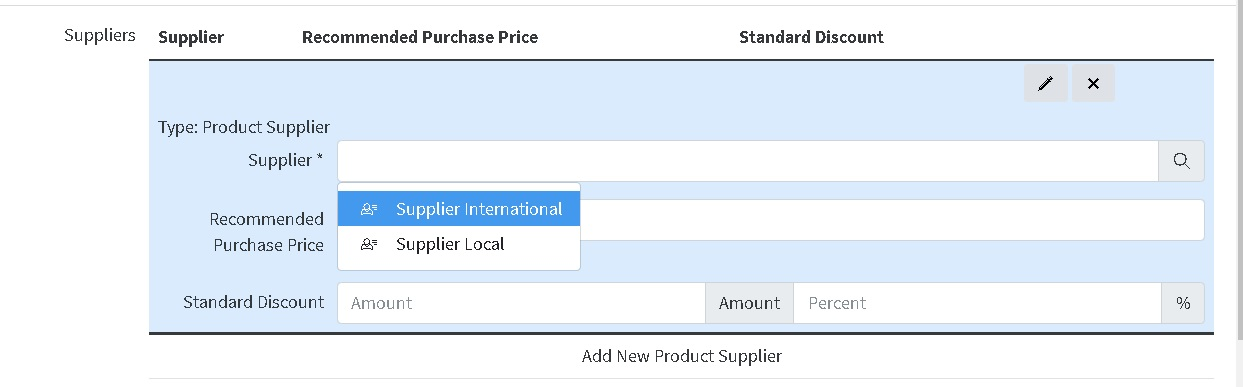](https://docs.profuzdigital.com/uploads/images/gallery/2024-11/m6bimage.png)
Then the Currency options appear by clicking directly on the text Currency
[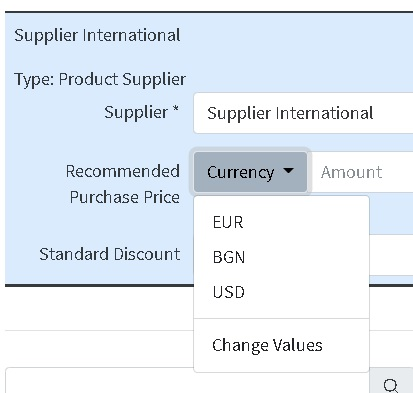](https://docs.profuzdigital.com/uploads/images/gallery/2024-11/j6yimage.png)
And the price is written in the next field
[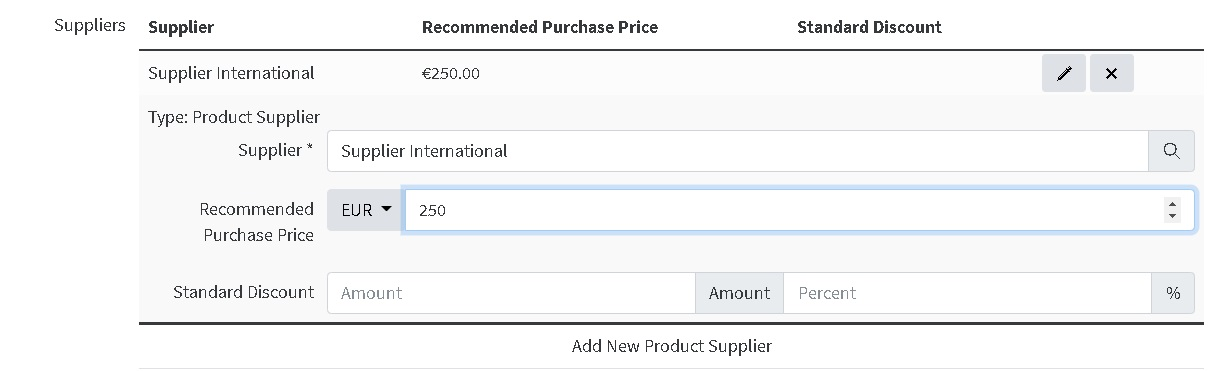](https://docs.profuzdigital.com/uploads/images/gallery/2024-11/Qteimage.png)
Then discounts can be described in fixed amount and/or percentage
If another Supplier needs to be added, that can be done in the similar way by pressing the below the already defined supplier details
The details: [Stock type](https://docs.profuzdigital.com/books/profuz-lapis-user-guide/page/inventory "Inventory"), Unit name and Name are mandatory (marked with \*). Other details are optional.In order to align with the accountancy papers, there is an option to put as details Purchase Accountancy Code and Sales Accountancy Code.
The process is finished by pressing button **Create** at the bottom of the screen.
[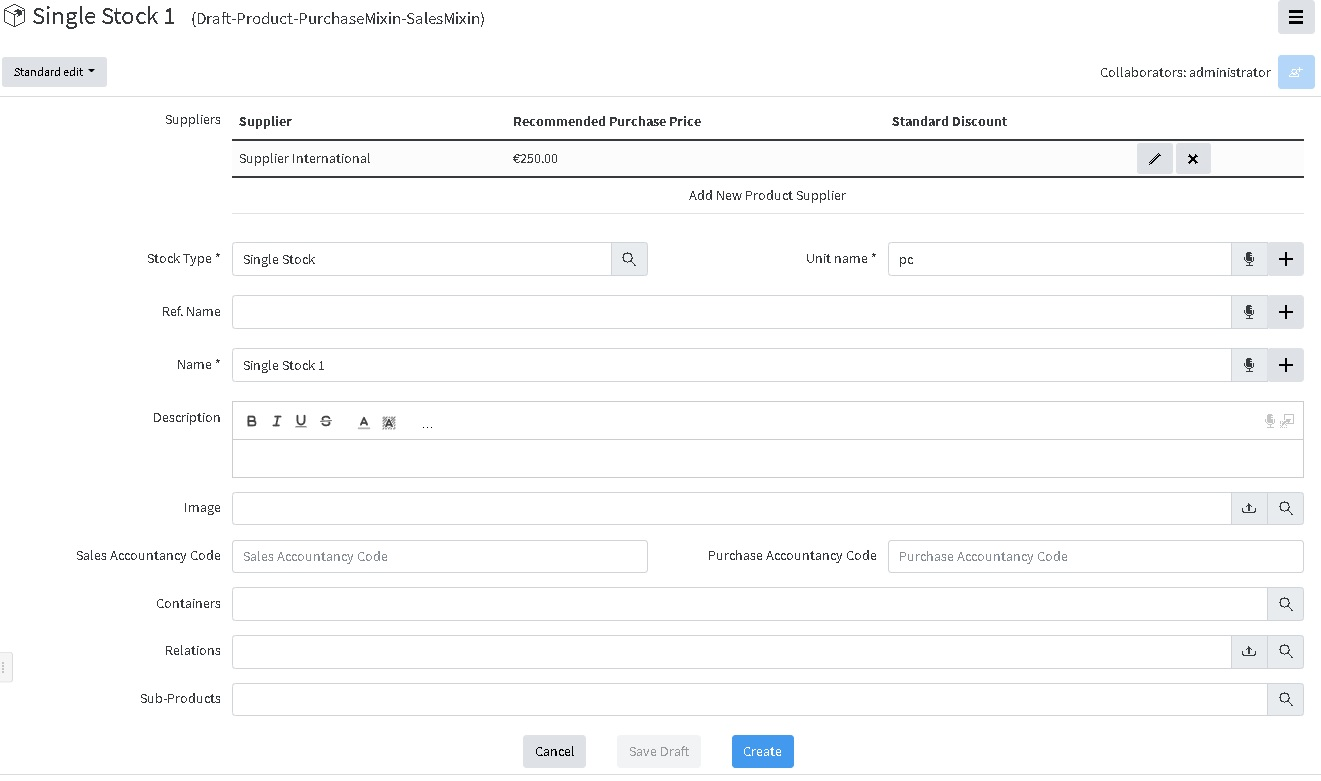](https://docs.profuzdigital.com/uploads/images/gallery/2024-11/5nHimage.png)
And this is how the Product Page looks like:
[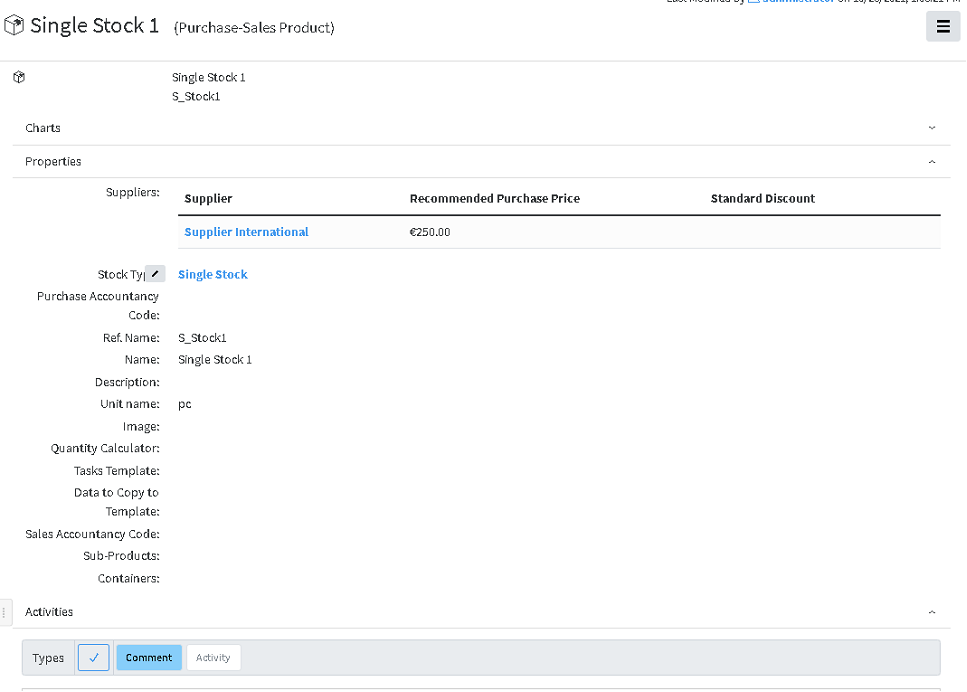](https://docs.profuzdigital.com/uploads/images/gallery/2024-11/t0Cimage.png)
here are 3 zones – Charts, Properties, Activities, that can be expanded or hidden by pressing the ^ at the end of the rows
## Creating New Service
Similarly to creating a new Product, this can be done directly from **Commercial Management**, **Products and Services** Container, which can be found in each **Sales**, **Purchases**, **Inventory** Containers
[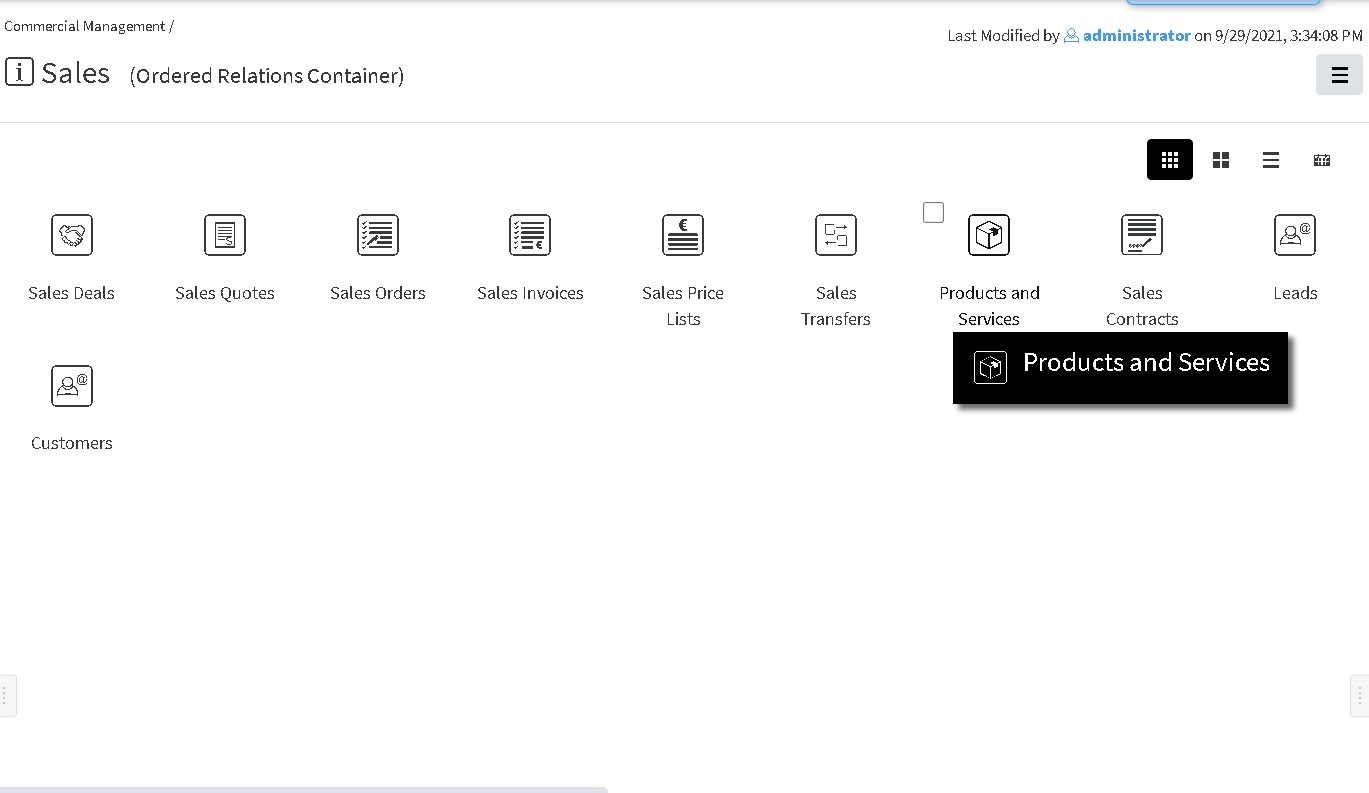](https://docs.profuzdigital.com/uploads/images/gallery/2024-11/Q9Gimage.png)
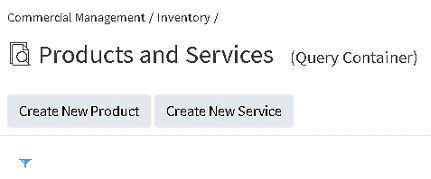
using the corresponding buttons
[](https://docs.profuzdigital.com/uploads/images/gallery/2024-11/7OIimage.png)
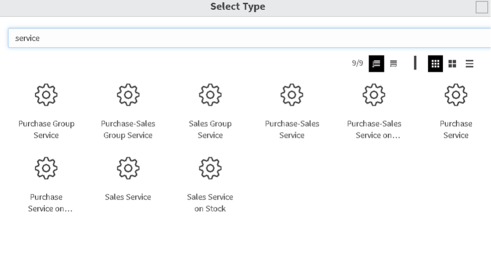
or following the general rule for creating object
[](https://docs.profuzdigital.com/uploads/images/gallery/2024-11/dhJimage.png)
Depending on the purpose of the service, there are several types of services and each has their sales, purchase, or purchase-sales variant.
**Service** – used for any services, apart from the below two cases.
**Group service** – used for many stocks, serviced under one contract with same conditions
**Service on stock** – used for service (for example maintenance) on the specific stock. When defining, the product on which that service will be applied should be specified mandatory.
[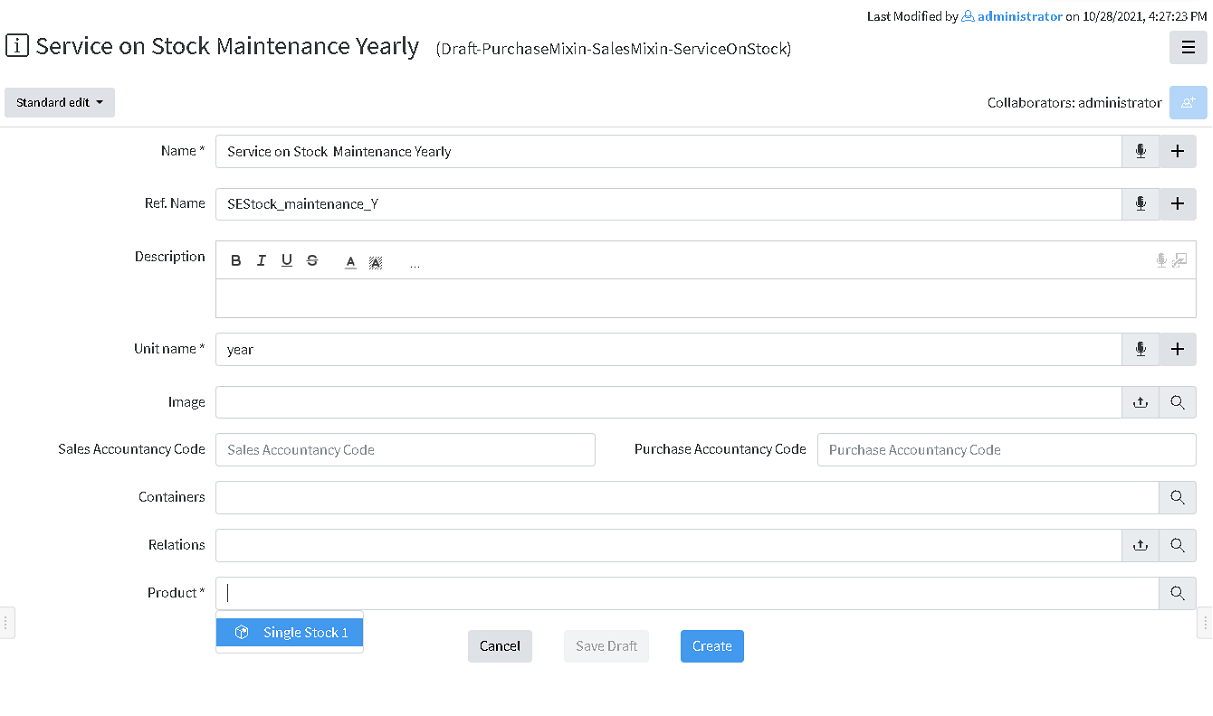](https://docs.profuzdigital.com/uploads/images/gallery/2024-11/MvKimage.png)
The process is finished by pressing button **Create** at the bottom of the screen.
[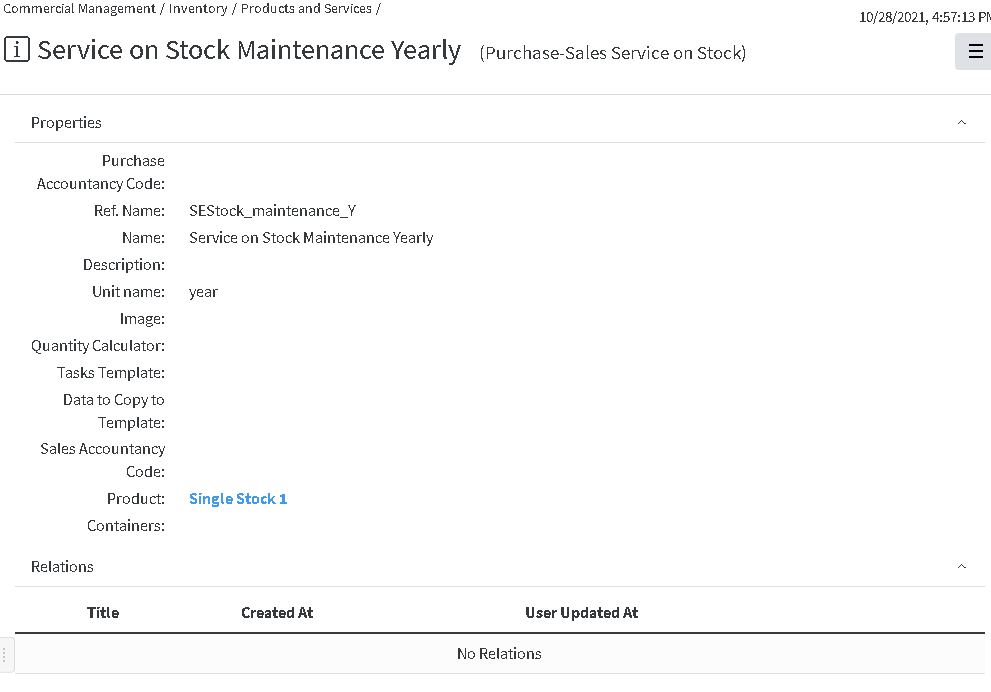](https://docs.profuzdigital.com/uploads/images/gallery/2024-11/hUVimage.png)
## Creating Price list
Creating New Price list can be done via Create New – Other and selecting Sales or Purchase Price List
[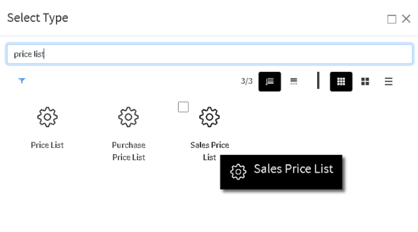](https://docs.profuzdigital.com/uploads/images/gallery/2024-11/ajJimage.png)
Let’s chose Sales Price List, then the following screen appears
[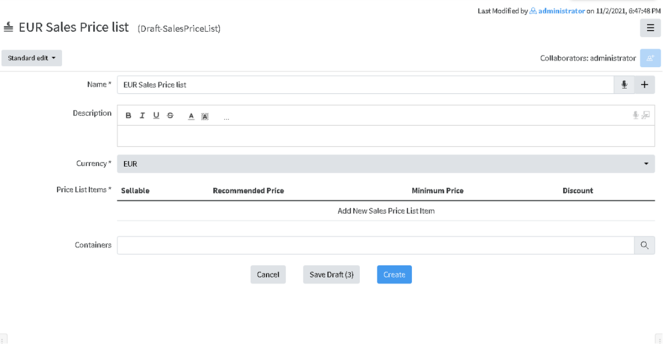](https://docs.profuzdigital.com/uploads/images/gallery/2024-11/n1Pimage.png)
To add an Item in the list just press on **Add New Sales Price List** Item a and the new area will appear
[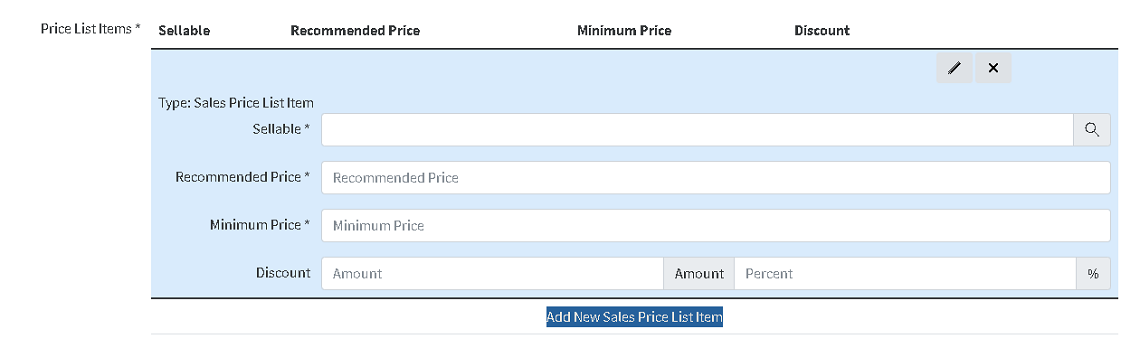](https://docs.profuzdigital.com/uploads/images/gallery/2024-11/nAAimage.png)
On a Sellable field available products or services should appear as options and one can be chosen to be included in the list
[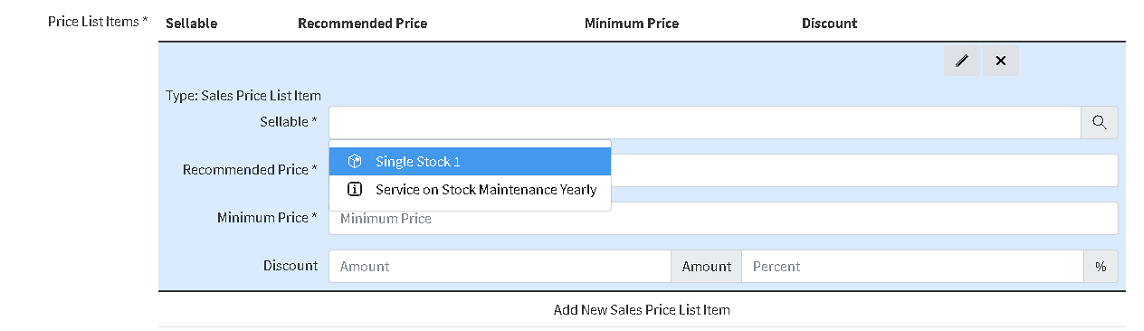](https://docs.profuzdigital.com/uploads/images/gallery/2024-11/9myimage.png)
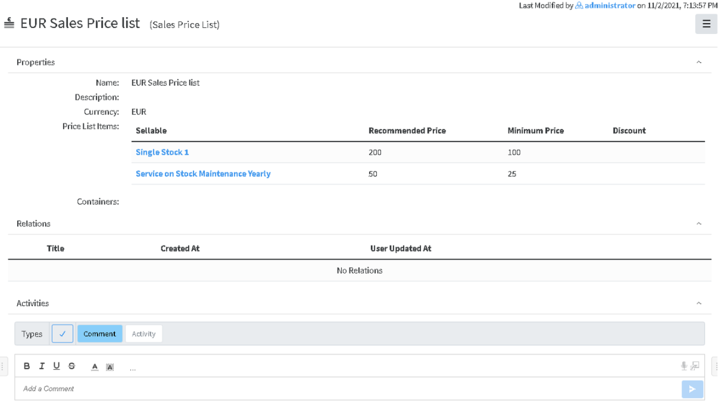
Recommended price and Minimum Price should be defined, as well as Discount amount or percent.
Another sellable item can be added by **Add New Sales Price List.**
By the pencil button  the details for each item can be shown or hidden.
[](https://docs.profuzdigital.com/uploads/images/gallery/2024-11/Dsoimage.png)
Once all details are defined, process is finished by Create button.
[](https://docs.profuzdigital.com/uploads/images/gallery/2024-11/wWqimage.png)
# Purchase process
It usually goes this way:
Purchase Deal (Optional)– Purchase Quote (Optional) – Purchase Order – Purchase Invoice – Purchase Transfer (for products) – Inventory (for Products), but it can be configured to skip some steps if do not necessary.
In oder to start, Products, services and Price lists has to be defined. Please, refer to [Products an services](https://docs.profuzdigital.com/books/profuz-lapis-user-guide/page/products-and-services "Products and services") section
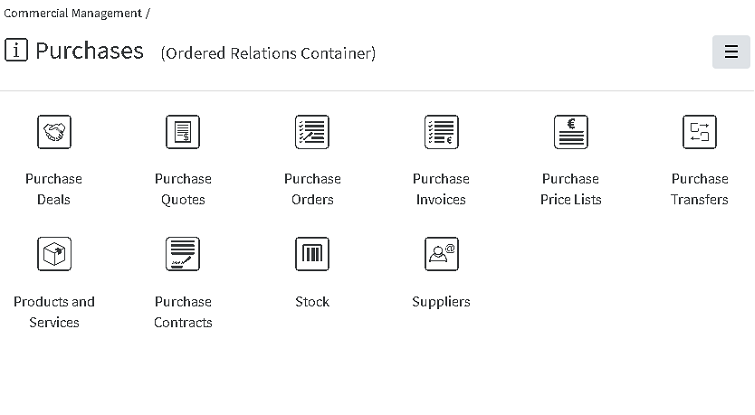
All objects part of the process or related are listed in containers **Purchases** section of **Commercial Management module.**
[](https://docs.profuzdigital.com/uploads/images/gallery/2024-11/2eRimage.png)
## Starting a Purchase Deal
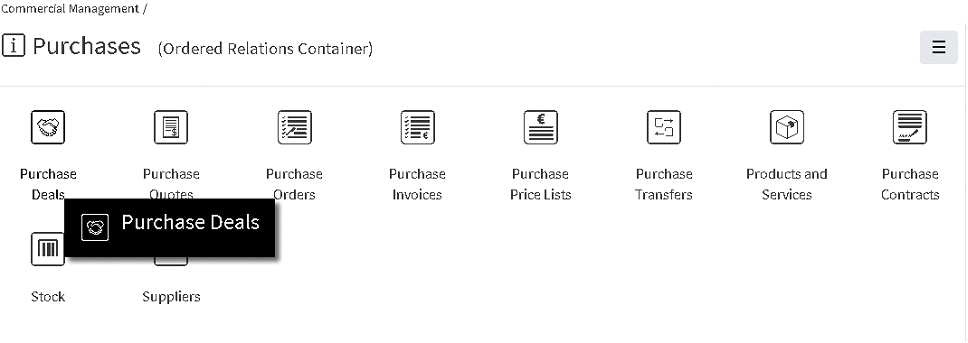
- **Starting a Purchase Deal** can be done directly from the Purchase Deals container in Commercial Management folder
[](https://docs.profuzdigital.com/uploads/images/gallery/2024-11/7Cpimage.png)
- Via button **Create New Purchase Deal**
- Or in the usual way via **Create New** Menu, **Other, Purchase deal**
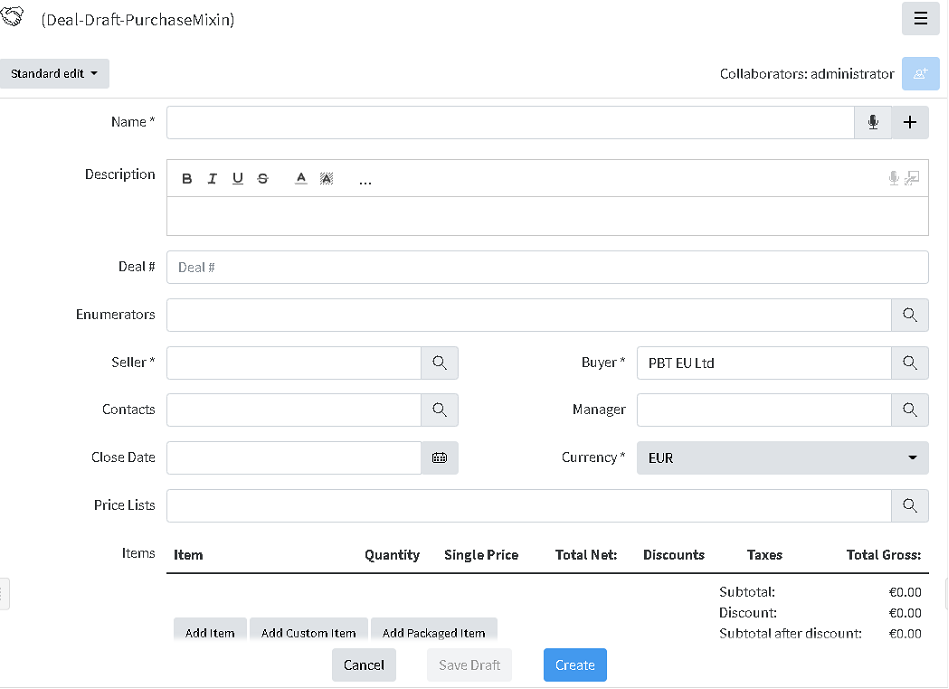
Several basic details need to be defined upon starting: Name (you choose as per important information), Seller and Buyer, Currency and Price List (Mandatory)
Seller can be chosen within suggestions, shown after entering several letters in the Seller field. The list of available options to choose from contains companies, defined as External and Suppliers. LINK TO Contacts
There are other optional details, such as Manager, Close date, Payment Method. Payment terms, Shipping method, Contacts etc., that can be added or edited later.
Enumerators can be added in advance to use automatic numbering. Creating Enumerator
[](https://docs.profuzdigital.com/uploads/images/gallery/2024-11/yrJimage.png)
Items can be added now or later on by Actions/Edit.
**Add item** is used for adding defined products/services (see Products and Services), included in the corresponding selected Price list.
**Add custom item** does the same thing, for the items, which are not defined as products, usually this is necessary for custom products, with a special description or price, needed once.
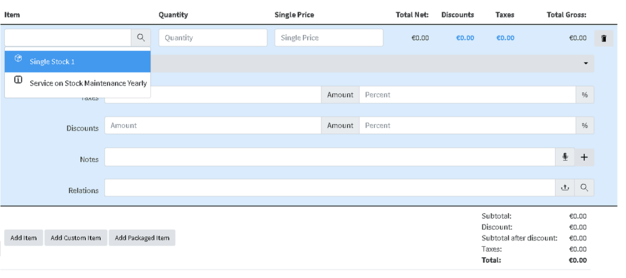
By pressing Add item, a new field is shown, where to select the item to be sold and define Quantity and Price will appear, once Quantity is selected, VAT, taxes (fixed amount or percentage, discounts (fixed amount or percentage) and relations if any.
[](https://docs.profuzdigital.com/uploads/images/gallery/2024-11/4u1image.png)
More Items can be added by buttons below.
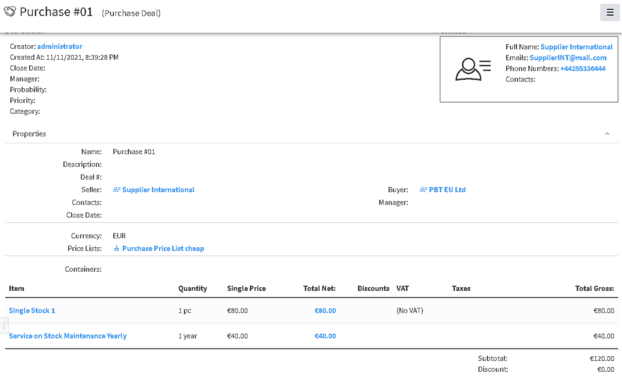
After entering all details, press Save and the item will appear in the Deal. If amendment is needed that can be done via Actions/Edit (or Edit button) and pressing on the item to view the fields described above.
[](https://docs.profuzdigital.com/uploads/images/gallery/2024-11/nIrimage.png)
Additional details such as **Probability, Priority, Category and Container** could also be defined if needed.
Deal # by default is a text, depending on the company policy for numbering Purchase deals, however automatic numbering can be additionally configured. Enumerators can be added in advance to use automatic numbering. [Creating Enumerator](https://docs.profuzdigital.com/books/profuz-lapis-user-guide/page/enumerators#bkmrk-creating-enumerator)
After entering the necessary details and Saving Deal is created. If edit is needed that can be done via **Actions** Menu/**Edit**.
#### Purchase Deal Stages
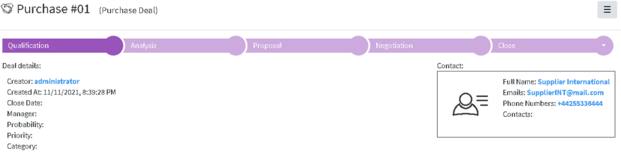
Default Stages of the Purchase Deal are: Qualification, Analysis, Proposal, Negotiation, Close (Won/Lost)
[](https://docs.profuzdigital.com/uploads/images/gallery/2024-11/3pkimage.png)
## Create a Quote from the Deal
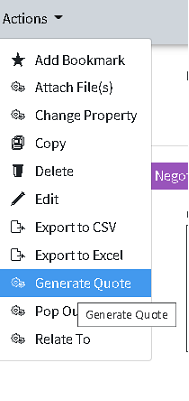
Creating a Quote from the Deal can be done in any of the Deal’s stages and That is done via **Actions** Menu/**Generate Quote**.
[](https://docs.profuzdigital.com/uploads/images/gallery/2024-11/jhdimage.png)
Once Quote is generated, the relation between the Deal and the Quote can be seen in the tabs at the bottom of the Deal object.
[](https://docs.profuzdigital.com/uploads/images/gallery/2024-11/OpXimage.png)
The generated quote has the same Title as the Deal. In order to avoid confusion, the text in brackets near the name of the Object shows the kind of Object it is (Purchase Quote).
It can be Edited by **Edit** Button or via **Actions** Menu/**Edit**.
Details can be added or edited.
Quote # by default is a text, depending on the company policy for numbering Purchase quotes, however automatic numbering can be additionally configured. Enumerators can be added in advance to use automatic numbering. [Creating Enumerator](https://docs.profuzdigital.com/books/profuz-lapis-user-guide/page/enumerators#bkmrk-creating-enumerator)
[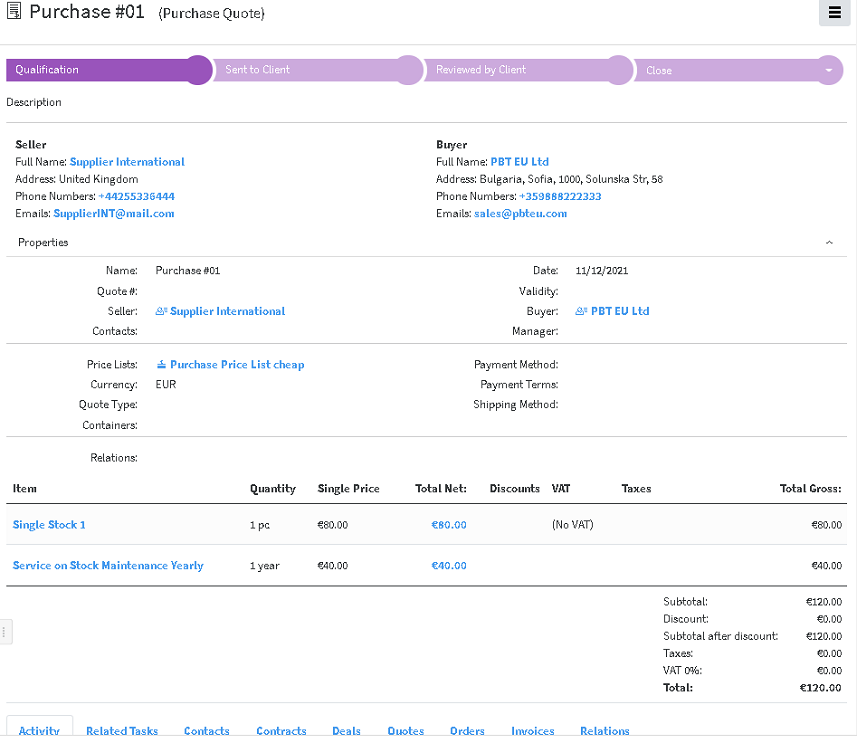](https://docs.profuzdigital.com/uploads/images/gallery/2024-11/lIjimage.png)
Quote has the following stages:
**Qualifications**, **Sent to Client**, **Reviewed By Client**, **Close (Approved/Declined)**, which can help track the different Quote stages.
If necessary, **Fill in template** operation can be used to generate previously designed template for Quotation.
Next step is Create Order from Quote
## Create Order from Quote
Order can be created from Quote or directly from the button in the Purchase Quote folder.
In case created from Quote, the details are copied to the Order created.
[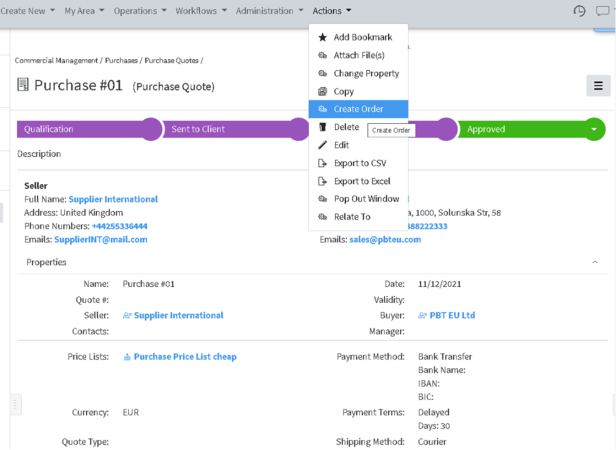](https://docs.profuzdigital.com/uploads/images/gallery/2024-11/eXsimage.png)
Again, the Purchase order created is opened automatically and can be edited or details can be added via **Edit** Button or via **Actions** Menu/**Edit**.
The generated Purchase order has the same Title as the Purchase Quote
Order # by default is a text, depending on the company policy for numbering Purchase orders, however automatic numbering can be additionally configured. Enumerators can be added in advance to use automatic numbering. [Creating Enumerator](https://docs.profuzdigital.com/books/profuz-lapis-user-guide/page/enumerators#bkmrk-creating-enumerator)
Stages of the Purchase order are as follows: Draft – Validated – Processed – Close (Delivered/Canceled)
Once it is Validated Fill in Template operation can be used to create Purchase Order documents.
It is available via button or via **Actions** Menu/**Fill in template**.
It can be used to generate from previously created template, a file in pdf format, which can be sent to the seller if necessary.
[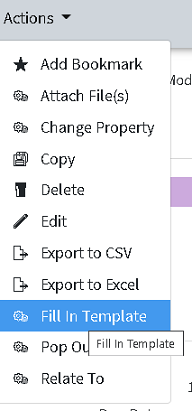](https://docs.profuzdigital.com/uploads/images/gallery/2024-11/PZQimage.png)
Here is how it can be done:
After clicking on the Fill in template button, a window opens, asking to Select the template to be used. The corresponding templates appear possible for selection
[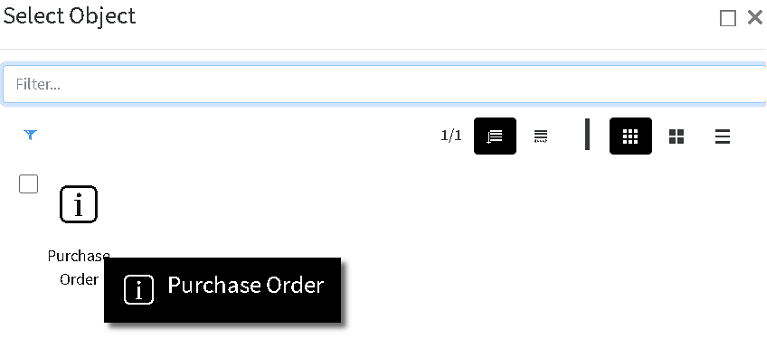](https://docs.profuzdigital.com/uploads/images/gallery/2024-11/rE2image.png)
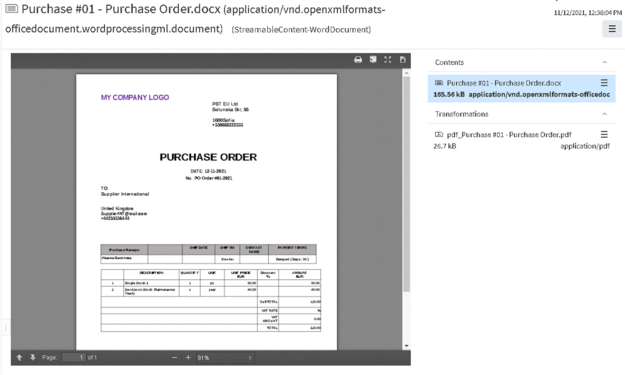
Once selected, the template is created and opened in .docx format, and the corresponding .pdf file can be seen in the Transformations field on the right.
[](https://docs.profuzdigital.com/uploads/images/gallery/2024-11/uWMimage.png)
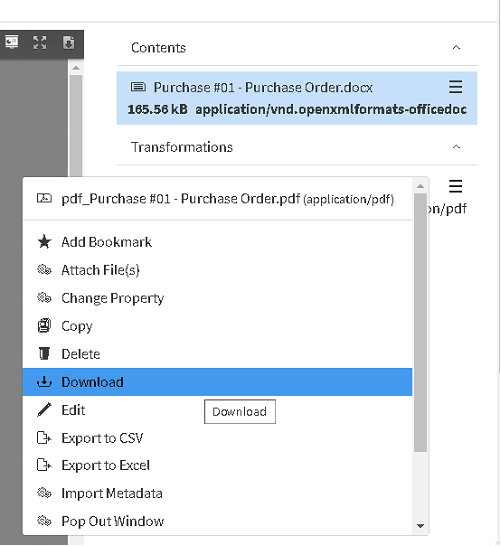
Names of the generated files are combination between Title of the Purchase order and Template name. It can be downloaded by pressing on the  sign
[](https://docs.profuzdigital.com/uploads/images/gallery/2024-11/r0Uimage.png)
When in Purchase order, these files appear in the Relations tab at the bottom
[](https://docs.profuzdigital.com/uploads/images/gallery/2024-11/5pcimage.png)
## Issue an Invoice
When proceeding to the next stage of the Purchase order - **Processed**, Issue Invoice button or Issue Invoice in Actions menu, becomes available.
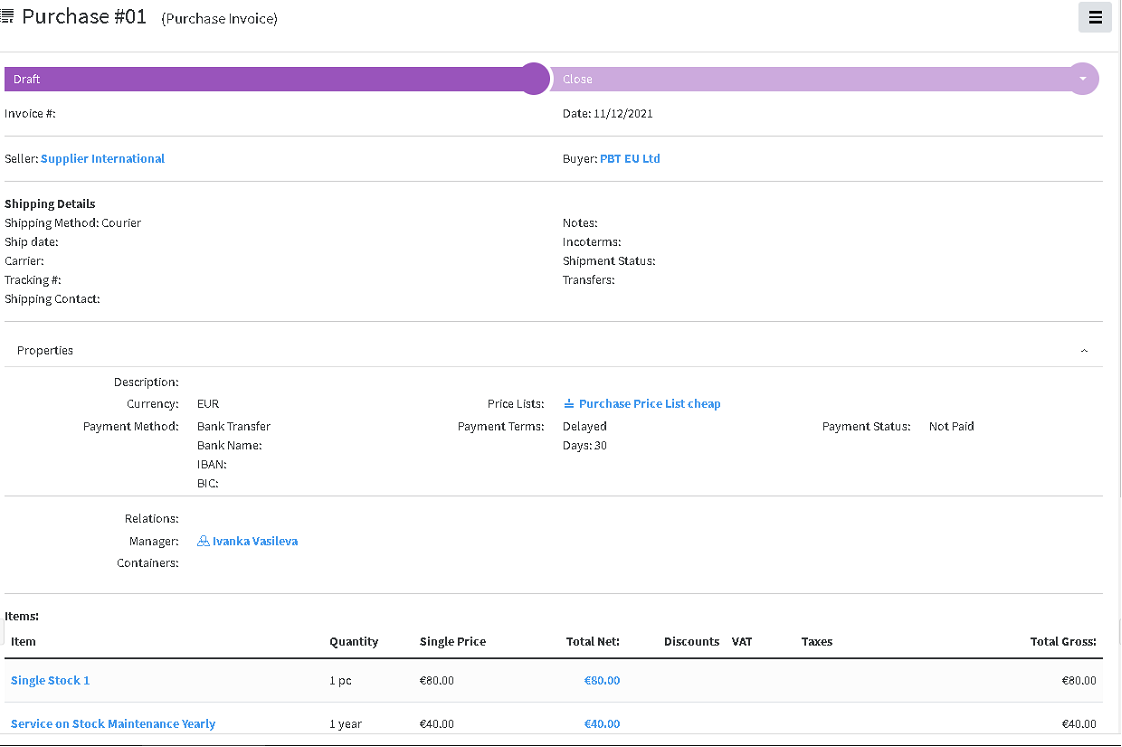
When pressing the Issue Invoice button, Invoice is created. It contains the details from the order, but some additional details appear such as: Invoice #, Date, which corresponds to the details from the Invoice from the supplier. The Invoice from supplier, if available digitally, can be uploaded in Lapis and then related to this object
[](https://docs.profuzdigital.com/uploads/images/gallery/2024-11/1N7image.png)
If **Сhipping details** are available, they can be added as well.
**Payment status** appears here and has several options, which are visible in Edit mode via quick edit
Or via **Actions** Menu/**Edit**
The Invoice status can be changed, once all available details are entered.
Once Purchase Invoice is created, it is already possible to enter the stock in the warehouse, which is done by Create transfer in
Transfer – the link to object Transfer will appear there, when available. Transfer [creates stock](https://docs.profuzdigital.com/books/profuz-lapis-user-guide/page/inventory#bkmrk-creating-stock-via-t) in the Warehouse in Inventory container, with the details from the Invoice. The process is described in [Inventory](https://docs.profuzdigital.com/books/profuz-lapis-user-guide/page/inventory "Inventory") section.
# Inventory
In the Inventory module, purchased or manufactured products are converted into Stock (with Serial or Part number) and can be kept, transferred, sold etc. Stocks are organized in Warehouses.
[](https://docs.profuzdigital.com/uploads/images/gallery/2024-11/8Jhimage.png)
#### Stock type
There are currently 4 Stock types for products in Lapis – Batch stock, Single Stock, Compound stock, Packaged stock
Batch stock allows you to create a group of multiple units of an item, and assign them a unique value/number/tag called Batch No.
Single Stock is a unique stock item, it has a unique Serial No. and each unit can be traced.
Compound stock is a stock that consists of a list of possible subproducts, which are single stock type.
Stocks are managed within the Inventory, and used in Sales and Purchases processes. Each stock corresponds to a product, defined in the system.
## Creating Warehouse
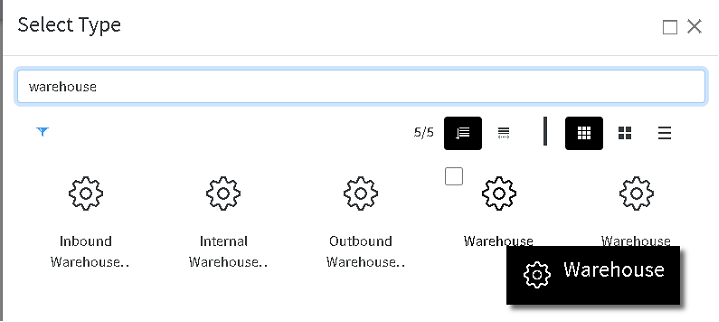
A New warehouse can be created via Create New/Other choosing Warehouse
[](https://docs.profuzdigital.com/uploads/images/gallery/2024-11/QOSimage.png)
Name, address and Supervisor can be defined, as well as some standard for the system properties like Containers, Relations etc.
[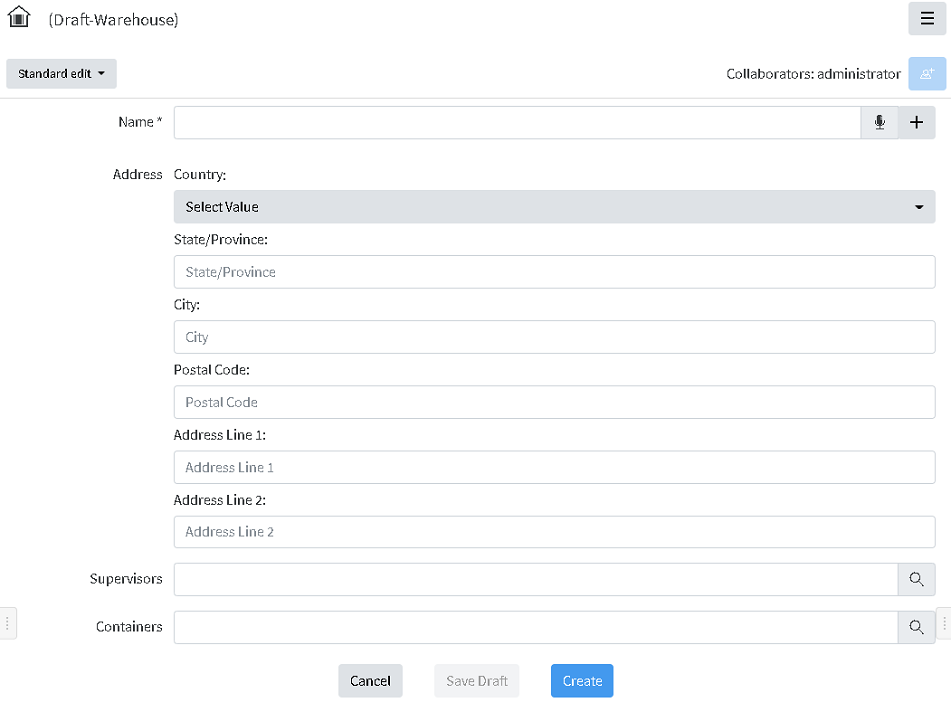](https://docs.profuzdigital.com/uploads/images/gallery/2024-11/1Bfimage.png)
By pressing Create the warehouse is ready and can be seen in the Warehouses container.
[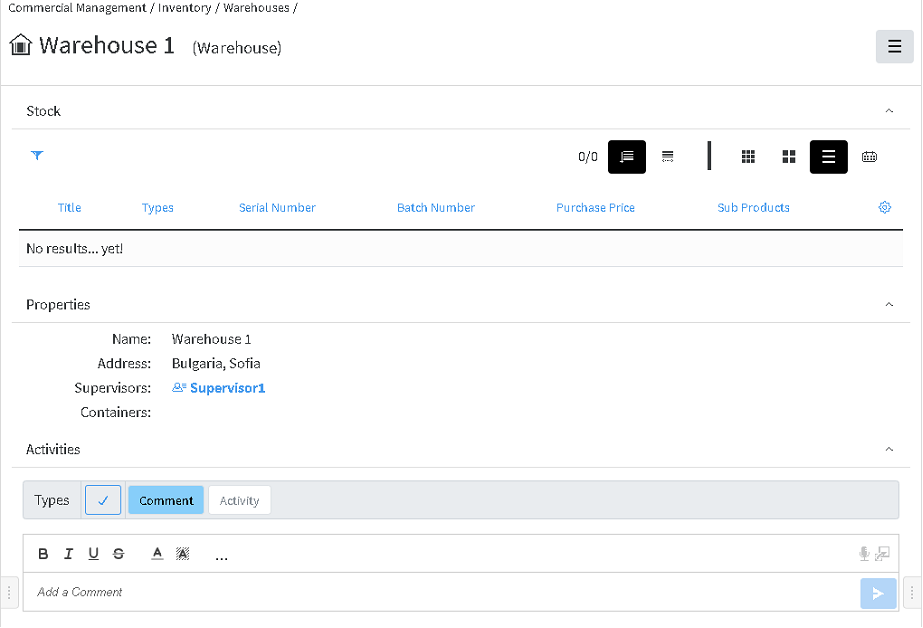](https://docs.profuzdigital.com/uploads/images/gallery/2024-11/9Zjimage.png)
## Creating Stock via Transfer
[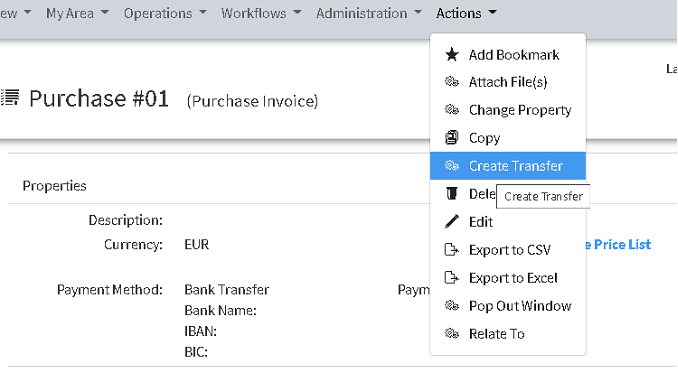](https://docs.profuzdigital.com/uploads/images/gallery/2024-11/sP1image.png)
The destination warehouse has to be selected
[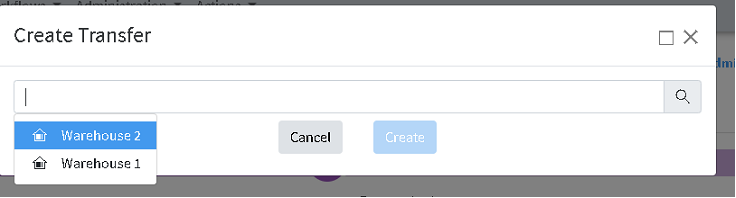](https://docs.profuzdigital.com/uploads/images/gallery/2024-11/3Biimage.png)
Choosing the warehouse and pressing Create, creates object Inbound Warehouse Transfer, which is actually Purchase Transfer.
It looks this way:
[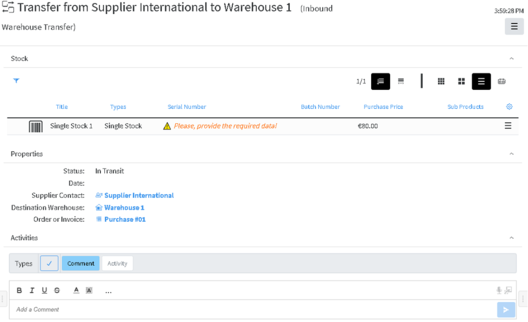](https://docs.profuzdigital.com/uploads/images/gallery/2024-11/M35image.png)
Items from the Invoice become stock in the transfer. The Serial number can be set by editing the details of the stock via Edit menu in the right end of the row
[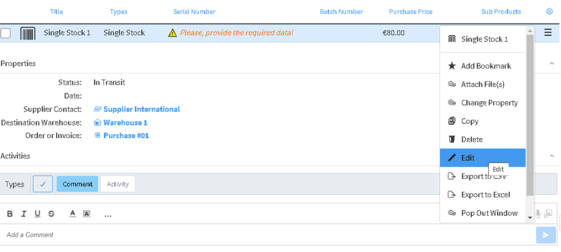](https://docs.profuzdigital.com/uploads/images/gallery/2024-11/fGIimage.png)
Then the Stock Edit screen appears, where details can be added or edited.
[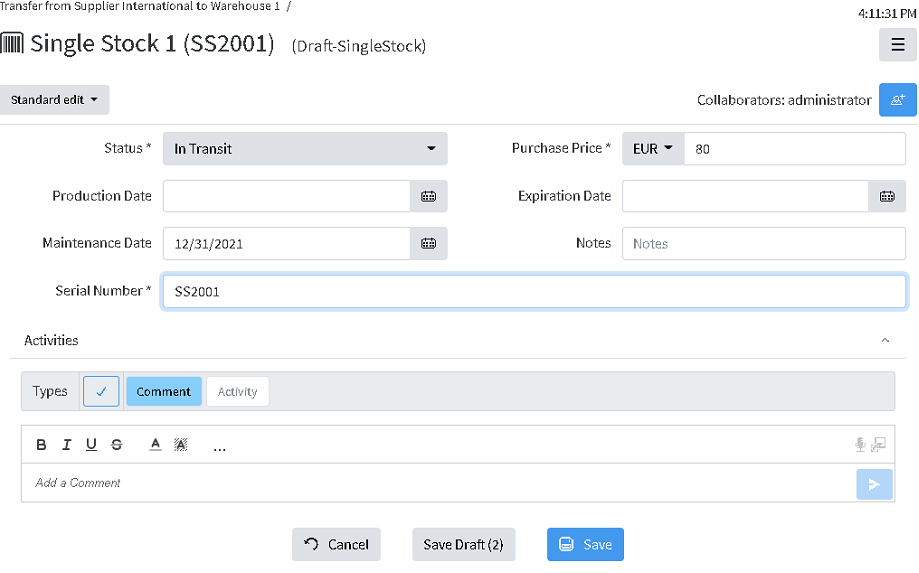](https://docs.profuzdigital.com/uploads/images/gallery/2024-11/gPDimage.png)
After saving the info appears in the Transfer.
[](https://docs.profuzdigital.com/uploads/images/gallery/2024-11/Owlimage.png)
The Tranfer is created with Status is **In Progress**, presuming that the products are shipped but not yet delivered to the Warehouse.
When the products are ready to be entered in the warehouse, the status should be set to Finished, and the Date has to be set.
Once the status is se to Finished, the stocks enter the destination Warehouse.
The Stock in the transfer appear as NON CURRENT, as new version of the stock is created, listed in the corresponding Warehouse
[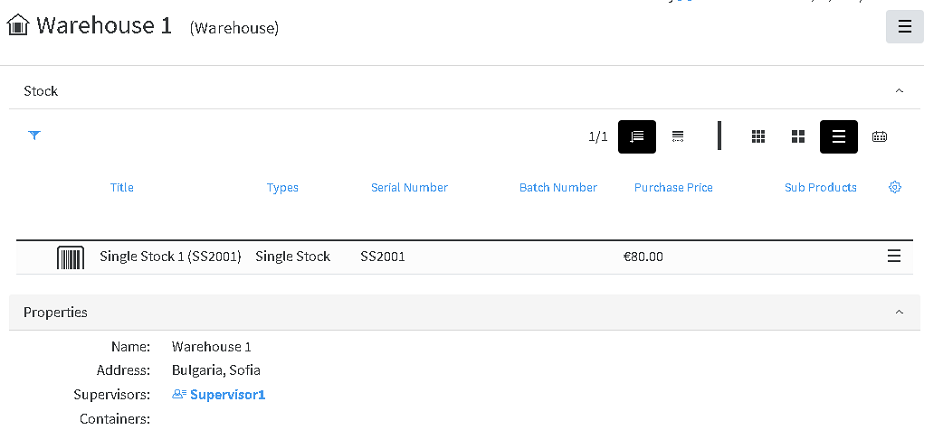](https://docs.profuzdigital.com/uploads/images/gallery/2024-11/ofvimage.png)
Clicking on the stock title, opens the stock object, with the information as follows:
[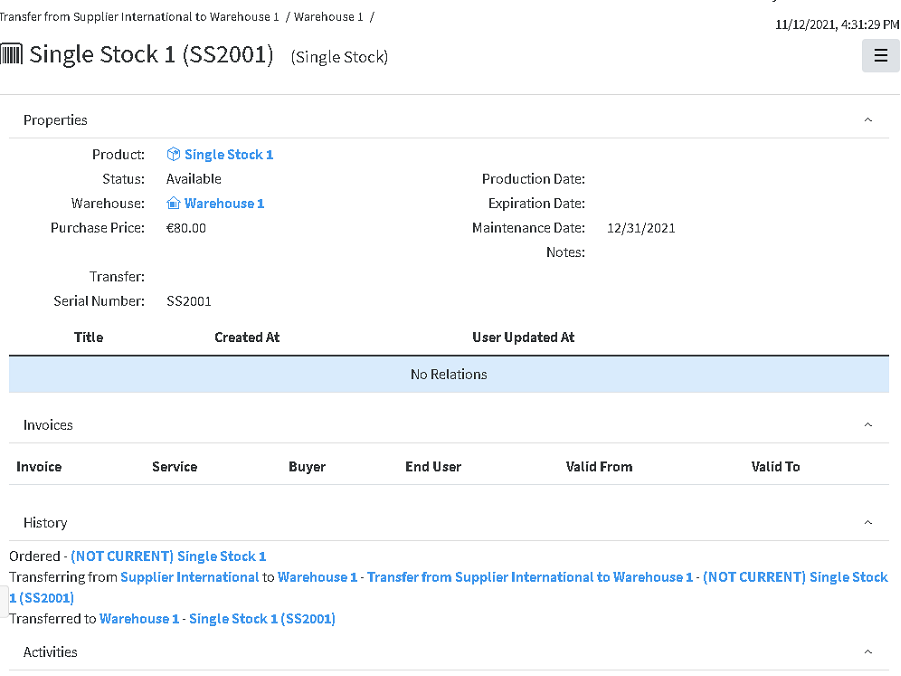](https://docs.profuzdigital.com/uploads/images/gallery/2024-11/DW0image.png)
## Stock versions
With each change in Stock status or if it the stock is a part of Transfers of some kind, the new version of the Stock object is created.
The previous versions are kept in the system for reference and tracking
Here is how to see versions of the stock, which is available:
Find the stock in the warehouse and open it.
[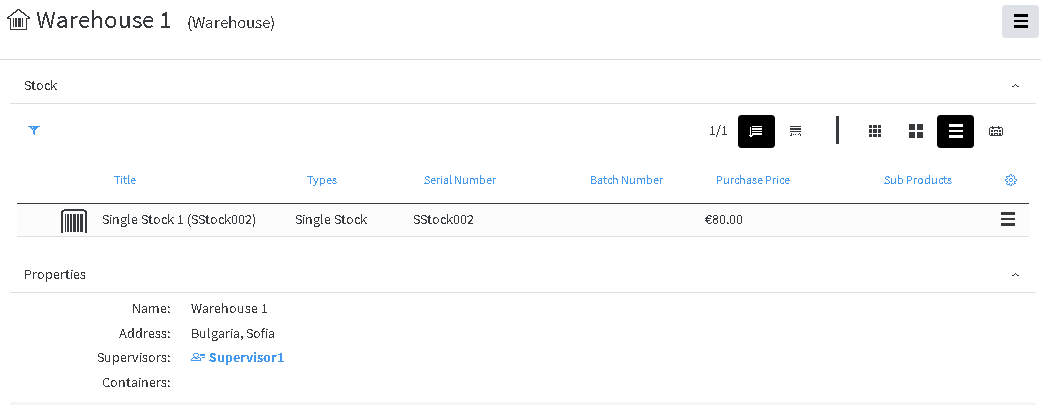](https://docs.profuzdigital.com/uploads/images/gallery/2024-11/Wguimage.png)
The number next to the name shows how many versions exist
[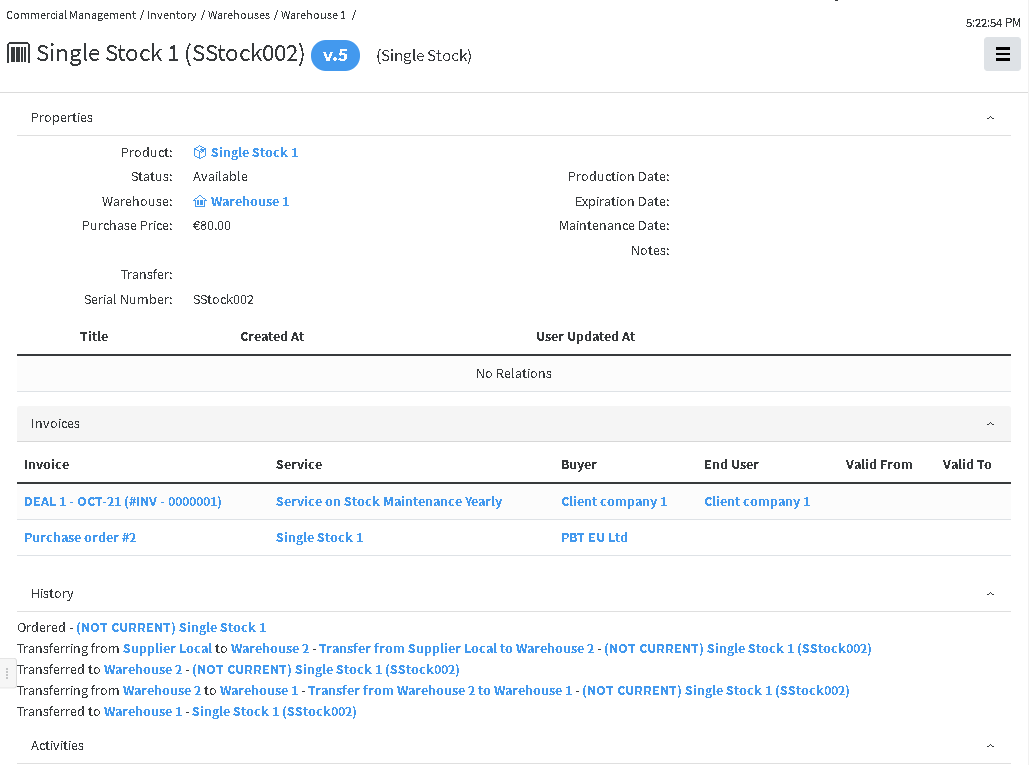](https://docs.profuzdigital.com/uploads/images/gallery/2024-11/t2Yimage.png)
By clicking on the number box, the list with versions appear
[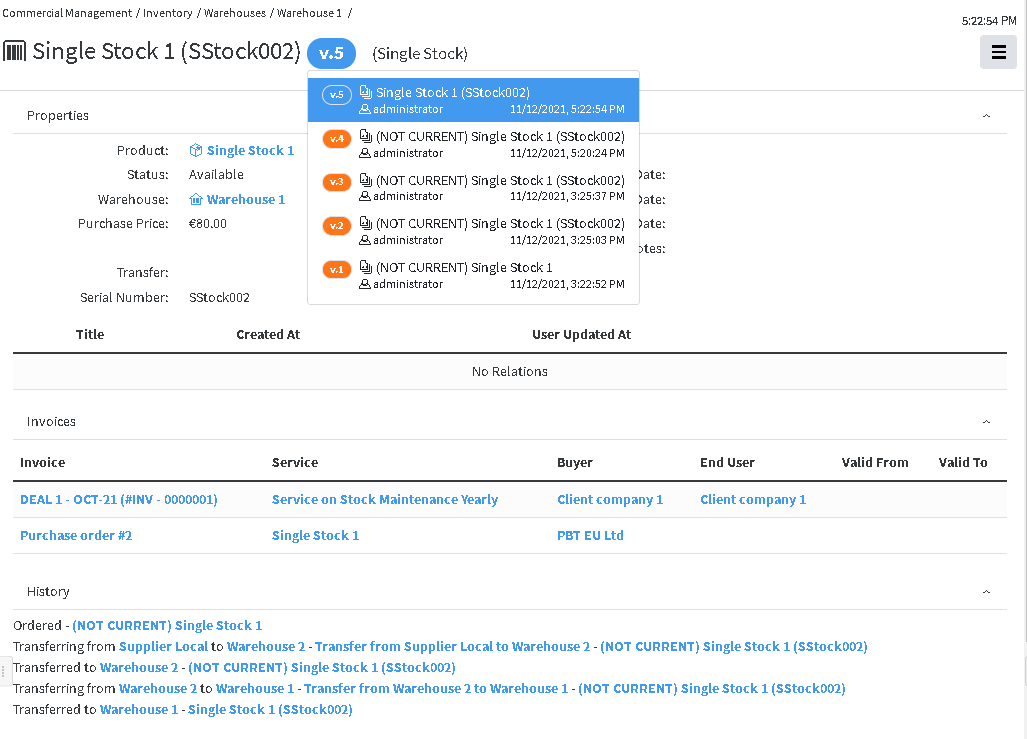](https://docs.profuzdigital.com/uploads/images/gallery/2024-11/ecDimage.png)
In the History section, the information of the transfers appear.
In the Invoices Section appear information of the Purchase Invoice and Sales invoice (if stock itself or service on it is sold)
## Transfer between warehouses
Find the product in the list of stocks In the Stock container
[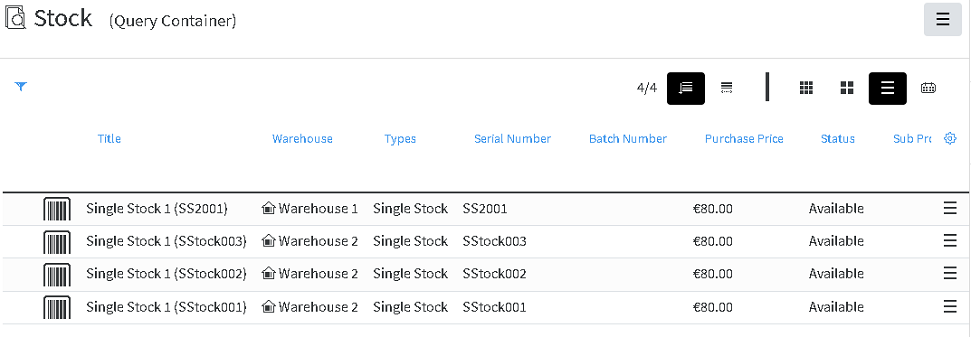](https://docs.profuzdigital.com/uploads/images/gallery/2024-11/ZbZimage.png)
or in the corresponding warehouse
[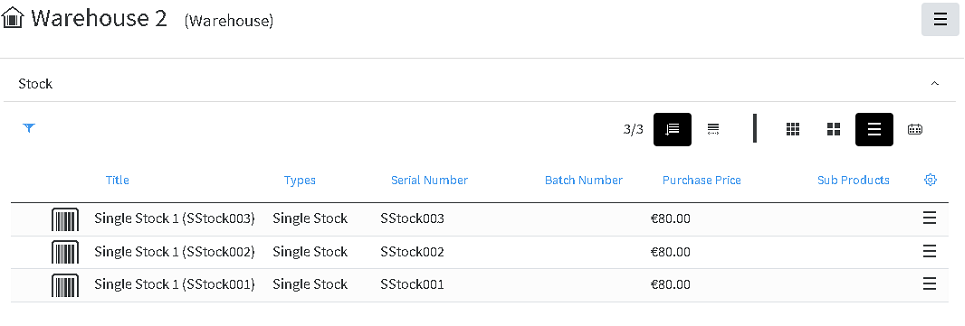](https://docs.profuzdigital.com/uploads/images/gallery/2024-11/jrVimage.png)
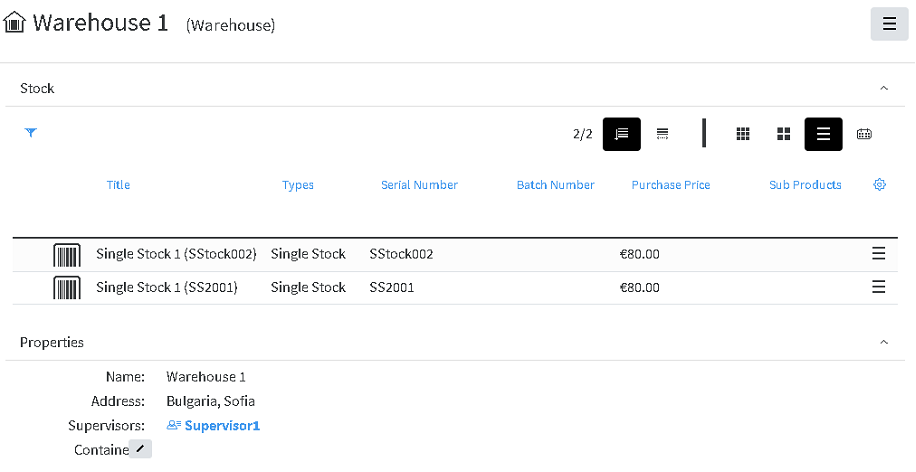
From the menu on the right of the product line, choose **Transfer** and then choose the destination warehouse, and then press Create.
[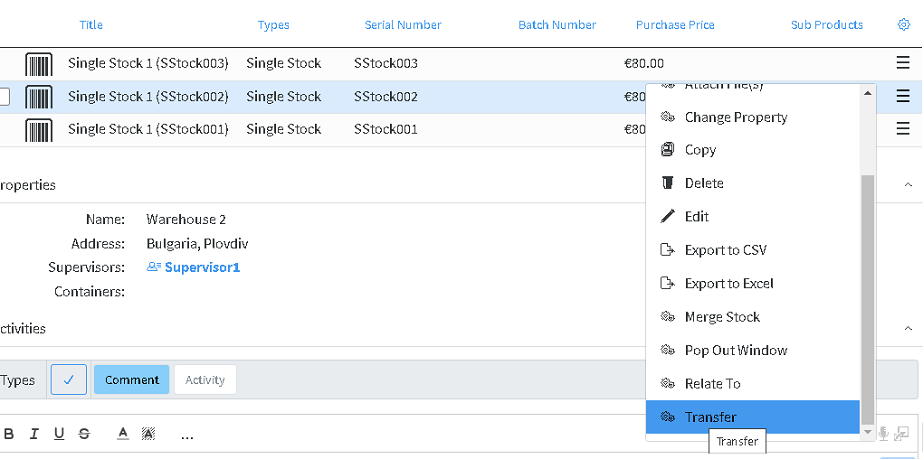](https://docs.profuzdigital.com/uploads/images/gallery/2024-11/KM4image.png)
A new transfer is created with status **In Transit**.
[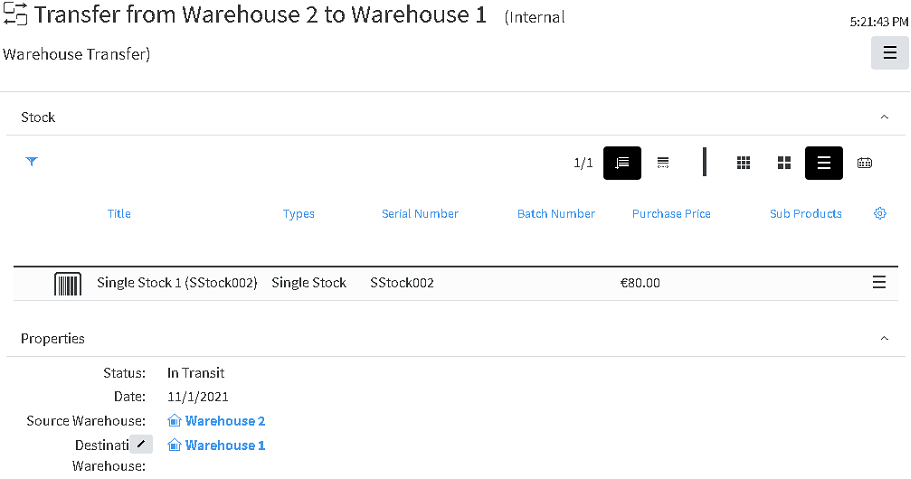](https://docs.profuzdigital.com/uploads/images/gallery/2024-11/fYaimage.png)
Once status is changed to **Finished**, the stock is moved to the Destination Warehouse.
[](https://docs.profuzdigital.com/uploads/images/gallery/2024-11/JgAimage.png)
## Sales Transfer
During the Sales process, on the Order stage, after validation of the order, the status cannot be changed to Processed, if stocks are not defined for each Item in the Order (If they are products or Service on stock. The following message will appear upon trying to do so.
[](https://docs.profuzdigital.com/uploads/images/gallery/2024-11/r5vimage.png)
Adding a stock to an Item is done by Edit operation, then by clicking of the Item line, to reveal the Item section.
If you add a stock, which does not correspond to the Item product, the following message will appear:
[](https://docs.profuzdigital.com/uploads/images/gallery/2024-11/kRfimage.png)
After selecting stocks, for all Items, the status can be changed to Processed.
Once status Processed is set, the Invoice can be issued, from which Sales Transfer can be created.
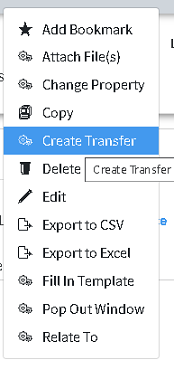
From Sales Invoice, Transfer can be created. This represents shipping and delivering goods to the Buyer.
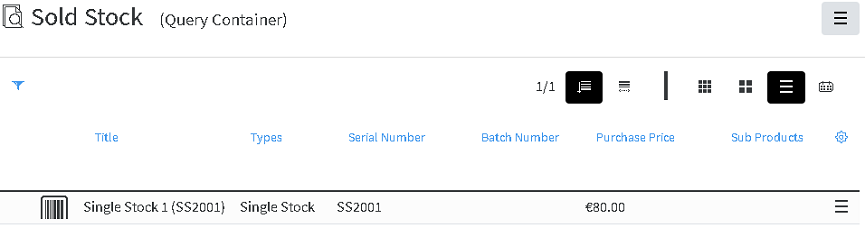
The stock is taken out of the available Stock items, and kept for reference in Sold Stock container in Inventory section.
[](https://docs.profuzdigital.com/uploads/images/gallery/2024-11/pnsimage.png)
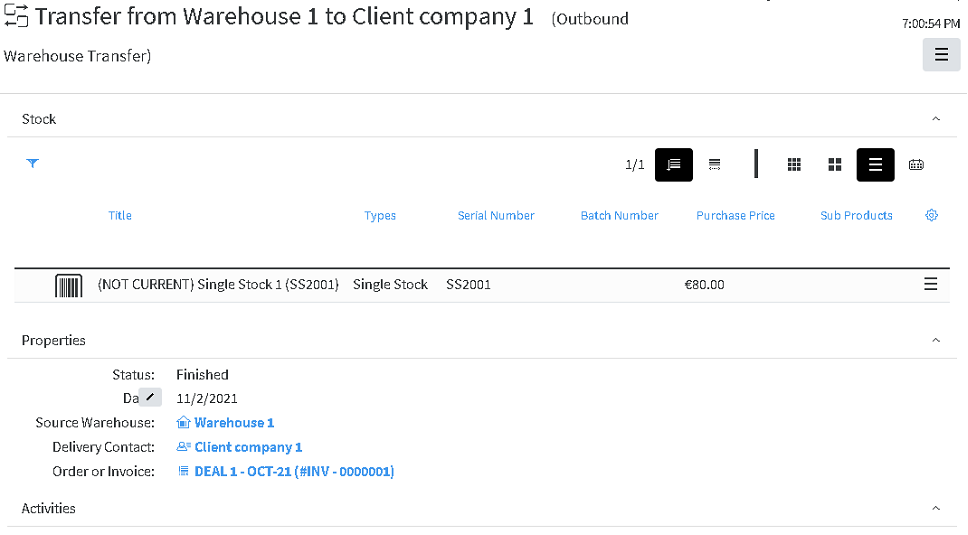
Transfer includes only stock items, not services. It is created with status In transfer.
Once the date is set and the status is changed to Finished, the stocks are moved to Sold stock container.
The new version of stock object is created and the one, listed in the transfer become NON CURRENT.
[](https://docs.profuzdigital.com/uploads/images/gallery/2024-11/cZTimage.png)
Stock items, included in Sales Invoices and included in Sales transfers with status Finished are listed in the Sold Stock Container in Inventory.
[](https://docs.profuzdigital.com/uploads/images/gallery/2024-11/2Jaimage.png)
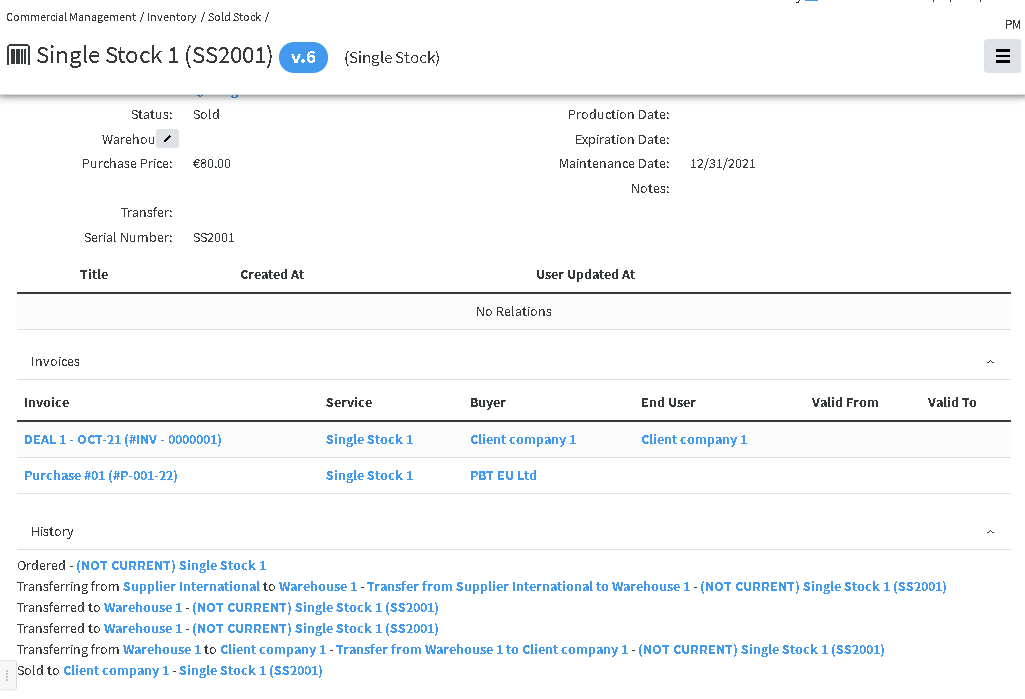
In the Stock object the info for its transfers can be foundin the History Area
[](https://docs.profuzdigital.com/uploads/images/gallery/2024-11/mCIimage.png)
# Enumerators
## Creating Enumerator
Automatic numbering of financial objects can be defined. Creating a rule and a format of numbering, can be done in the following way.
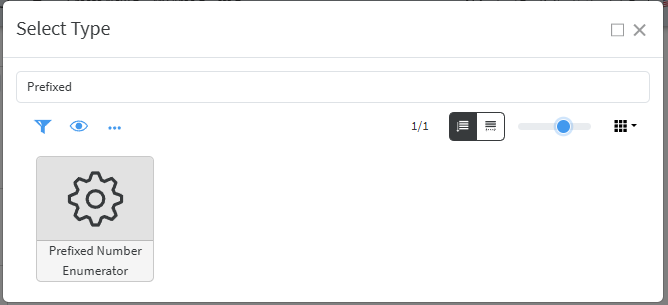
Create New/Other then find **Prefixed Number Enumerator** type
[](https://docs.profuzdigital.com/uploads/images/gallery/2025-03/O5Yimage.png)
[](https://docs.profuzdigital.com/uploads/images/gallery/2025-03/mm0image.png)
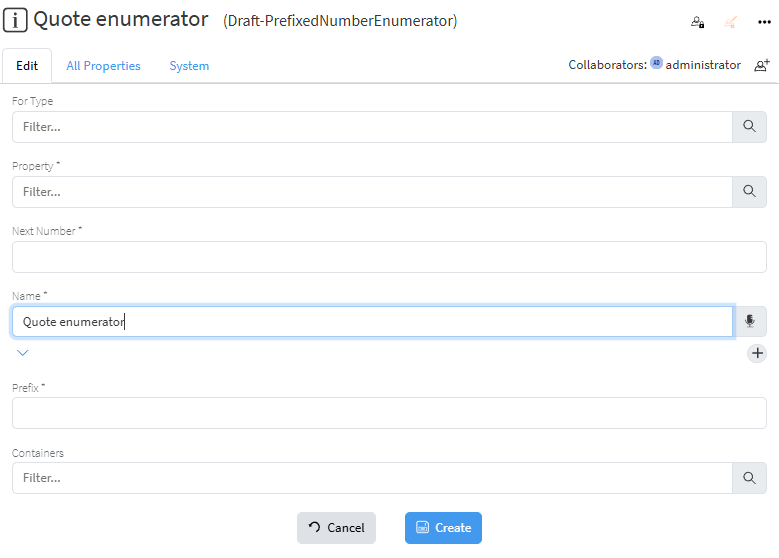
The type for which this enumerator is to be used. Let’s for example create enumerator for type **Sales Quote**.
*For type* should be defined as **Sales Quote**
*Property* is set to *Quote #* (Symbol)
*Next number* is the number from which the numbering will start
*Name* is the name of the enumerator
*Prefix* is the text used as prefix.
Once created, the enumerator will appear in the objects of type **Sales Quote** in the property *Enumerator*, when in Edit mode.
# Document Templates
## Creating Template
Template is the file to be used as a template in .docx format and has to be added in the system.
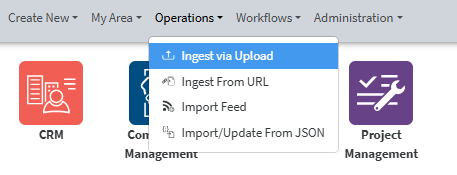
The file is added via Operations – Ingest via Upload
[](https://docs.profuzdigital.com/uploads/images/gallery/2025-02/8aqimage.png)
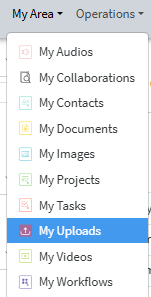
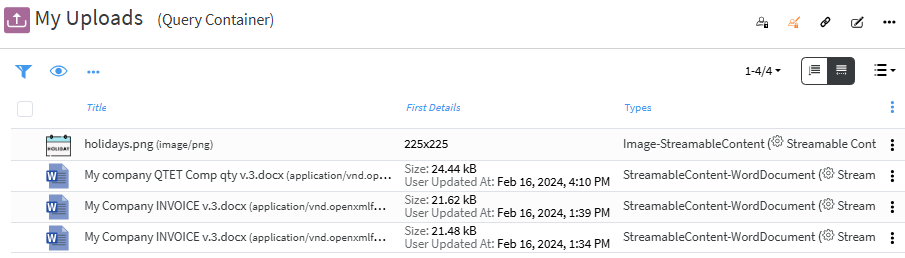
The file uploaded will then appear in My area/ My uploads section if the upload is done by you,
[](https://docs.profuzdigital.com/uploads/images/gallery/2025-02/fSZimage.png)
or has to be found in the system, if previously uploaded by someone else.
[](https://docs.profuzdigital.com/uploads/images/gallery/2025-02/kpBimage.png)
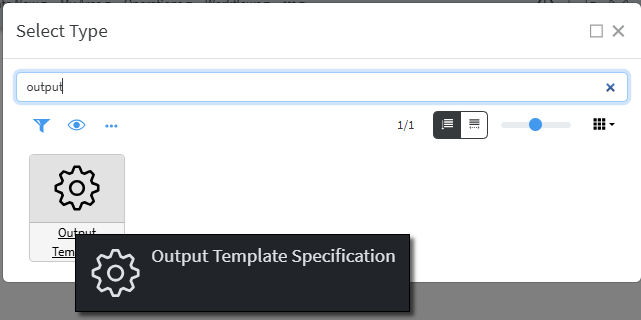
Output Template can be created by **Create New** – **Other** – **Output Template Specification** (it will appear if you start typing "output")
[](https://docs.profuzdigital.com/uploads/images/gallery/2025-02/zwhimage.png)
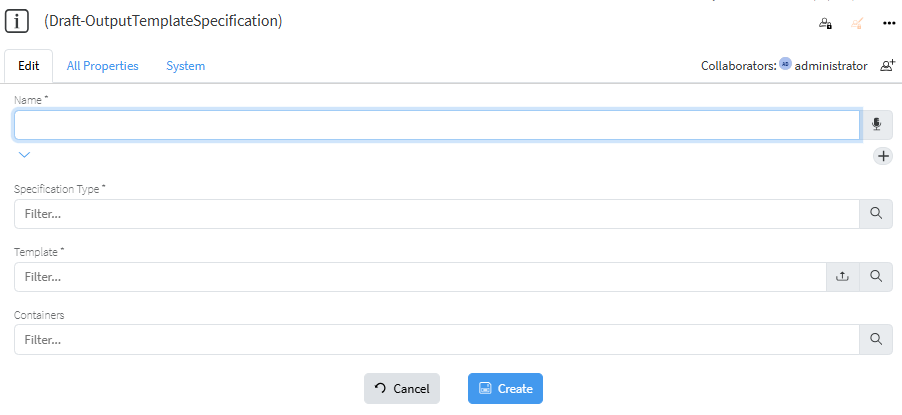
You need to set a Name and Specify the type to which that Template will be used.
[](https://docs.profuzdigital.com/uploads/images/gallery/2025-02/e4ximage.png)
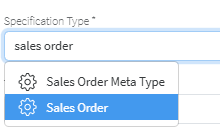
The Type has to be specified and can be easily found by typing at least one of the words in its name.
[](https://docs.profuzdigital.com/uploads/images/gallery/2025-02/yw5image.png)
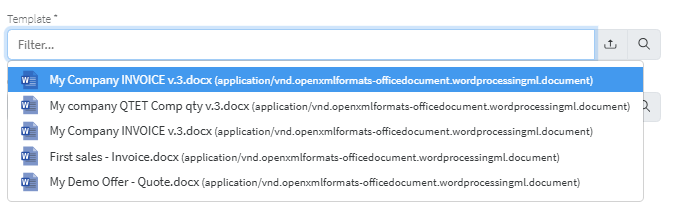
The file to be used is selected
[](https://docs.profuzdigital.com/uploads/images/gallery/2025-02/ByJimage.png)
If .docx file to be used as template is not previously uploaded in the system, that can be done directly from this step by pressing on the [ ](https://docs.profuzdigital.com/uploads/images/gallery/2025-02/UNwimage.png) which will open file manager to choose file from your computer to upload (ingest).
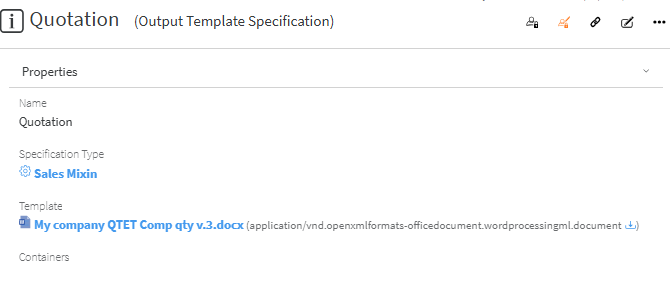
The process is finished by pressing Create button and the object is created.
[](https://docs.profuzdigital.com/uploads/images/gallery/2025-02/51eimage.png)